Project. The second managed endpoint in my own small-business Microsoft 365 tenant: a Google Pixel 8a enrolled as an Android Enterprise fully managed device in Microsoft Intune, under Microsoft 365 Business Premium, then given a business line on an eSIM.
Status: in service. Built 2 October 2026, in one session. Hardening (compliance, Conditional Access) is a separate follow-on project covering this phone and the work laptop together.
Names and identifiers are replaced with placeholders throughout: <ORG> stands in for the business prefix, and serial numbers, tenant details and account names are blacked out in the screenshots.
This is my own work phone, built the way I would build one for a client. The narrative version is in the companion post. This page is the technical record.
Problem
The tenant had one managed device, a laptop. The business needed a phone that was:
- Company-owned and wholly managed - not a personal phone with a work app on it.
- Enrolled at first boot, with apps and security settings arriving during setup.
- Limited to approved apps, so nothing unvetted lands on a device that holds business email.
- PIN-only - biometric unlock disabled by policy, not by habit.
- A usable business line with a hotspot for the laptop at client sites.
- Repeatable as the template for a client’s phones.
Environment
| Component | Detail |
|---|---|
| Device | Google Pixel 8a, unlocked |
| Operating system | Android 17, September 2026 security patch (patched before provisioning) |
| Licensing | Microsoft 365 Business Premium + Copilot (Intune Plan 1, Entra ID P1) |
| Management mode | Android Enterprise fully managed (corporate-owned, single user) |
| Google side | Managed Google Play, bound to the tenant with an Entra account |
| Entra state | Microsoft Entra registered |
| Carrier | US Mobile, eSIM |
Design Decisions
| Decision | Choice | Rationale |
|---|---|---|
| Management mode | Fully managed over corporate-owned work profile | Single user, work-only; the owner carries a separate personal phone, so there is no personal side to protect. A work profile is the better fit where staff carry one phone for both |
| Binding identity | The admin’s Entra account (“Sign in with Microsoft”) | Supported since August 2024; no shared Gmail account to lose track of |
| Provisioning | QR code from an Intune enrollment profile | No zero-touch reseller in the purchase chain |
| Token type | Corporate-owned, fully managed (default) | The staging token does not support enrollment-time grouping |
| Grouping | Enrollment-time grouping into an assigned group owned by the Intune Provisioning Client | The phone joins the group during setup, so apps and policy apply before the home screen |
| Naming | <ORG>- |
Same pattern as the laptop; every asset name points to its serial |
| Apps | A small Required core, everything else Available | Required apps cannot be uninstalled and slow setup; Available apps are a vetted catalog in the work Play Store |
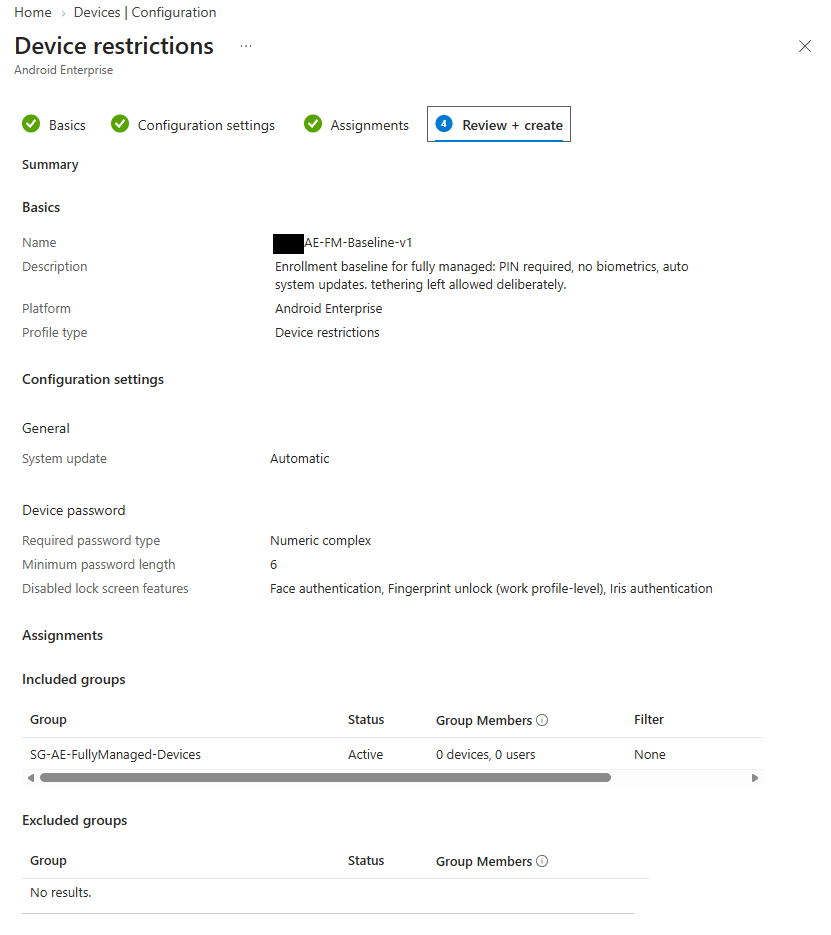
| Baseline | PIN (numeric complex, six digits), biometric unlock disabled, automatic system updates, tethering deliberately left allowed | Microsoft’s high-security sample blocks tethering - copied blindly, it would disable the hotspot the line was bought for |
| Order of operations | Patch → factory reset → enroll → eSIM | A reset keeps the OS version and can delete an eSIM; eSIM codes are usually single-use |
Build
Tenant Preparation
- Existing Google identity checked first. The domain already had a free Google Workspace Essentials Starter team. Its domain verification succeeded; its upsell to a paid edition was declined. The binding below attached to the existing managed Google identity without conflict.
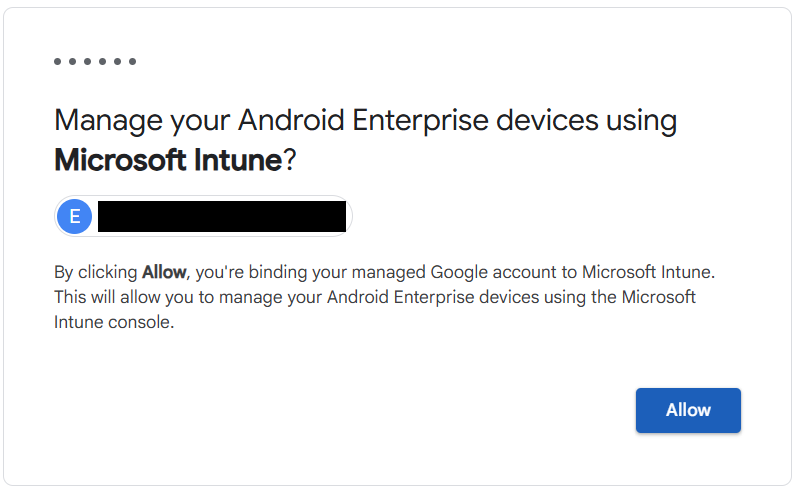
- Managed Google Play binding. Intune → Devices → Enrollment → Android → Managed Google Play → consent → sign in with the Entra admin account → Allow. The auto-generated organization name was corrected before enrollment, because it is shown to the user during setup.
- Enrollment-time group
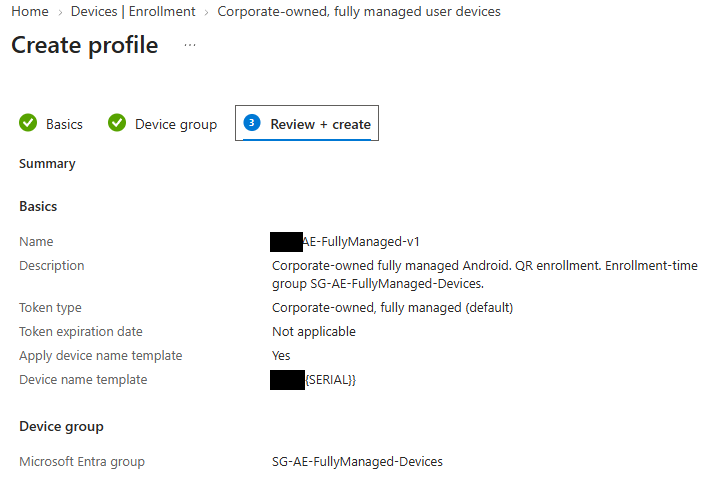
SG-AE-FullyManaged-Devices: security, assigned, owner Intune Provisioning Client (App IDf1346770-5b25-470b-88bd-d5744ab7952c). - Enrollment profile
<ORG>-AE-FullyManaged-v1: default token, name template, the group above. - Apps. Approved in the managed Google Play view inside Intune, synced, assigned to the device group - a short Required list (mail, chat, browser, Copilot, password manager), everything else Available.
- Baseline
<ORG>-AE-FM-Baseline-v1(Device restrictions template) to the device group.
Device Preparation
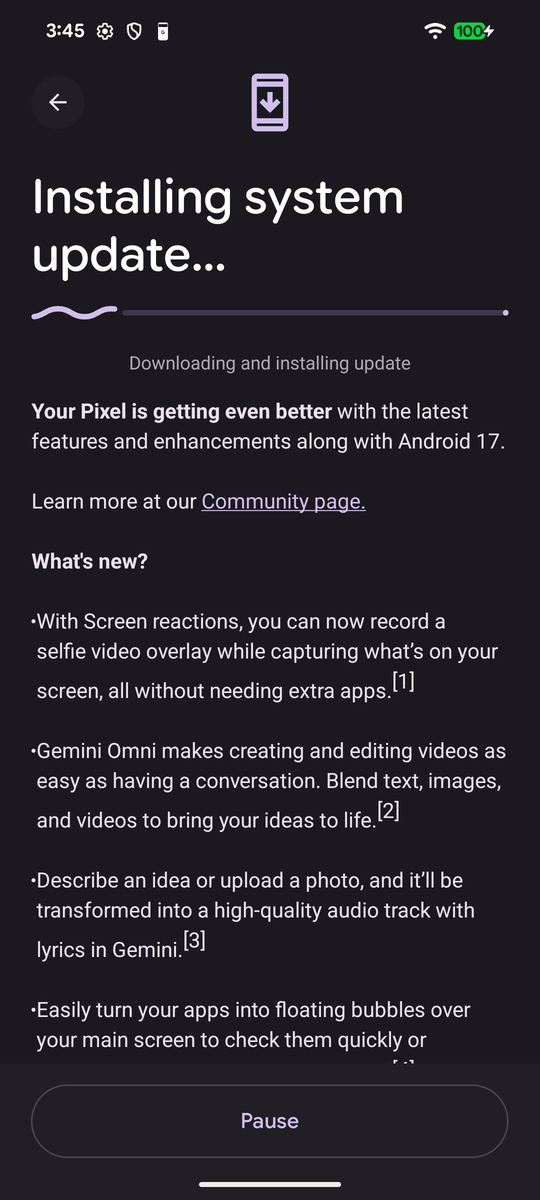
The phone had already been taken through setup to its home screen. Corporate enrollment can only be started from the setup wizard - Android grants a management app Device Owner rights only before the first user exists - so a factory reset was required. Before resetting, the phone was patched on Wi-Fi without a Google account: Android 16 (May 2026 build) → Android 17, September 2026 patch. A reset does not roll the OS back, so the phone enrolled on a current build, and the automatic update setting could not trigger a reboot mid-enrollment.
Enrollment
- Factory reset from Settings (which clears Factory Reset Protection cleanly).
- Six taps on the welcome screen → QR reader → Wi-Fi → scan the profile’s QR code.
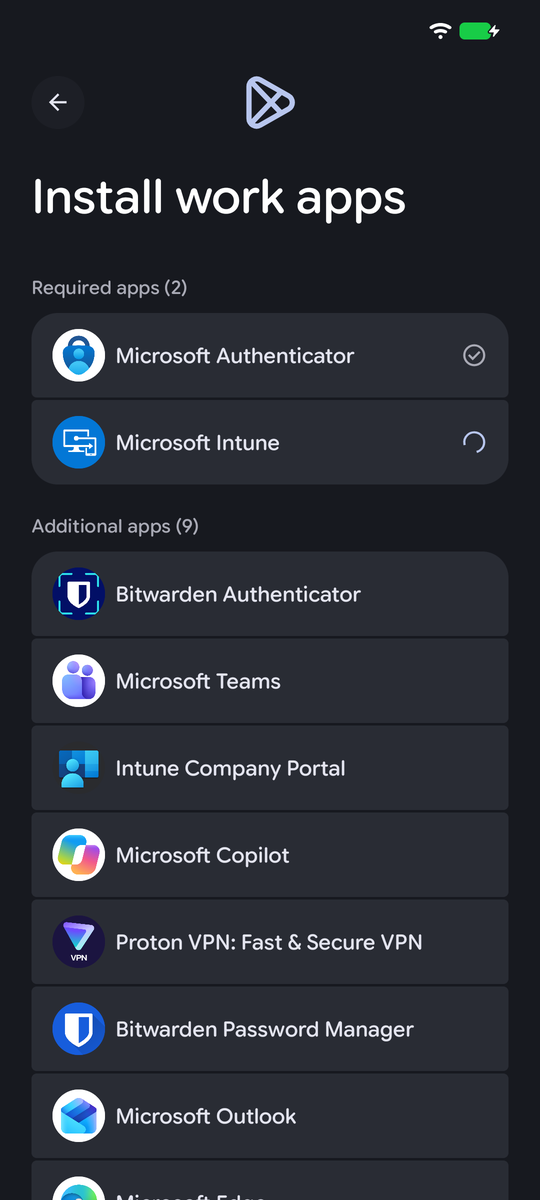
- Ownership disclosure naming the organization → sign-in with the work account in the Intune web portal → Install work apps (two Microsoft-mandated apps plus nine from the enrollment-time group, which is the proof it worked) → Entra registration → PIN. No biometric option was offered.
| Milestone | Time (MDT) |
|---|---|
| QR code scanned | 13:13 |
| Home screen | 13:19 |
Carrier Line
US Mobile Unlimited Premium on an eSIM, installed after enrollment from the carrier’s QR code (Settings → Network & internet → SIMs). Calls and texts verified both ways on and off Wi-Fi; Wi-Fi Calling enabled; the work laptop connected to the hotspot.
Verification
| Check | Method | Result |
|---|---|---|
| Ownership and mode | Intune device record | Corporate, Android (fully managed), primary user set, name template applied |
| Enrollment-time grouping | Group membership | Phone present in SG-AE-FullyManaged-Devices |
| Policy delivered | Device configuration report | Baseline Succeeded |
| Policy in effect | Settings → Device unlock on the phone | Fingerprint and Face: Disabled by admin |
| Hotspot | Settings → Hotspot & tethering; laptop connection | Available; laptop connected |
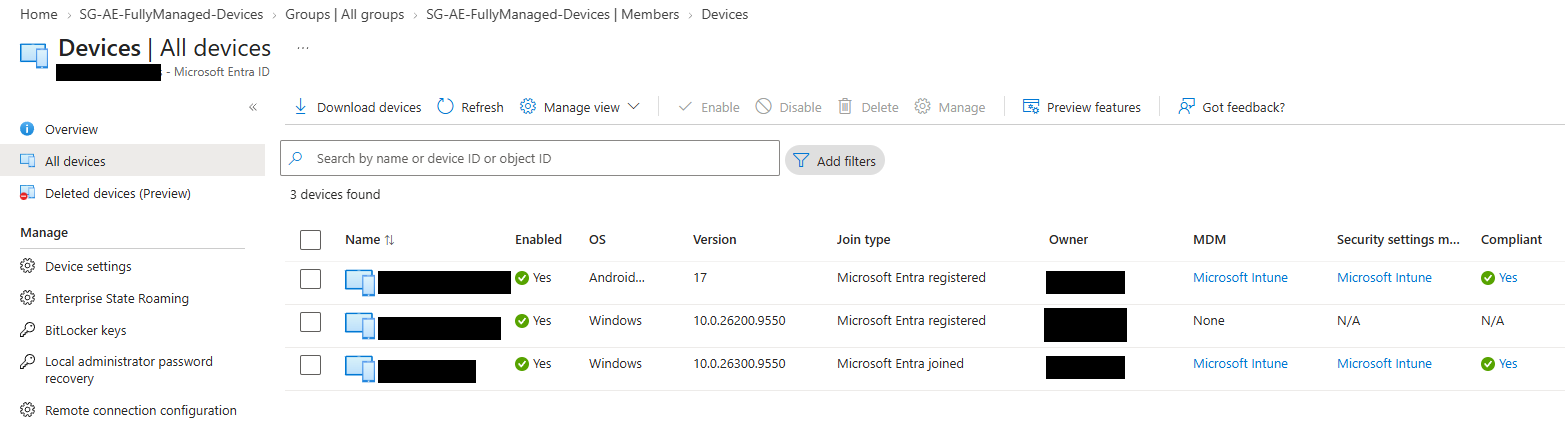
| Identity | Entra device list | Microsoft Entra registered, MDM Intune |
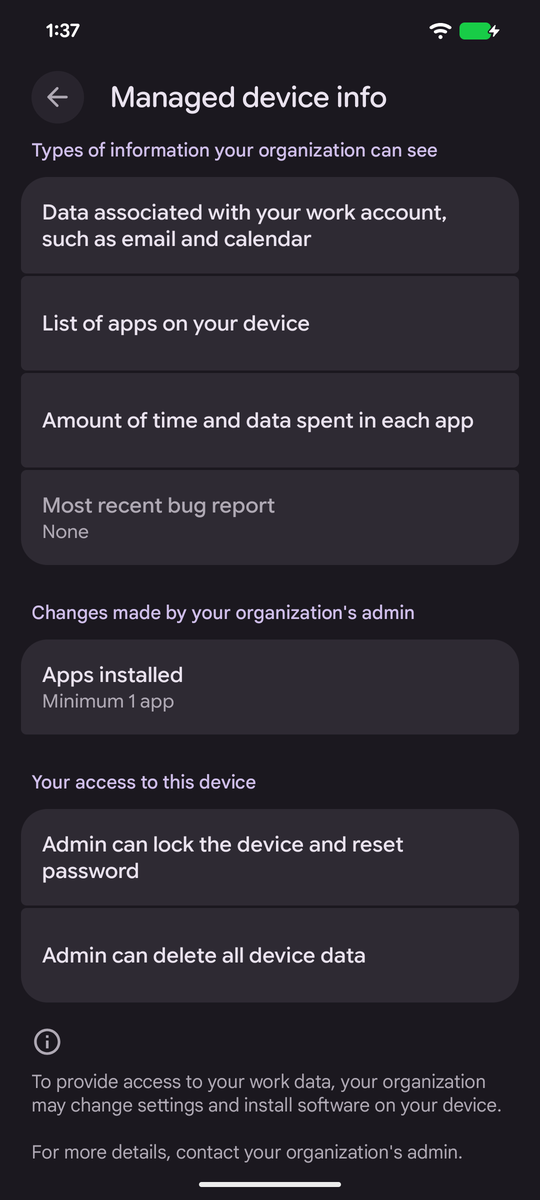
| Disclosure | Managed device info | Organization can see work-account data, the app list, and time and data per app; can lock, reset the PIN and wipe |
| System apps | App drawer | Clock, Calculator and Maps restored (below) |
Issues & Resolutions
Preinstalled Apps Disabled by Provisioning
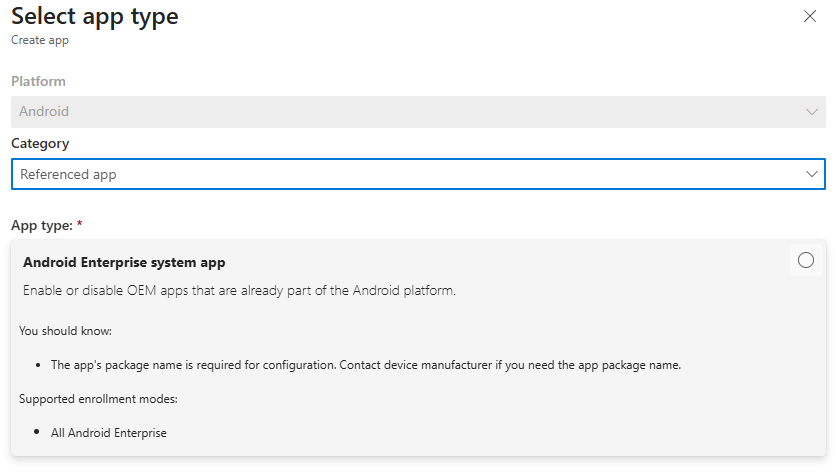
Symptom. Gmail, Photos, YouTube, Maps, Calendar, Clock and Calculator were missing after enrollment; Contacts, Files, Phone, Messages, Camera and Chrome remained. Diagnosis. Fully managed provisioning disables non-essential system apps. They are disabled, not removed. Resolution. Clock, Calculator and Maps re-enabled as Android Enterprise system apps by package name, assigned Required. In the current admin center the type sits under Category Referenced app; Microsoft Learn still documents an older path.
“Microsoft Copilot” in the Work Store
Symptom. Only “Microsoft Copilot” - the name of the consumer app - was available. Diagnosis. Microsoft has merged its Copilot apps: one app, Microsoft Copilot, signs in with a personal or a work account, and work and personal data stay separate. Resolution. None required; signed in with the work account it is the work app.
Carrier Compatibility Rejected the Device
Symptom. The carrier’s Verizon-based network reported the phone incompatible. Diagnosis. The second IMEI had been entered, which was the first suspect. A warranty check after the build showed the Pixel is the Japan-region model G576D. A third-party spec database lists no LTE band 13, Verizon’s primary coverage band, so the rejection was accurate. Resolution. The line was placed on the carrier’s AT&T-based network, which also carries an unlimited hotspot. The plan allows free network changes later. The phone was kept as an accepted risk (see Limitations).
Payment Declined
Symptom. The first card was declined; the second required a one-time code. Diagnosis. Bank fraud scoring of a first purchase of an instantly delivered prepaid phone line. Resolution. Not a carrier problem; the second card’s 3-D Secure step completed the purchase.
Limitations
- No compliance policy yet; the tenant default reports devices without one as compliant.
- The daily account remains a Global Administrator of the tenant.
- The phone is a Japan-region unit: no US warranty service, AT&T-based network only, and reduced rural and in-building coverage (no LTE band 14). Accepted until revenue supports replacement hardware.
- The carrier account is a consumer account in the owner’s name, paid by the business.
- Hotspot hardening (SSID, WPA3, metered connection on the laptop) is documented in the runbook but was confirmed by the author without a screenshot.
Next
- One hardening project across the laptop and this phone: compliance policies with the default flipped to Not compliant, Conditional Access (report-only first, emergency account excluded), wipe-after-failures, a PIN-protected Entra passkey, and Defender for Endpoint on Android.
Playbook
The procedure behind this build is published as a standalone playbook, written against placeholders so it transfers to a real client tenant.
- Android Enterprise Fully Managed with Intune - Corporate-Owned Android Phone Playbook - 19-page PDF, text only
Sources
- Microsoft Learn - Connect Intune to managed Google Play
- Microsoft Learn - Set up fully managed enrollment
- Microsoft Learn - Enrollment time grouping
- Microsoft Learn - Manage Android Enterprise system apps
- Microsoft Learn - Wipe devices
- Microsoft Learn - Android Enterprise fully managed security configuration examples
- Microsoft Support - Copilot app changes
Runbook and this write-up were drafted with Claude (Anthropic) during the build; every step was performed and verified on the device by the author.