Windows Autopilot device preparation is Microsoft’s newer way of setting up a work computer: you unbox a Windows laptop, sign in with a work account, and the laptop configures itself - joins the company’s identity system, enrolls in management, installs the company’s apps, turns on encryption - without IT ever touching it. Microsoft’s documentation calls it “Autopilot device preparation”; most of the internet calls it “Autopilot v2.”
Documentation at Microsoft Learn.
Cards on the table before we start: this is my own business laptop, and I used it as a lab. I could have turned it on, clicked through setup, and started working in twenty minutes. Instead I set it up exactly the way I would set one up for a client, so I would have done it once for real before anyone pays me to do it. That took two evenings instead of twenty minutes. Worth it - and as you are about to see, the laptop made it worth it in ways I did not plan on originally.
How I got here
My own small-business tenant runs on Microsoft 365 Business Premium (with Copilot). That license includes Intune, which is Microsoft’s tool for managing company devices, and Entra ID, which is the identity system behind every Microsoft 365 sign-in. I built the tenant a week earlier. What it did not have yet was a single managed device in it - which is a strange state of affairs for someone who wants a job managing other people’s devices.
So the new laptop had a job before it ever opened a spreadsheet: be the first managed endpoint, built the client way, documented well enough to hand to the next person.
The goals, in plain terms:
- Join it to the business with Microsoft Entra join - the cloud-only kind, no server in a closet.
- Have it set itself up with Autopilot device preparation.
- Strip out the consumer bloatware without losing Copilot, which I am paying for.
- Make sure I am not an administrator on my own daily laptop, and prove that the emergency admin account (Windows LAPS) works end to end - something my old homelab never quite achieved.
Real enthralling stuff I know. Let’s get into it, shall we?
Three ways to join a Windows PC, explained with an office building
If you have ever worked in an office, you have seen all three of these, you just did not know it.
Picture the old way first. Your company owns the building. There is a front desk in the lobby, and every computer in the building has to check in with that desk to let anyone sign in. That front desk is a domain controller, and joining a computer to it is a domain join. It works beautifully - as long as you are inside the building. Take the laptop home and it is trying to check in with a front desk it cannot see.
Hybrid join is what happens when that company also signs up for a cloud office. Now your laptop has a badge for the building and a badge for the cloud, and the two front desks keep copying notes to each other. I built exactly that in my homelab. It works, and it is a lot of moving parts.
Microsoft Entra join gets rid of the building. There is no lobby and no front desk on site. Your badge is issued by the cloud, checked by the cloud, and works the same at the office, at home, or in a hotel. For a one-person business with no server room, it is the only one of the three that makes any sense (I mean, for now anyways. I am someone who recreationally builds server clusters in their basement after all…).
Simply put: domain join trusts a building, Entra join trusts the company.
Back to the laptop…
The prep work happens before the laptop is ever turned on
A note on names: real device and account names are swapped for placeholders below (<ORG> is the business prefix), and identifiers in the screenshots are blacked out.
Most of this build happened in a web browser before the laptop came out of the box. Autopilot device preparation needs the tenant ready for it, and the tenant preparation is the part that transfers to every client.
| Step | What was configured | Why |
|---|---|---|
| Entra device settings | Users may join devices; Entra LAPS on; “registering user is local admin” None; “Global administrator role is added as local administrator” No | The last one is the setting that stops the daily-driver account becoming an administrator on every device it joins |
| Automatic enrollment | MDM user scope set | This is what turns “joined to Entra” into “managed by Intune” |
| Two security groups | A user group (who the setup policy targets) and a device group (where new laptops land) | The device group is owned by Intune’s own provisioning service, so Intune can drop a new laptop into it mid-setup |
| Required apps | Company Portal and Microsoft 365 Apps, to the device group | Only what has to exist before first sign-in |
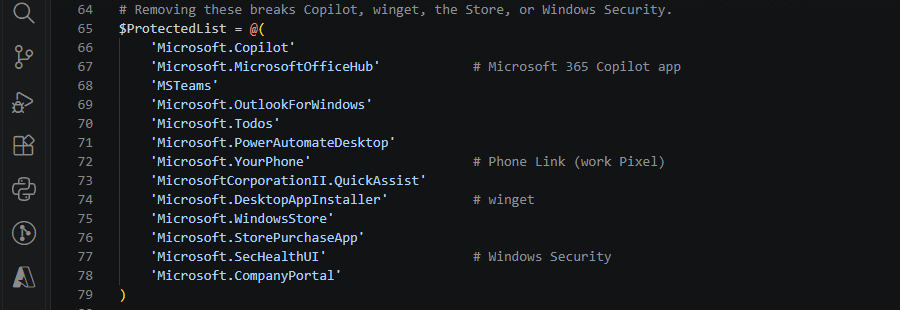
| Platform script | A logged, exact-name removal script for consumer apps, Copilot explicitly protected | Debloat as code, not a click-through tool |
| Security policies | BitLocker (XTS-AES 256, key escrowed to Entra) and Windows LAPS (managed account <org>-lapsadmin, passphrase, reset 24 hours after use) |
The laptop arrives encrypted with an emergency admin account already in place |
| Setup policy | User-driven, Entra joined, standard user, name template <ORG>-%SERIAL% |
The policy that ties everything together |
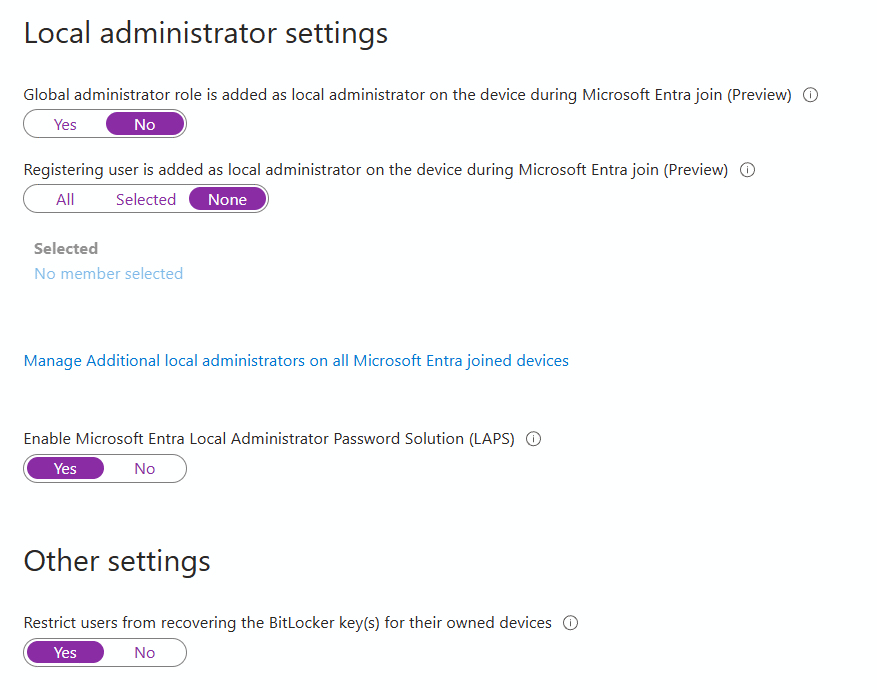 Entra device settings - the Global Administrator role is not added as a local administrator, and Entra LAPS is on
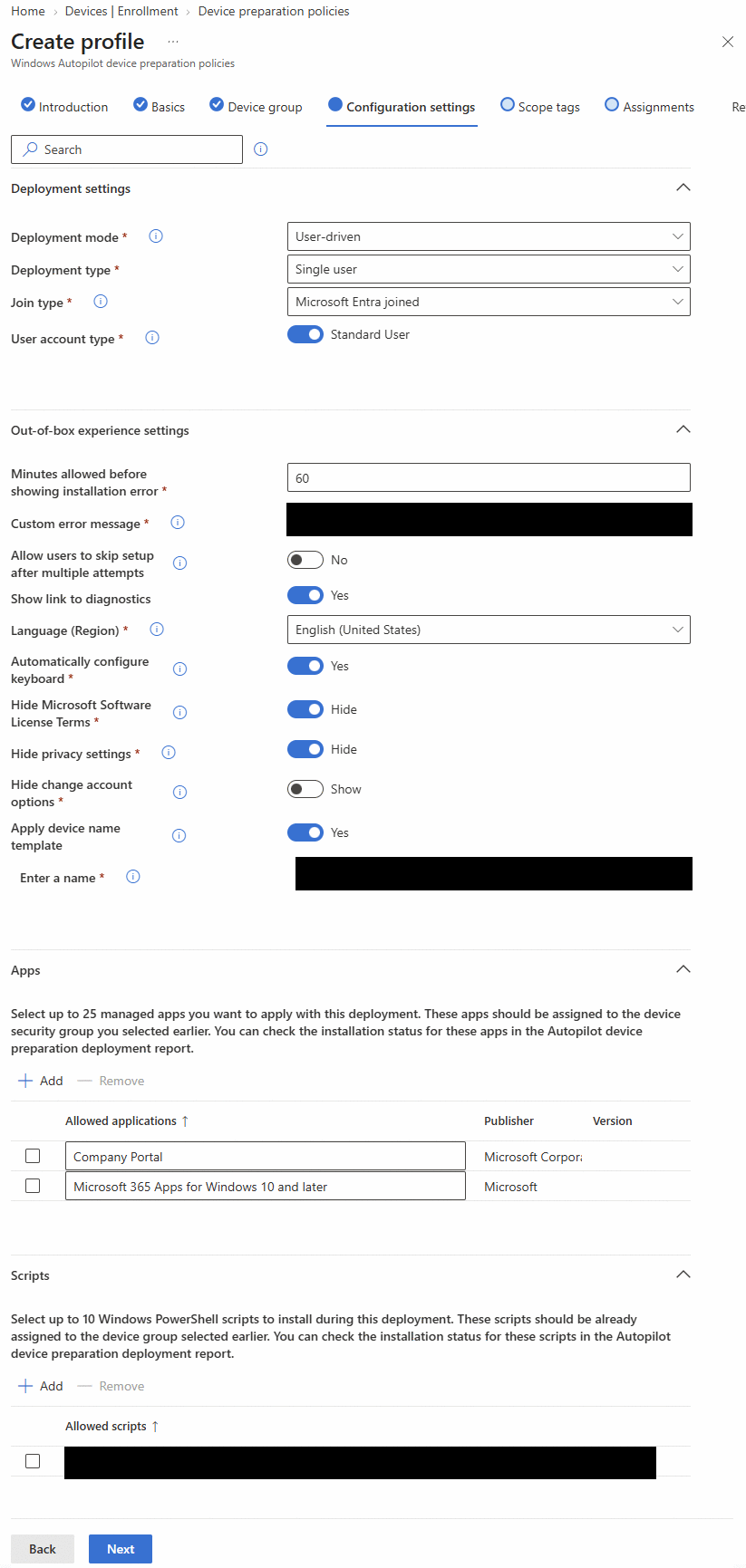 The device preparation policy (support message, device name template and script name blacked out)
One snag surfaced immediately. The device group has to be owned by a Microsoft service called the
Intune Provisioning Client, and in a brand-new tenant that service did not exist yet. It was
created with one PowerShell command (New-MgServicePrincipal with Microsoft’s App ID), then added
as the owner. Every new client tenant will need the same step, which is exactly the kind of thing
I wanted to find on my own tenant first.
 Creating the missing service principal with Microsoft Graph PowerShell (object ID blacked out)
Why not a pre-built bloat tool
I have used the Chris Titus Tech utility on personal machines and I like it. On a managed business device it is the wrong tool. Its tweaks change services and settings that the management platform is also trying to control, and none of it is repeatable or auditable across ten clients. The skill worth practicing is removing apps through the management platform, so the same script runs the same way on every device and leaves a log behind.
Honest performance note, because someone will ask: on a Ryzen 7 with 32 GB of RAM, removing Solitaire buys you approximately nothing you can measure. The real gain from this build is a clean Windows install with no reseller software on it. Which brings us to the reseller.
The laptop
inb4: Do NOT automatically trust a PC you bought on Amazon just because you bought it on Amazon - especially if it’s not SOLD by Amazon. You can definitely see where this is going.
Before wiping anything, the laptop was checked. A read-only PowerShell script was run from a USB stick at the very first setup screen, offline, to record what the seller had actually shipped before that evidence was erased by a clean install. Lenovo’s own warranty site was checked by serial number at the same time.
| Check | Expected from the listing | Found |
|---|---|---|
| Warranty | On-site, full term | Depot, under six months left, registered ship-to location India |
| Windows license in firmware | A Pro key embedded by Lenovo | None |
| Windows activation | Retail or OEM Pro | Volume license (MAK) key - a key issued to an organization, on a laptop sold to an individual |
| Memory | 32 GB as a matched pair | One 32 GB stick from an unidentified manufacturer - so the memory runs single-channel |
| Secure Boot | On | Off |
| Activation hacks / reseller software | None | None found |
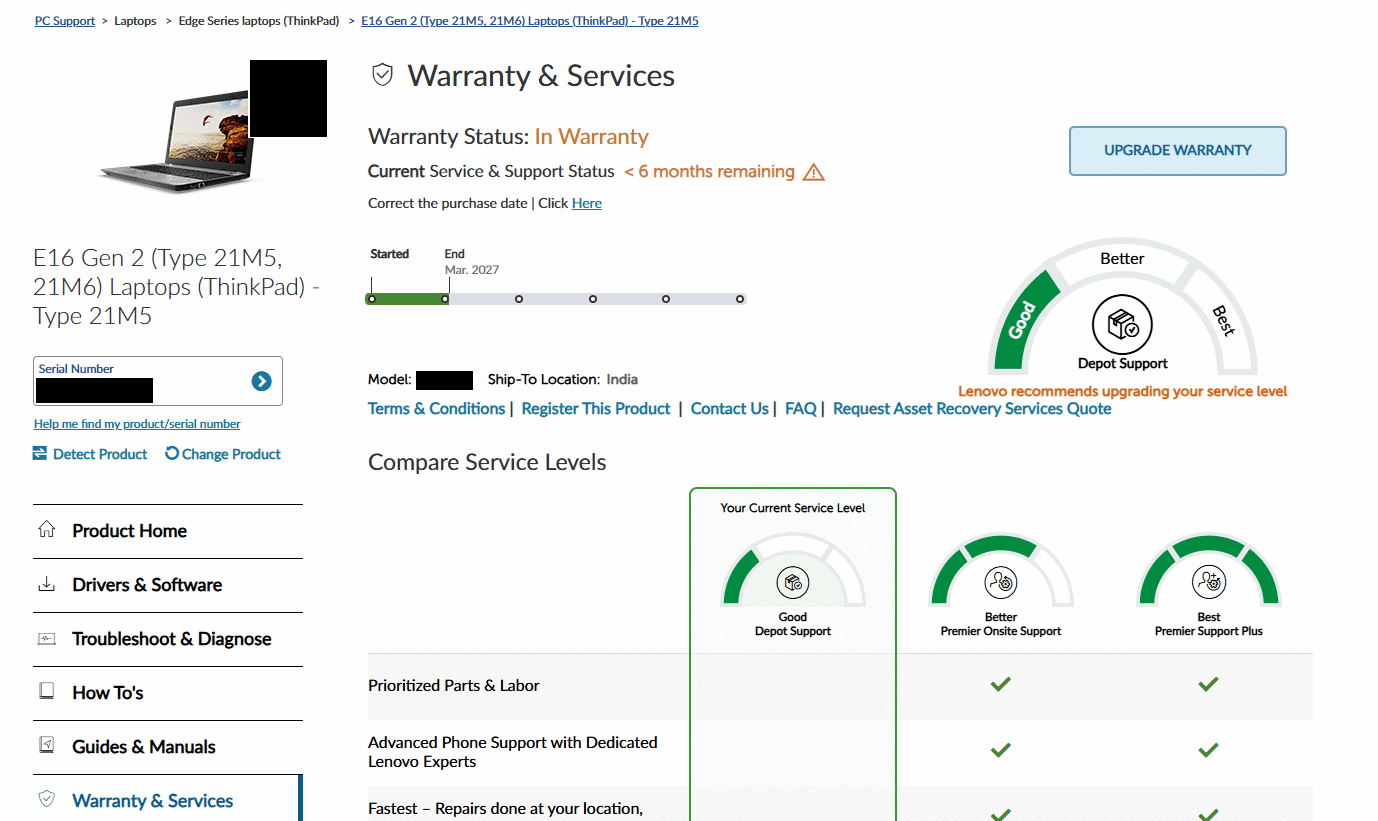 Lenovo’s records: depot warranty ending March 2027, ship-to location India (serial, model suffix and QR code blacked out)
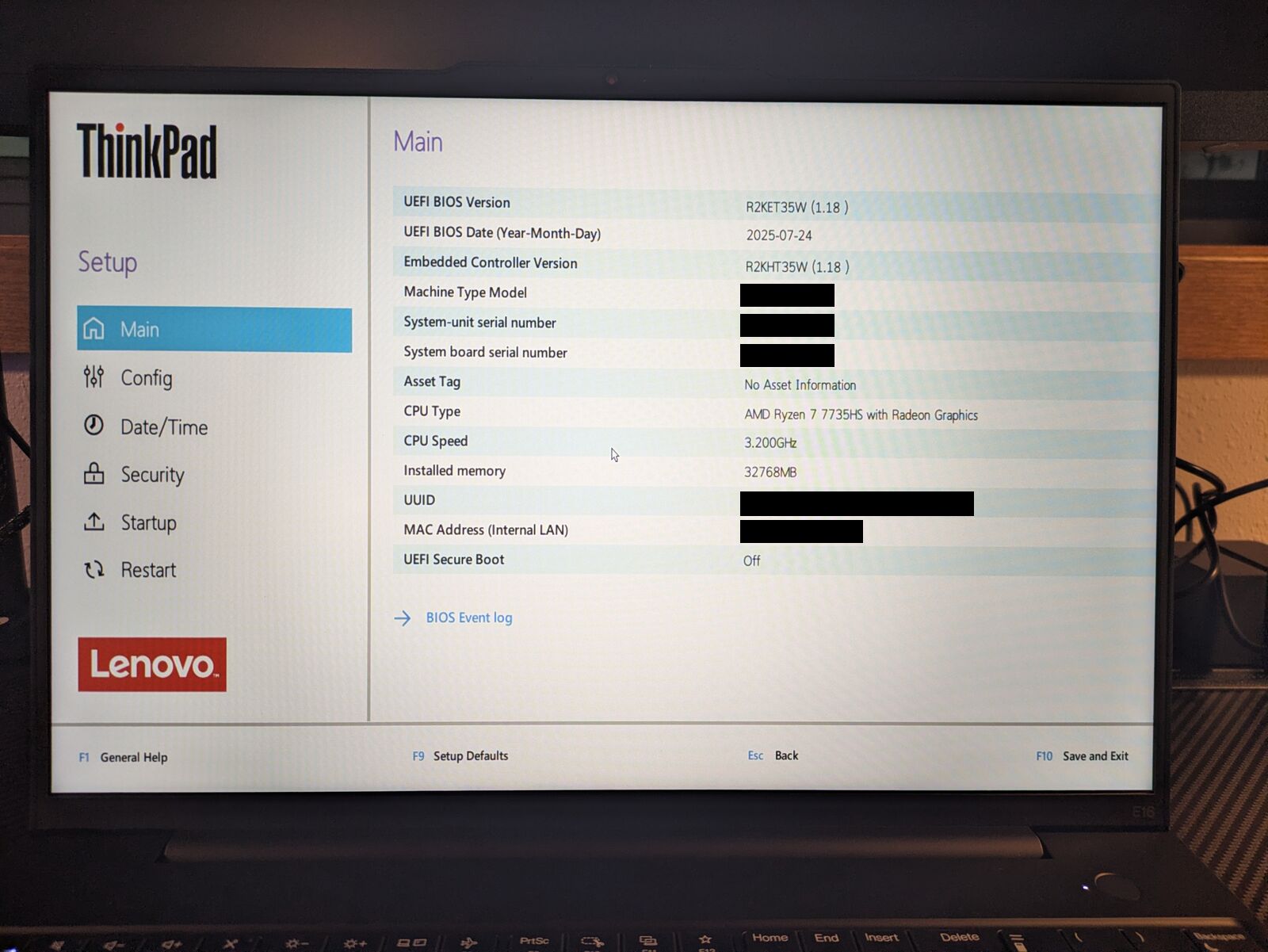 The BIOS as received - Secure Boot off (serials, UUID and MAC address blacked out)
Nothing malicious turned up. That is not the same as clean, and a business laptop gets treated as untrusted until it is proven otherwise.
The part worth explaining is the license, because it fooled Windows itself. The installed copy said “Licensed (activated).” Activated is not licensed. A volume key belongs to whatever organization bought it; it does not legitimately ride along on a single laptop sold on Amazon. And the Microsoft 365 Business Premium subscription does not fix that: its Windows rights are an upgrade on top of a legitimate Windows Pro license, not a license on their own.
I had a choice: return it, or keep the hardware and fix everything else. With memory prices where they are in 2026, I kept it. The decision was to scrub it, reinstall from Microsoft’s own media, buy a retail Windows 11 Pro key, and replace the memory.
I’m far too lazy to try and return something I bought online, so onwards we continue.
Scrub, wipe, reinstall
The firmware was reset before anything else, in this order:
- The TPM security chip was cleared, removing any keys left by the previous builder.
- BIOS defaults were loaded, then Secure Boot and AMD virtualization were turned back on.
- A supervisor password was set - stored in the password manager first, because Lenovo supervisor passwords cannot be recovered.
- The SSD was erased with the BIOS Secure Wipe, which would not run without that supervisor password.
The erase method was a single pass of zeros. I was tempted by the DoD multi-pass option, because it sounds the most thorough. It is the wrong tool for an SSD: multi-pass overwriting was designed for spinning disks, and an SSD’s controller remaps writes across its flash cells, so extra passes add wear without reaching anything more. The drive’s own erase is the correct method.
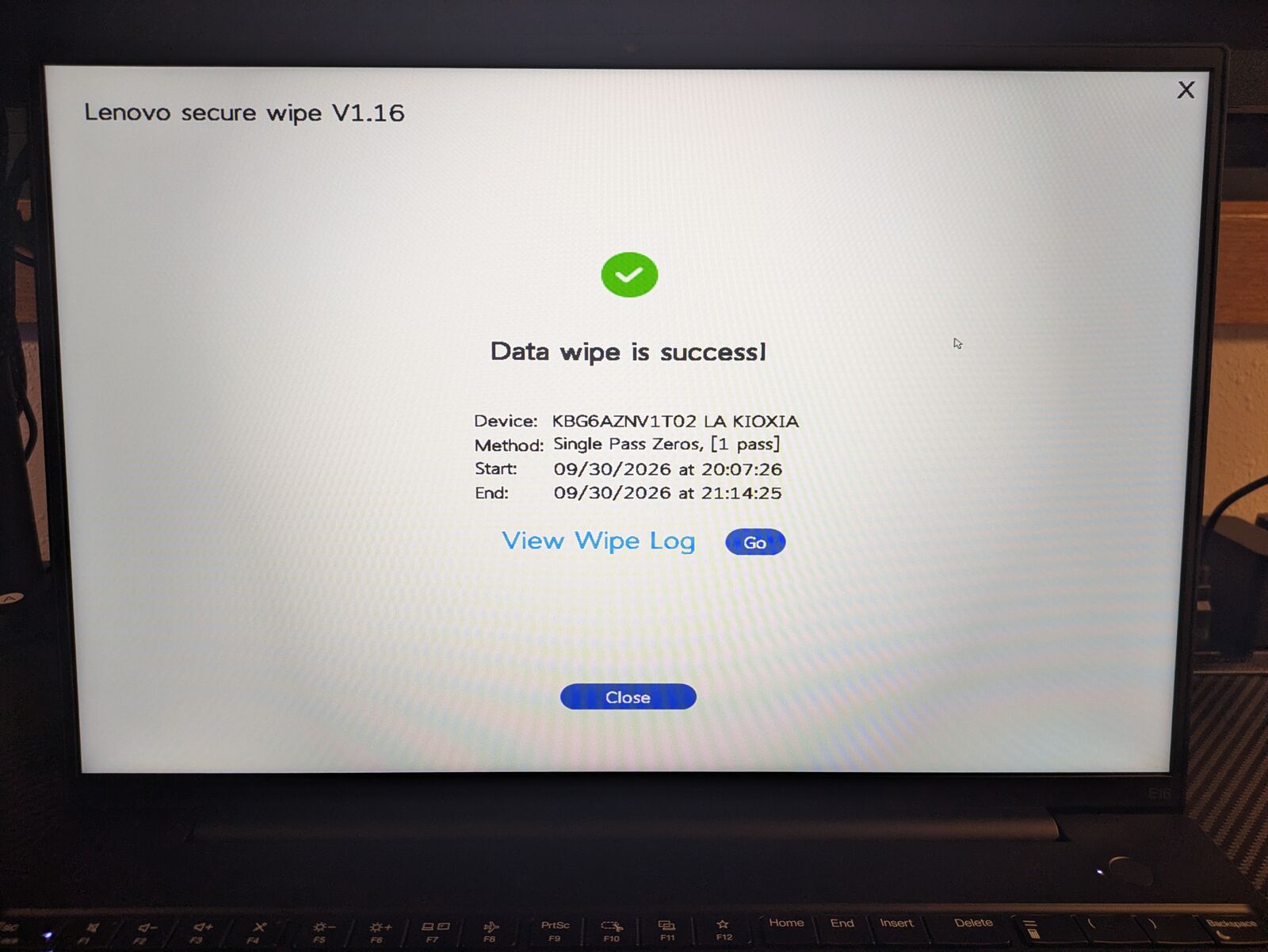 Lenovo Secure Wipe complete - single pass of zeros
Windows 11 Pro was then installed clean from Microsoft’s Media Creation Tool, and the laptop was left sitting at the first setup screen.
Device association, and an unplanned trip upstairs
Autopilot device preparation launched without the step the original Autopilot depended on - a hardware ID registered by the manufacturer or reseller at purchase. A laptop bought from a third-party seller never gets that registration. In August 2026 Microsoft added device association, which closes most of that gap: at the first setup screen, the laptop proves its identity with its TPM chip and stores a marker for the company’s tenant in its firmware. That marker is what lets the company name the device, mark it as corporate-owned, and skip most of the setup screens.
The mechanics:
- At the region screen, the Windows key was pressed five times to open the Autopilot menu.
- The device information was exported to the USB stick as a CSV file.
- The CSV was uploaded in Intune under Device association, and the setup policy was attached to it.
- Back on the laptop, association was completed.
The feature was one month old, so a rough edge was expected. The one that appeared: on Wi-Fi, the association option refused to continue until the laptop was on Ethernet. My workbench is in the basement and the wired drop is not.
Once again, I’m secretly lazy so carrying two laptops up two flights of stairs at 10:00 PM was not on my bingo card for the evening. However, I also wanted this to work so I gritted my teeth and headed upstairs to my router. I always keep a cable plugged into my managed switch so I can easily connect a laptop for circumstances like this but ya know…it’s like…all the way upstairs…
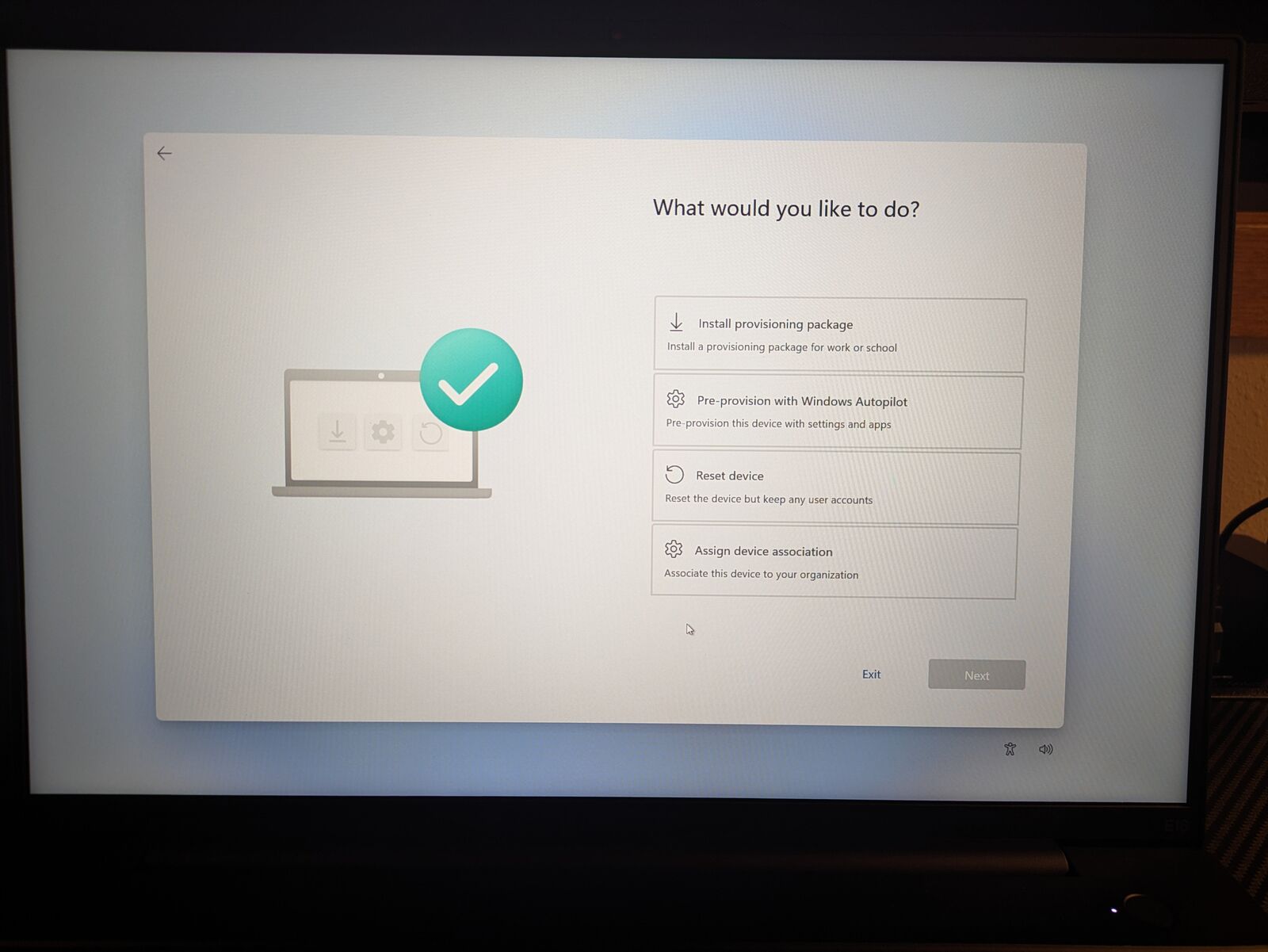 The Autopilot menu, reached with the Windows key pressed five times at the region screen
Once wired, association completed at 22:09.
Nine minutes
At 22:14 I signed in with my work account. The region, keyboard, license, privacy and “personal or work?” screens never appeared - device association skipped them, as designed. The laptop showed a percentage while it joined Entra, enrolled in Intune, landed in the device group, installed Company Portal and Microsoft 365 Apps, and ran the removal script.
At 22:23 I was at a desktop. The laptop had named itself <ORG>-XXXXXXXX from the template, was
marked corporate-owned in Intune, and had a managed local admin account waiting.
Windows Hello was set up with a PIN only. I do not use fingerprint or face sign-in on anything, and nothing about this build changes that.
Then I went to bed. I learned on previous projects that pushing through tired is when I start skipping steps and stop actually learning anything.
The green checkmarks lied (typical)
The next morning the BitLocker status was checked from the laptop itself rather than from the Intune portal. The drive was encrypted with XTS-AES 128. The policy said XTS-AES 256. Intune reported every BitLocker setting as “Succeeded.”
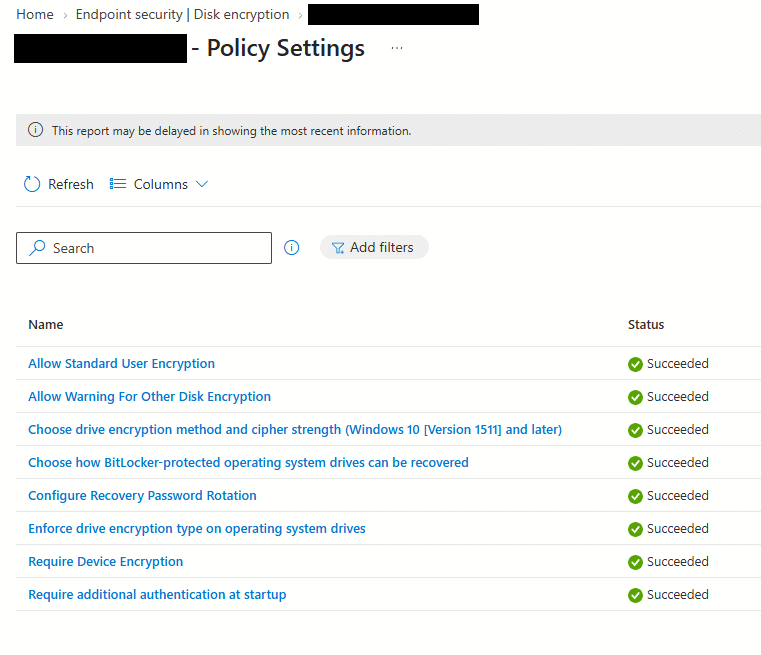 Intune reports every BitLocker setting as Succeeded (device and policy names blacked out)
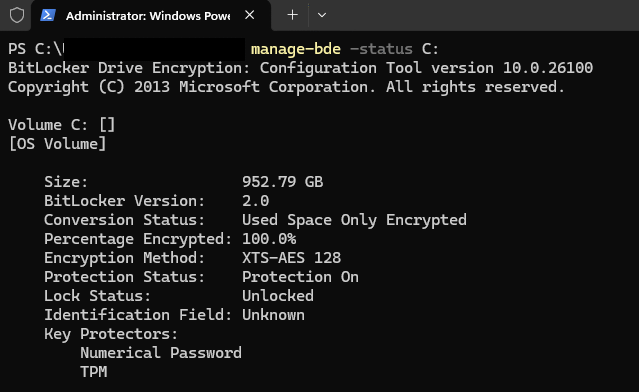 The device itself says XTS-AES 128 (account name blacked out)
Diagnosis. The policy values in the laptop’s registry were correct - the 256-bit setting had arrived. The drive had simply been encrypted before it arrived: Windows automatic device encryption started during setup, at its 128-bit default, and a cipher-strength setting does not re-encrypt a drive that is already encrypted. “Succeeded” in Intune means the setting was delivered. It does not mean the disk matches it.
First attempt - failed. The drive was decrypted so the policy could re-encrypt it at 256-bit.
It never did. After fifteen minutes and two scheduled tasks meant to nudge it, the drive sat at
“Fully Decrypted, 0.0%.” The policy had already been processed on this device, and Intune has no
equivalent of on-premises Group Policy’s gpupdate /force to replay it.
Resolution. The drive was encrypted by hand at the correct strength, and the new recovery key was uploaded to Entra:
manage-bde -on C: -UsedSpaceOnly -EncryptionMethod xts_aes256 -RecoveryPassword -SkipHardwareTest
$rp = (Get-BitLockerVolume -MountPoint C:).KeyProtector | Where-Object KeyProtectorType -eq 'RecoveryPassword'
BackupToAAD-BitLockerKeyProtector -MountPoint C: -KeyProtectorId $rp.KeyProtectorId
Verified with manage-bde -status C: (XTS-AES 256, protection on) and the new key showing in
Entra.
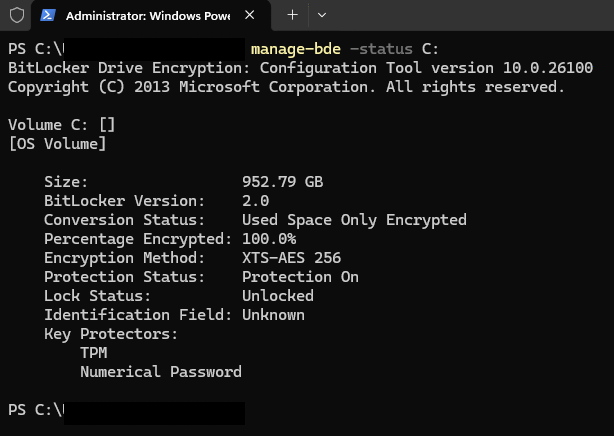 After manual re-encryption: XTS-AES 256, protection on (account name blacked out)
The takeaway I will carry to every client: check the disk, not the report. A management portal tells you what it sent. Only the device tells you what happened.
The same morning the retail Windows 11 Pro key was bought from the Microsoft Store and activated, and the BIOS was updated from 1.18 to 1.29 - with BitLocker suspended for one reboot first, so the firmware change did not trigger a recovery-key prompt.
Installing apps without being an administrator
This is where the “not an admin on my own laptop” decision gets tested. Every app I wanted was published in Intune as Available to my user group, which puts it in the Company Portal app as a self-service catalog. The Intune agent installs it as the system account, so a standard user never needs an administrator password.
| App | How it was delivered |
|---|---|
| Bitwarden | Microsoft Store app (new) |
| Visual Studio Code, Adobe Acrobat Reader, Signal | Microsoft Store app (new) - these come through as vendor installers hosted by the Store |
| Google Chrome | Chrome Enterprise MSI, uploaded as a line-of-business app |
| Gemini, Grok | Installed as web apps from the browser - no desktop package exists |
| Proton VPN, GitHub Desktop | Not in the Store catalog - deferred to a future project on packaging Win32 apps |
Two things were learned the slow way. First, a new “Available” app took about an hour to show up in Company Portal the first time, and syncing the device does not speed it up, because the list comes from the Intune service. Second, Bitwarden installed from Company Portal with no administrator prompt at all - which is the whole point.
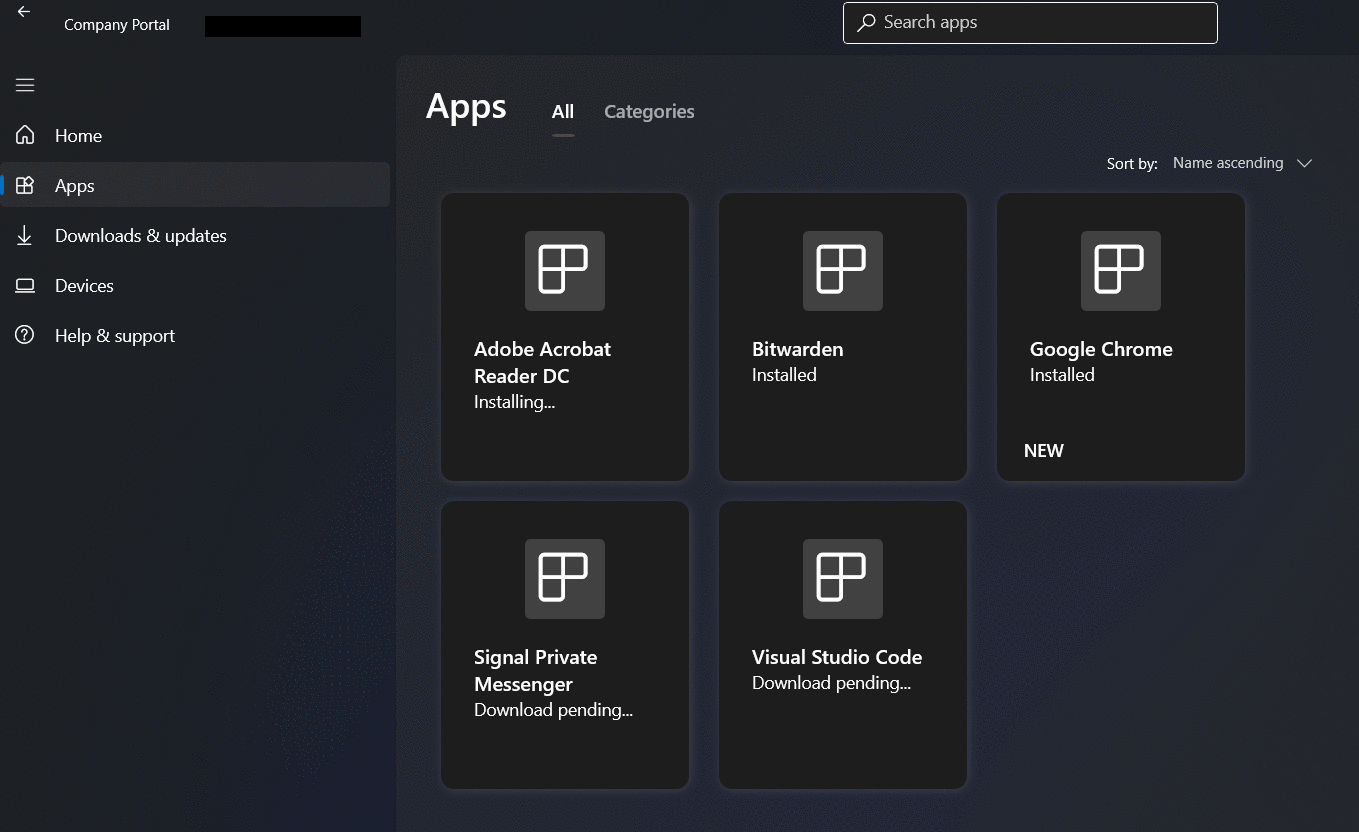 Company Portal as a self-service catalog (organization name blacked out)
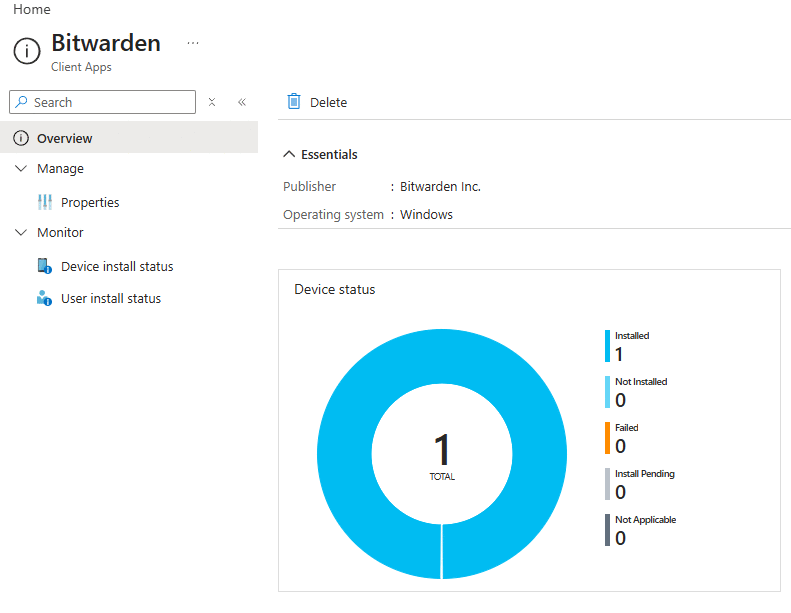 Bitwarden installed by the standard user with no elevation prompt; Intune reports one installed
And one honest gap. A standard user can still install software that only writes to their own profile folder. Brave did exactly that, no prompt. Closing that requires Microsoft’s application control features, which are a lot of overhead for a one-person shop. I am accepting the gap for now, and saying so.
Proving LAPS end to end
“Verify LAPS end to end - actually retrieve a rotated password” has sat on my homelab to-do list
for a month. This time: the <org>-lapsadmin password was retrieved from Intune, used to sign in
for the BitLocker fix, and then rotated with Intune’s “Rotate local admin password” remote action,
which reported Complete. The account exists, the password lives in Entra, and it changes on demand.
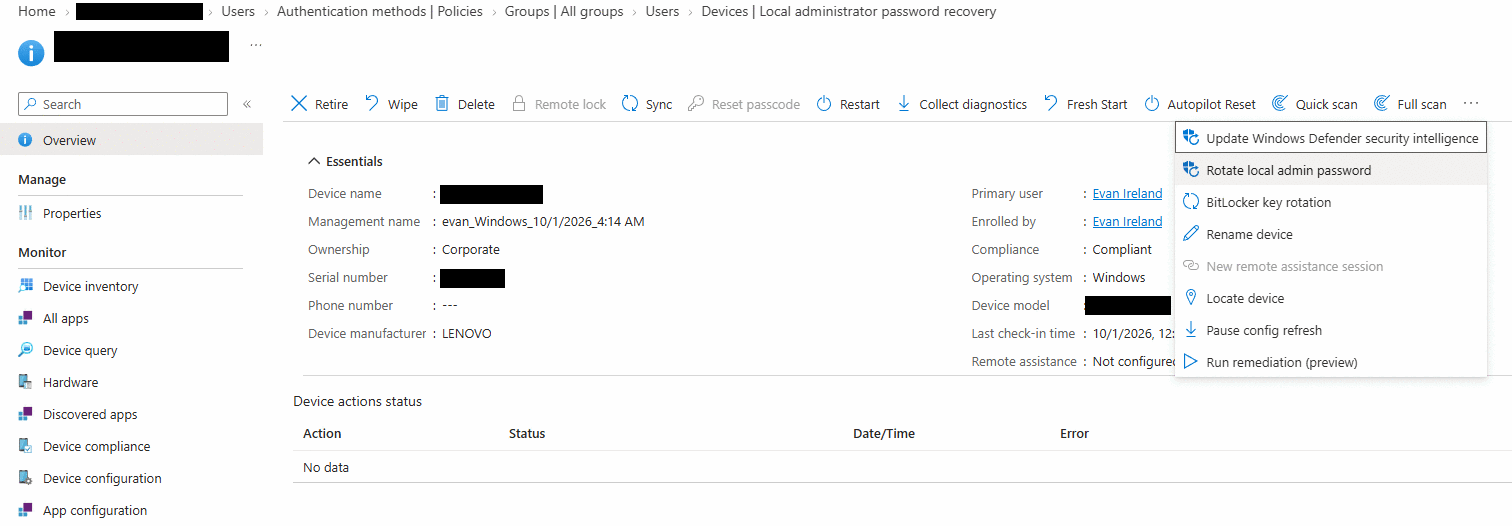 Remote rotation of the managed local administrator password (device name, serial and model blacked out)
Accounting
Cards on the table, again. Claude (Anthropic’s AI) was in this build from start to finish. It wrote the runbook, the inspection script and the app-removal script, walked me through every step in a chat, kept the build log, and drafted this post. I did every click and every command, and made every decision - including several where I overruled it.
It was also wrong, more than once, and it is worth listing exactly where, because these are the same mistakes a person reading documentation would make:
- It said the Global Administrator role would be a local admin no matter what. There is a setting for that.
- It said a Microsoft change on 14 September had fixed the BitLocker timing problem. On this laptop, it had not.
- It expected the 25H2 installer. Microsoft was already shipping 26H2.
- It expected device association to work on Wi-Fi.
Every one of those was caught by doing the work on a real device rather than trusting a document. That is the lesson I am taking from it, and it applies to my own notes as much as to an AI’s.
It definitely pays to not just be a meat-proxy: pay attention to what the AI is saying, because pushback is necessary (cue: “You’re right to push back” meme).
Lab compromises
So nobody has to ask:
- My account is still a Global Administrator for the tenant while also being my daily account. It is no longer an administrator on the laptop, but the tenant-level risk stands. It is reversible and on the list.
- BitLocker unlocks with the TPM alone, no pre-boot PIN.
- The memory is still the single stick until the replacement arrives.
- There is no compliance policy or Conditional Access yet. Intune currently marks the laptop “Compliant” only because the tenant default treats a device with no policy as compliant - which is the first thing the next project changes.
What is next
The work phone arrives today, and it gets the same treatment as its own project. After that, one hardening project covers both devices at once: compliance policies, Conditional Access, update rings, Defender for Business, and the decisions this laptop surfaced - application control and stopping Windows from encrypting before the policy arrives.
Most people just drink beer and play pickleball in their spare time. I apparently like to Entra Join laptops, deploy debloat scripts via Autopilot and Intune. I need new hobbies….
Thanks for reading! - Evan
The full technical record - tenant settings, design decisions, every issue and its fix - is in the project write-up: Entra Join, Autopilot & Intune - Cloud-Native Windows Endpoint.