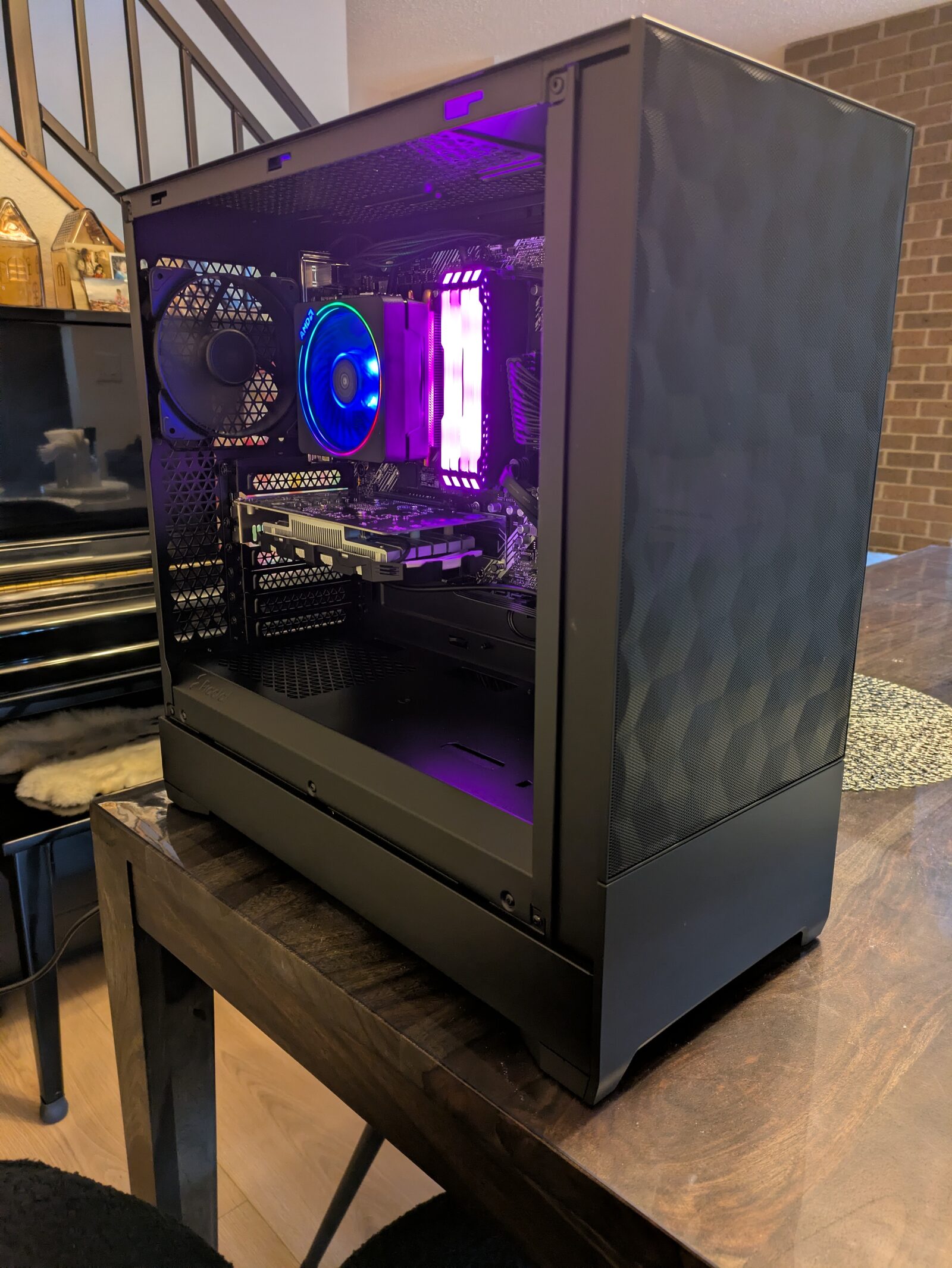
Project. Zero-touch provisioning of a Windows business laptop with Windows Autopilot device preparation, Microsoft Entra join and Microsoft Intune: a Lenovo ThinkPad E16 Gen 2, the first managed endpoint in my own small-business Microsoft 365 tenant (Business Premium).
Status: in service. Built 30 September - 1 October 2026. Hardening (compliance, Conditional Access, update rings) is a separate follow-on project.
Names and identifiers are replaced with placeholders throughout: <ORG> and <org> stand in for the business prefix, and serial numbers, tenant details and account names are blacked out in the screenshots.
This is my own work laptop, built exactly the way I would build one for a client, so the first time I do it for real is not on someone else’s device. The narrative version - including what the laptop turned out to be - is in the companion post. This page is the technical record.
Problem
A new Microsoft 365 Business Premium tenant had no managed devices. The business needed a laptop that was:
- Cloud-joined, with no on-premises server, domain controller or VPN dependency.
- Zero-touch from the user’s side: sign in once at first boot, receive a configured device.
- Least-privilege: the daily user is a standard user, with a managed, rotating local administrator account for elevation.
- Encrypted with the recovery key escrowed to the cloud before the device is used.
- Debloated without a third-party tool, and without removing Copilot.
- Repeatable: every step reusable as the template for a client device.
The hardware was purchased from a third-party marketplace seller, so it carried no Autopilot hardware registration - the prerequisite for classic Windows Autopilot.
Environment
| Component | Detail |
|---|---|
| Device | Lenovo ThinkPad E16 Gen 2 (AMD), Ryzen 7, 32 GB DDR5, 1 TB NVMe, discrete TPM 2.0 |
| Operating system | Windows 11 Pro 26H2, clean install from Microsoft media |
| Licensing | Microsoft 365 Business Premium + Copilot (Intune Plan 1, Entra ID P1); retail Windows 11 Pro |
| Join type | Microsoft Entra join |
| Provisioning | Windows Autopilot device preparation, user-driven, with device association |
| Management | Microsoft Intune |
Design Decisions
| Decision | Choice | Rationale |
|---|---|---|
| Provisioning method | Autopilot device preparation (APDP) over classic Autopilot | Classic Autopilot requires the hardware hash to be registered, normally by the OEM or a CSP at purchase. This device had none. APDP needs no pre-registration |
| Corporate identification | Device association (released August 2026) | Writes a TPM-attested tenant marker to the device’s UEFI. Enables corporate ownership, a device-name template, a device-level policy assignment and a trimmed setup experience |
| OS image | Clean install from Microsoft media | The seller’s image was untrusted; a Windows Reset would restore the seller’s own customizations |
| Debloat | Exact-name removal script delivered as an Intune platform script | Microsoft’s native in-box app removal policy applies to Enterprise and Education only; Business Premium licenses Pro. A third-party debloat utility conflicts with the management platform and is not auditable |
| Local administrator | Standard user + Windows LAPS automatic account management | The daily account cannot elevate; a dedicated <org>-lapsadmin account is created, owned and rotated by LAPS |
| Global Administrator on the device | Entra setting “Global administrator role is added as local administrator during Microsoft Entra join” set to No | Without it, every Global Administrator is a local administrator on every joined device |
| Apps during setup | Two only: Company Portal and Microsoft 365 Apps | Every app added to setup is another way for setup to fail |
| User apps | Company Portal, Available to the user group | Self-service installation without administrator rights |
| Sign-in | Windows Hello PIN only | No biometric enrollment on business devices, by policy of the owner |
I chose device association over waiting for a registered device because the gap it closes is the exact gap a small business hits: hardware bought outside an enterprise purchasing channel.
Build
Tenant Preparation
- Entra device settings. Device join permitted; Microsoft Entra LAPS enabled; registering user added as local administrator: None; Global Administrator role added as local administrator: No.
- Automatic enrollment. MDM user scope configured, so an Entra join triggers Intune enrollment.
- Groups.
SG-APDP-Users(assigned, the user) andSG-APDP-Devices(assigned, empty). The device group is owned by the Intune Provisioning Client service principal (App IDf1346770-5b25-470b-88bd-d5744ab7952c), which permits enrollment time grouping: Intune places the new device in the group during setup, so device-targeted policy applies immediately rather than after a dynamic-group evaluation cycle. - Required apps to the device group: Company Portal (Store app, new) and Microsoft 365 Apps (64-bit, Current Channel).
- Platform script to the device group:
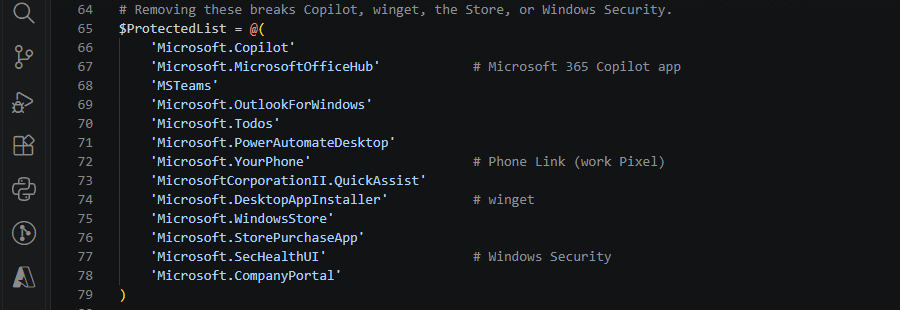
Remove-Bloat.ps1, run as SYSTEM in 64-bit PowerShell. It removes both the provisioned and installed copies of an explicit list of consumer apps, refuses to touch a protected list (Copilot, Microsoft 365 Copilot, Teams, Outlook, Phone Link, Store, winget, Windows Security, Company Portal), logs toC:\ProgramData\<ORG>\Logs\, and exits 0 so a leftover game cannot fail provisioning. - BitLocker policy to the device group: silent encryption, XTS-AES 256 for internal drives, TPM-only startup, recovery password escrowed to Entra, encryption blocked until the key is stored.
- Windows LAPS policy to the device group: backup to Entra only; automatic account
management of a new account
<org>-lapsadmin; passphrase complexity, six long words; 30-day age; password reset 24 hours after use. - Device preparation policy assigned to
SG-APDP-Users: user-driven, single user, Entra joined, standard user, 60-minute timeout, setup skip disabled, diagnostics link shown, name template<ORG>-%SERIAL%, the two apps and the script selected, and the device-association OOBE settings (language, keyboard, license terms and privacy pages hidden).
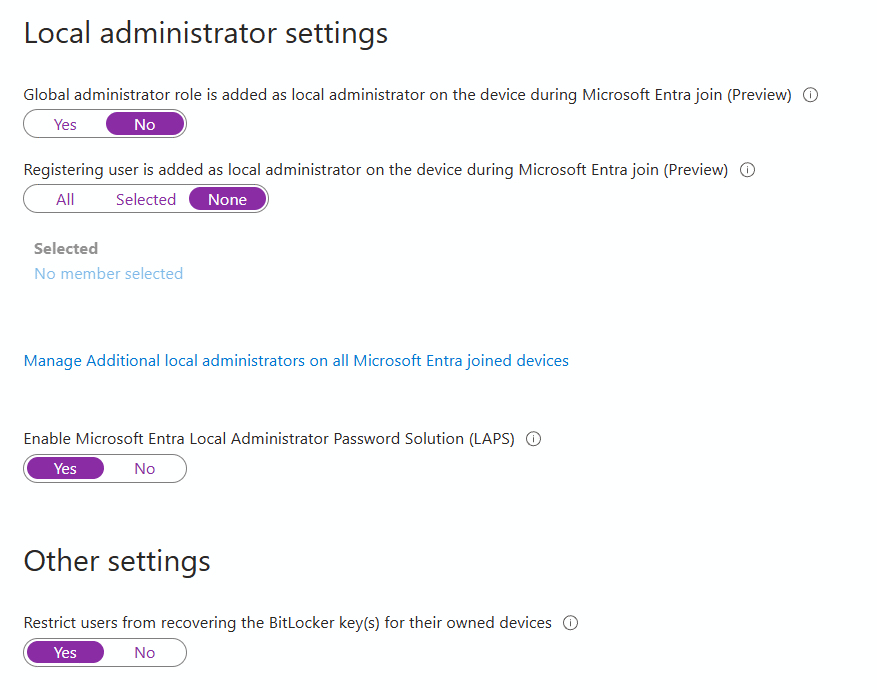 Entra device settings - the Global Administrator role is not added as a local administrator, and Entra LAPS is on
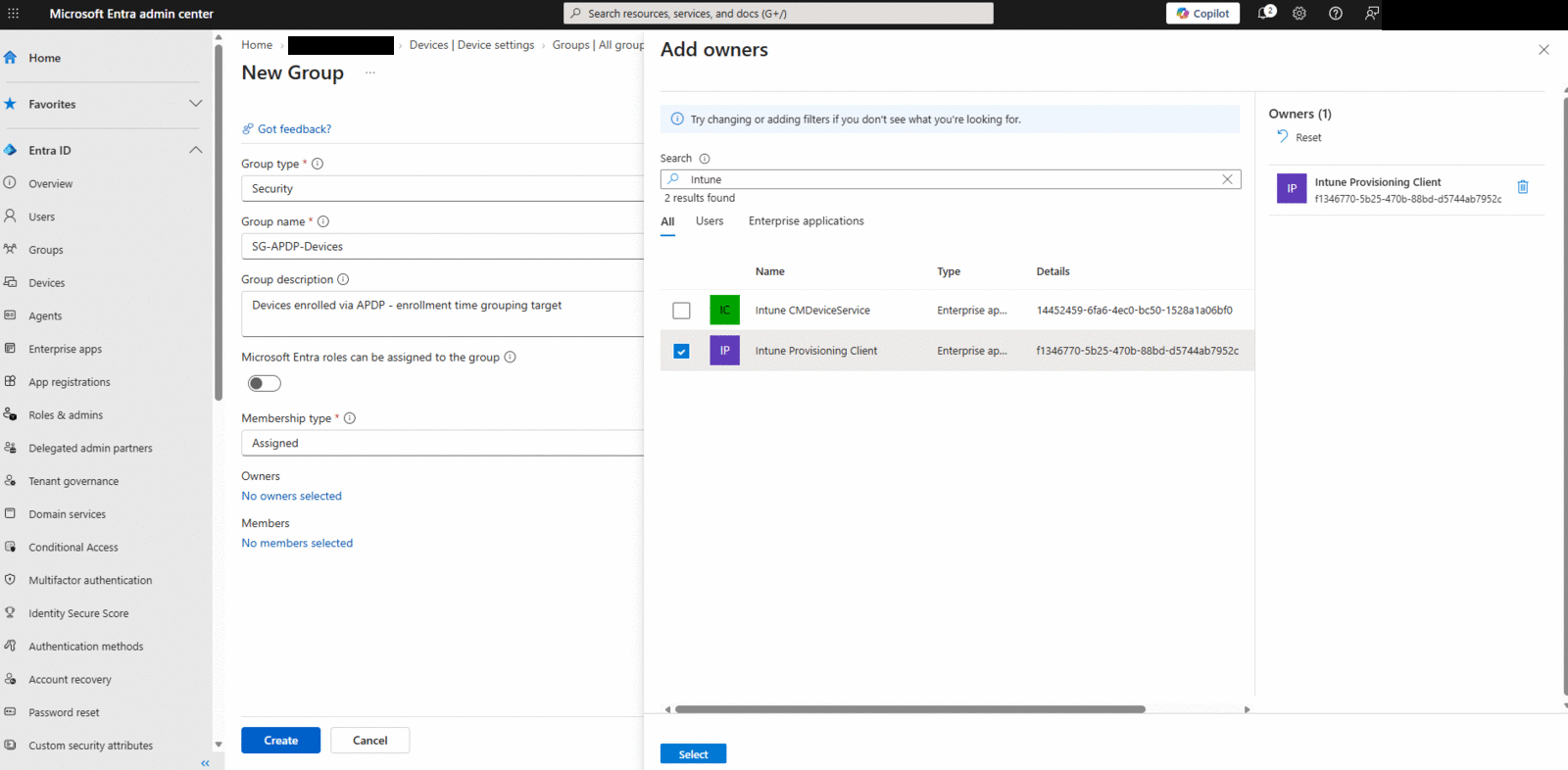 The device group is owned by Intune’s provisioning service (tenant name and account blacked out)
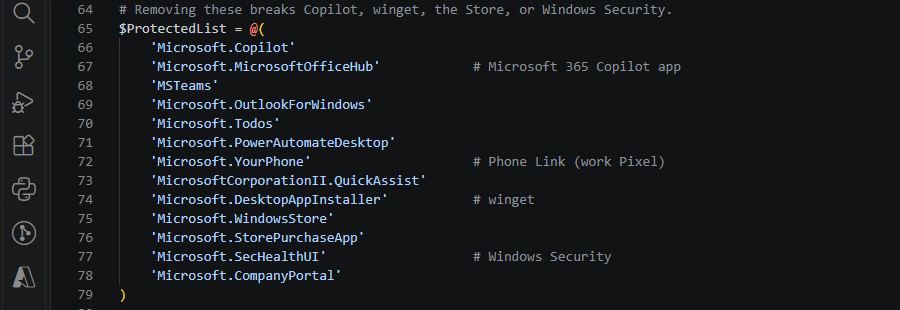 The removal script’s protected list - these packages are refused by name
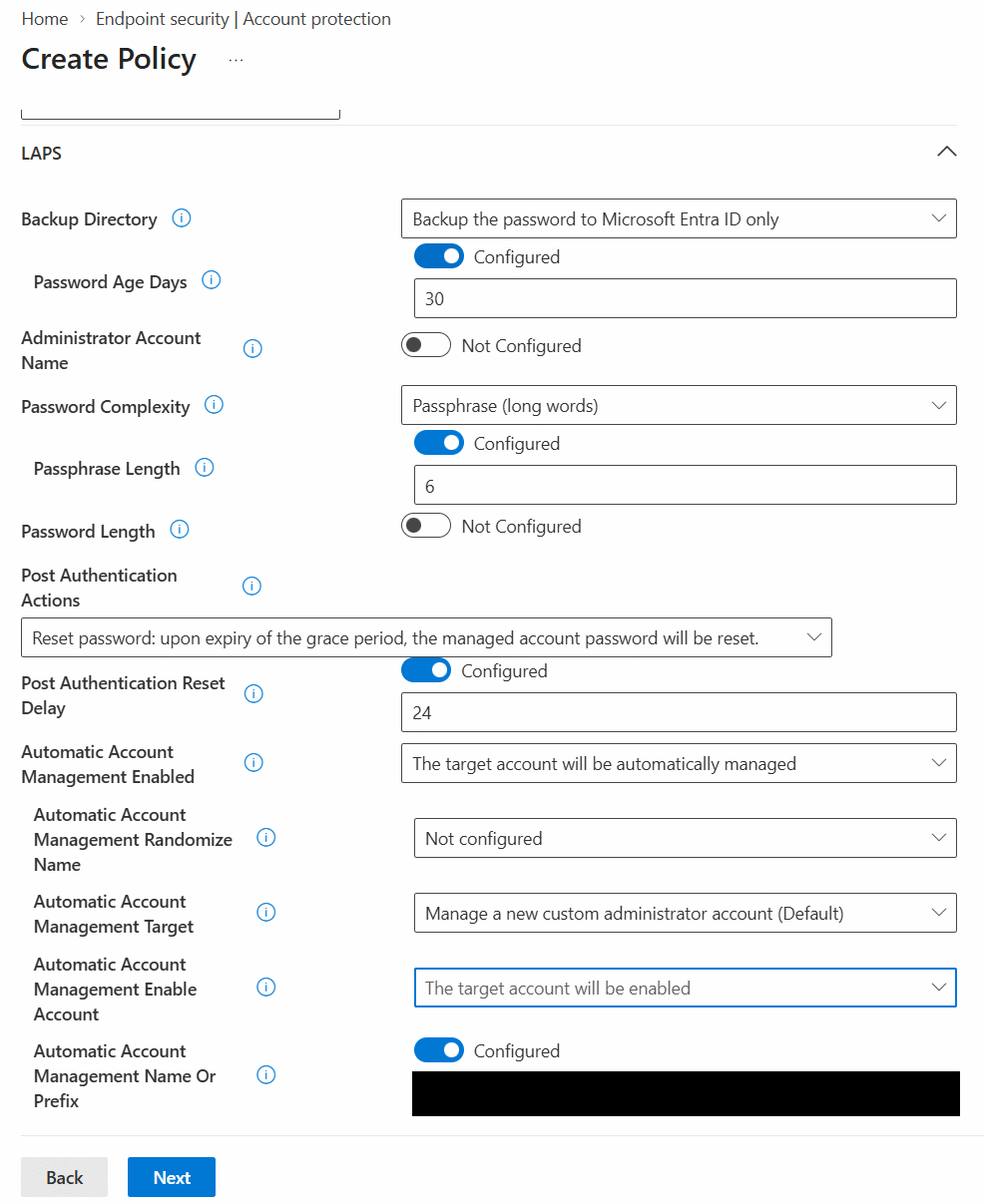 Windows LAPS policy with automatic account management (account name blacked out)
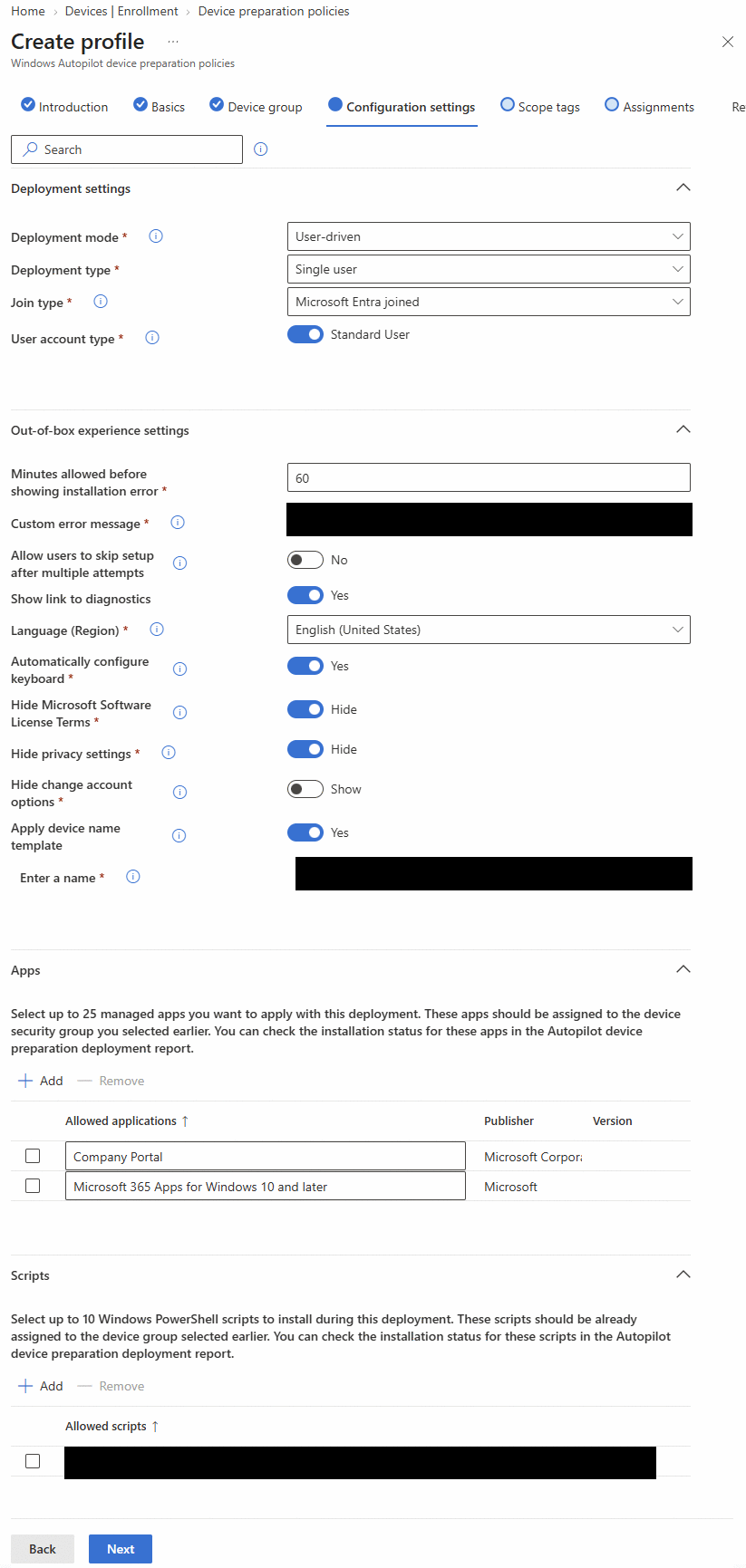 The device preparation policy (support message, device name template and script name blacked out)
Device Intake
Before the seller’s image was erased, a read-only PowerShell inspection script was run offline at the first setup screen, and the warranty was checked against the manufacturer’s records.
| Finding | Significance |
|---|---|
| Depot warranty, under six months remaining, registered to a non-US ship-to location | Grey-market unit; warranty support in the US uncertain |
| No Windows license embedded in firmware | Lenovo did not sell this board with Windows |
| Windows activated with a volume MAK key | Activation present, valid license absent |
| One 32 GB memory module of unidentified manufacture | Single-channel memory; not the configuration listed |
| Secure Boot disabled | Changed by the seller |
The device was retained, scrubbed and reinstalled, and a retail Windows 11 Pro license was purchased.
Firmware Scrub & Clean Install
- TPM cleared; BIOS defaults loaded; Secure Boot and AMD-V re-enabled; supervisor password set and stored.
- SSD erased with the BIOS Secure Wipe (single pass of zeros - the appropriate method for flash storage; multi-pass overwriting adds wear without improving assurance on an SSD).
- Windows 11 Pro installed from Media Creation Tool media and left at the region screen.
All firmware changes were completed before device association, because a BIOS reset or Secure Boot change afterwards invalidates the association.
Device Association & Provisioning
- At the region screen, Windows key ×5 opened the Autopilot menu; device information was exported to USB as a DeviceLink CSV.
- The CSV was uploaded in Intune (Devices → Enrollment → Device association) and pre-associated with the device preparation policy.
- Association was completed on the device. A wired connection was required - on Wi-Fi the association option would not proceed.
- The user signed in at the work sign-in page. Device preparation joined Entra, enrolled in
Intune, placed the device in
SG-APDP-Devices, installed both apps and ran the script.
| Milestone | Time (MDT) |
|---|---|
| Association complete | 22:09 |
| Sign-in, device preparation started | 22:14 |
| Desktop | 22:23 |
Verification
| Check | Method | Result |
|---|---|---|
| Join state | dsregcmd /status |
AzureAdJoined : YES, DomainJoined : NO, PRT present |
| Device name | hostname |
Template applied (<ORG>- + serial) |
| Ownership | Intune device record | Corporate, associated, primary user set |
| Local administrators | Elevation attempt as the daily user | Daily user is a standard user; elevation requires <org>-lapsadmin |
| LAPS | Retrieve from Intune; sign in; Rotate local admin password remote action | Password retrieved and used; rotation completed |
| BitLocker | manage-bde -status C: |
Failed on first check (XTS-AES 128) - see Issues. XTS-AES 256 after remediation, key escrowed |
| Debloat | Script log; Get-AppxPackage -AllUsers |
Listed apps removed; Copilot apps present |
| License | SoftwareLicensingProduct query |
Professional, RETAIL channel, licensed |
| Self-service apps | Install from Company Portal as the standard user | Installed with no elevation prompt; Intune device install status Installed |
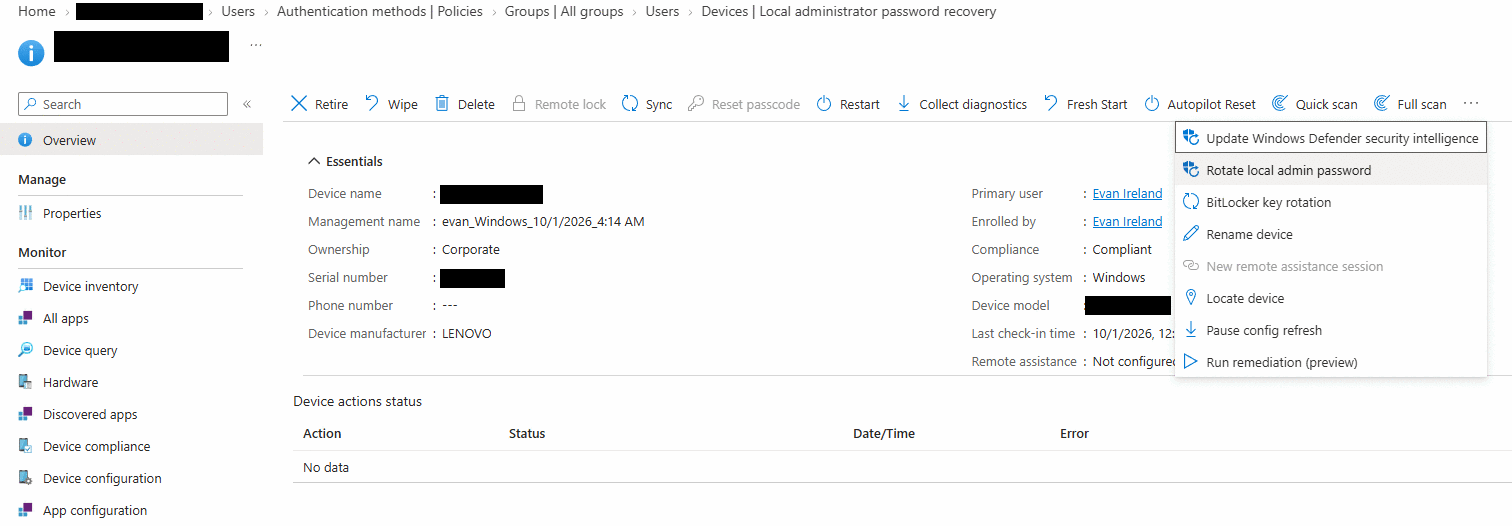 Remote rotation of the managed local administrator password (device name, serial and model blacked out)
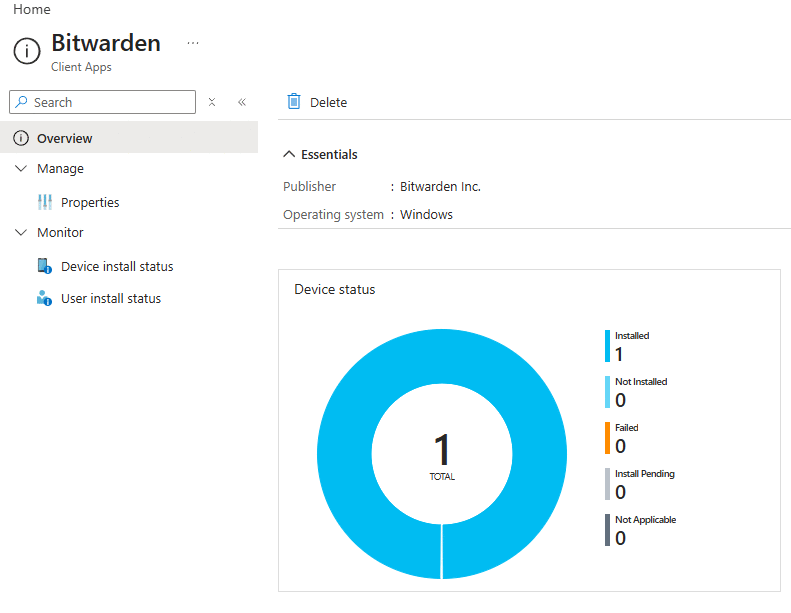 Bitwarden installed by the standard user with no elevation prompt; Intune reports one installed
Issues & Resolutions
Intune Provisioning Client Not Present
Symptom. The service principal could not be found by name or App ID when adding the device
group’s owner.
Diagnosis. In a new tenant, the tenant-local service principal for Microsoft’s provisioning
application had not been instantiated.
Resolution. Created with New-MgServicePrincipal -AppId f1346770-5b25-470b-88bd-d5744ab7952c
through Microsoft Graph PowerShell, then assigned as owner.
BitLocker Encrypted at XTS-AES 128
Symptom. The drive reported XTS-AES 128 while the policy specified XTS-AES 256, and Intune
reported every BitLocker setting as Succeeded.
Diagnosis. The policy registry value EncryptionMethodWithXtsOs read 7 (XTS-AES 256), proving
the policy was delivered. Windows automatic device encryption had begun at its 128-bit default
before the policy arrived; an encryption-method setting does not re-encrypt an already encrypted
volume.
Failed approach. The volume was decrypted to allow the policy to re-encrypt it. Encryption did
not restart, including after the BitLocker policy-refresh and encrypt-all scheduled tasks were run.
Resolution. Encrypted manually with
manage-bde -on C: -UsedSpaceOnly -EncryptionMethod xts_aes256 -RecoveryPassword -SkipHardwareTest,
and the recovery password escrowed with BackupToAAD-BitLockerKeyProtector.
Prevention. The disk state is verified on the device for every build; the portal report is not
treated as evidence of state. A control that prevents encryption before policy arrival is under
evaluation for the client template.
Device Association Required Ethernet
Symptom. On Wi-Fi, the association option in the Autopilot menu required a wired connection. Resolution. The device was moved to a wired drop. Wired connectivity is now a listed prerequisite.
Subscription Activation Is Not a Base License
Symptom. After the clean install, Windows reported an active “Windows 11 Business” subscription. Diagnosis. Business Premium’s Windows entitlement is a step-up from a qualifying Windows Pro license. The underlying Pro license was the seller’s volume key, which was not valid for the device. Resolution. A retail Windows 11 Pro key was purchased and applied; the license channel was verified as RETAIL.
Company Portal Apps Delayed
Symptom. Newly assigned Available apps did not appear in Company Portal. Diagnosis. First-time propagation from the Intune service, approximately one hour; device sync does not affect it. Resolution. None required.
Limitations
- The daily account remains a Global Administrator of the tenant. It is no longer a local administrator on the device.
- BitLocker uses TPM-only protection, without a pre-boot PIN.
- Per-user installers can still be run by the standard user without elevation; application control (App Control for Business or AppLocker) is not deployed.
- No compliance policy or Conditional Access is deployed yet; the tenant default currently reports devices without a compliance policy as compliant.
- Some applications are not available as Store apps and await Win32 packaging.
Next
- Enroll the business Android phone through Android Enterprise.
- A single hardening project across both devices: compliance policies with the default changed to Not compliant, Conditional Access (report-only first, emergency account excluded), update rings, Defender for Business onboarding, Widgets and biometric sign-in disabled by policy, and an application-control decision.
- Package the remaining applications as Win32 apps.
Playbook & Scripts
The procedure behind this build is published as a standalone playbook, written against placeholders so it transfers to a real client tenant. The two scripts it uses are published with it.
- Entra Join, Autopilot & Intune - Cloud-Native Windows Endpoint Playbook - 33-page PDF, text only
Remove-Bloat.ps1andInspect-Laptop.ps1- the debloat script Intune runs during setup, and the read-only pre-flight inspection run from a USB stick before the wipe
Sources
- Microsoft Learn - Windows Autopilot device preparation overview
- Microsoft Learn - Device association overview
- Microsoft Learn - Enrollment time grouping
- Microsoft Learn - Manage local administrators on Microsoft Entra joined devices
- Microsoft Learn - Policy-based in-box app removal
Runbook, scripts and this write-up were drafted with Claude (Anthropic) during the build; every step was performed and verified on the device by the author.