Android Enterprise is Google’s framework for running Android phones as business devices: a company can own a phone outright, control what goes on it, and wipe it remotely, while Microsoft Intune - the same tool that manages the company’s Windows laptops - acts as the control panel. Microsoft’s documentation is at Microsoft Learn.
Yesterday it was the work laptop. Today it was the work phone. Same deal as before: I could have turned it on, signed in, and been done before lunch. Instead it got set up the way a client’s phone would be, so the first time I do this for real is not on somebody else’s device.
I apparently just like to spend my free time doing stuff like this (partial sarcasm; I do enjoy it).
Three ways a company can “manage” a phone, explained with cars
Most people have only met one of these, and they usually met it as an annoyance.
A work profile on your own phone is like getting a parking pass for your personal car. The company gets a locked compartment on your phone where the work apps live - Outlook, Teams - and it can empty that compartment if you leave. It cannot see or touch anything else. This is what most people mean when they say “I had to put Intune on my phone.”
A company-owned phone with a work profile is a company car you are allowed to take on weekends. The company owns it and sets some rules for the whole thing, but there is a personal side that stays yours.
A fully managed phone is the company truck. Company owns it, company rules, company keys. Every app on it was approved, nothing else gets installed, and if it goes missing the company can wipe it from a web browser.
I already carry a personal phone, so there is nothing personal to protect on this one. Fully managed it is.
The prep work
Same lesson as the laptop: almost all of the work happened in a browser.
Introduce Microsoft to Google. Intune does not manage Android phones by itself. Google does the enforcing, through an app called Android Device Policy that lives on the phone; Intune is the console where I set the rules. Before any of that works, the Microsoft tenant has to be connected to Google - Microsoft calls it “binding to managed Google Play.”
This is where the first surprise was. A few weeks ago I had signed up for Google’s free Workspace tier with my work email, mainly for Drive and Gemini, knowing a Pixel was coming. Google treats that as a claim on the domain. Connecting Intune could have gone either way, so I checked Google’s admin console first: the domain verified fine, and then Google immediately asked for a paid upgrade to “unlock admin features.” I declined. The Intune connection went through anyway and attached to the Google identity I already had - no conflict, no extra cost.
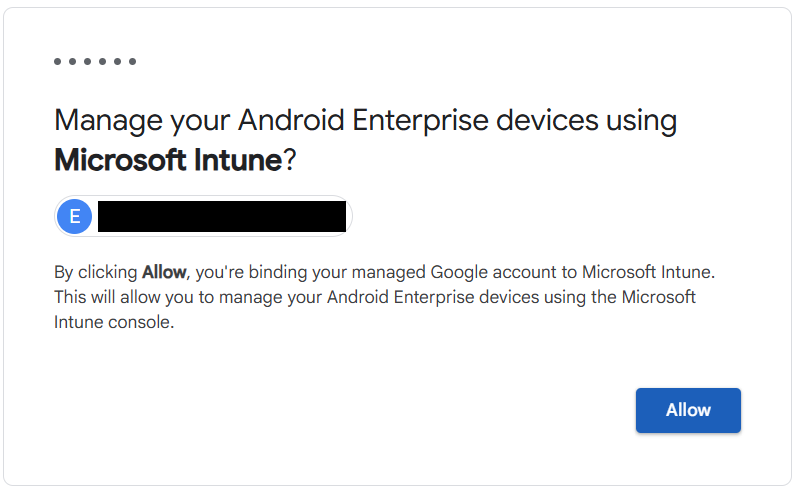
Fix the name nobody looks at until it is too late. Google auto-named my organization after me - first name and domain mashed together - and that name is exactly what a user sees on screen during setup, when the phone announces who it belongs to. Ten seconds to change. It matters more at a client, where staff should see their company’s name, not their IT guy’s.
Build a landing spot for the phone. A security group, owned by an Intune service, so the phone can be dropped into it during setup rather than hours afterwards. Apps and security settings are aimed at that group, so they are already on their way before I ever see the home screen. Same trick the laptop used.
Approve the apps. This is the part that makes a fully managed phone feel different. The normal Play Store is replaced with a work Play Store that shows only what I approved. A short list installs automatically - Outlook, Teams, Copilot, Edge, Bitwarden and a few others - and everything else sits in the work store to install when I want it.
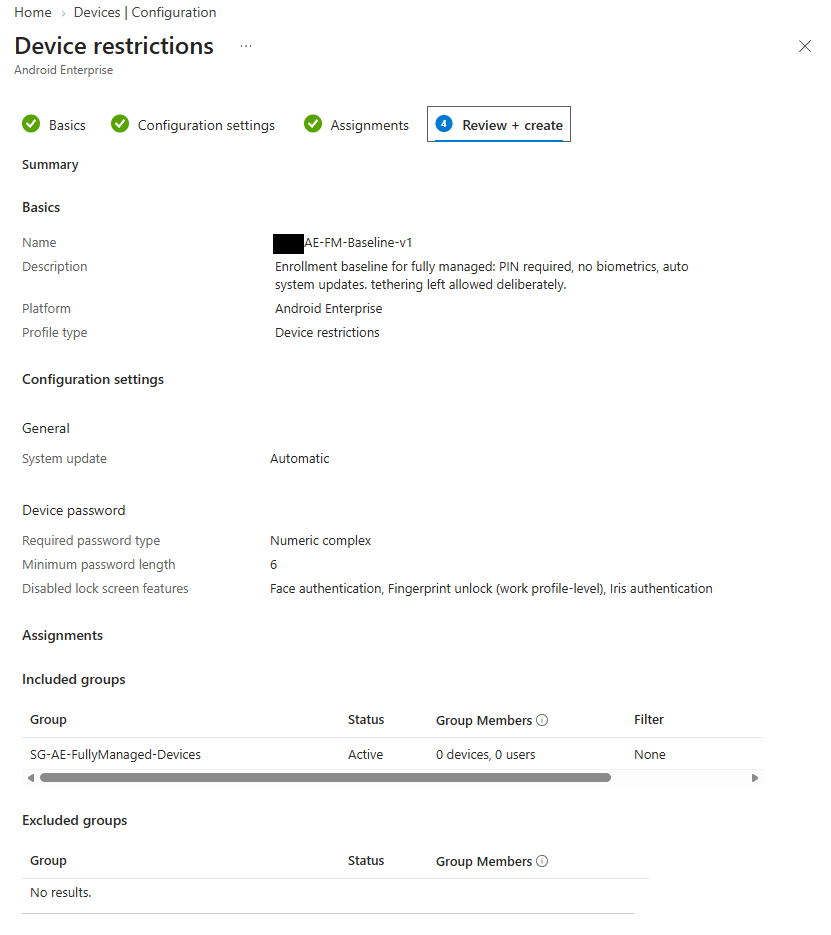
A minimum security floor. A six-digit PIN that rejects things like 123456, automatic system updates, and fingerprint and face unlock turned off. That last one is my own rule - I don’t use biometrics on anything - and now it’s a policy instead of a habit.
One setting I didn’t turn on is worth calling out. Microsoft publishes example security baselines, and its strictest one for this kind of phone blocks the mobile hotspot. Copy that baseline without reading it and you’ve just disabled the feature I was buying a phone plan for. So it’s left alone on purpose, and the policy description says so.
The phone had to be wiped first
When I started, the phone was already sitting at its home screen. That was a problem.
A company can only take full ownership of an Android phone before anyone has set it up. It is a deliberate security design: a management app can only become the phone’s “device owner” during the setup wizard, so no app can quietly take over a phone someone is already using. Think of a landlord installing the locks before the tenant moves in, not after.
So: factory reset. But before that, one step that turned out to matter more than I expected.
Patch first, then wipe
A factory reset erases your data. It does not roll back the version of Android. Whatever version is on the phone when you wipe it is the version you enroll on.
This phone shipped on a build from May. Two rounds of updates later it was on Android 17 with the September security patch - a full major version jump - before the company management ever touched it. That also removed a real risk: the security baseline turns on automatic updates, and a phone five months behind could have started a big download in the middle of enrollment and restarted itself, which is the one thing Microsoft explicitly warns you not to do during enrollment.
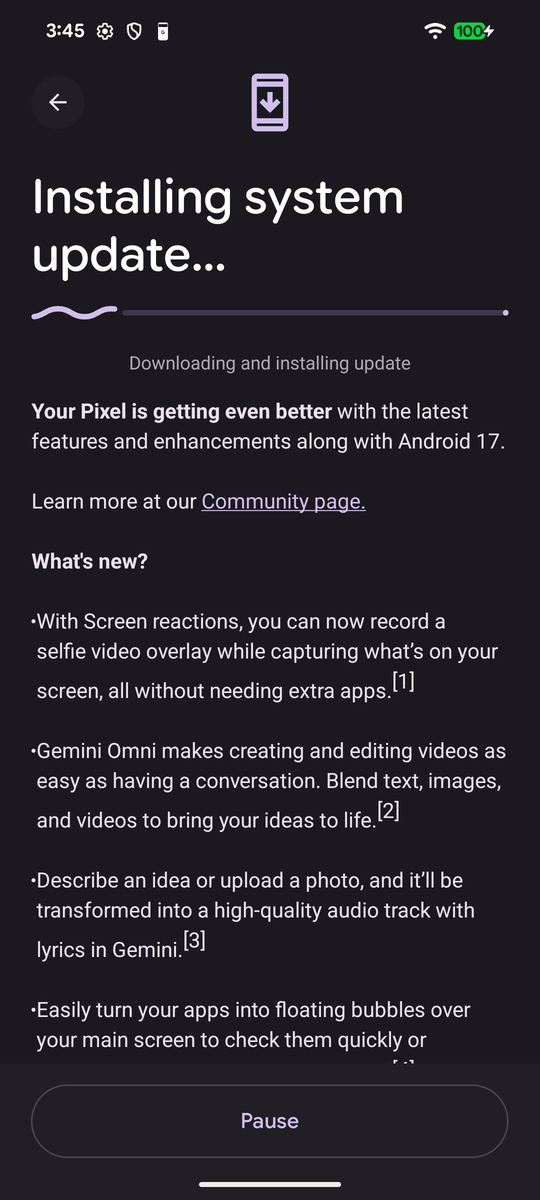
Six minutes
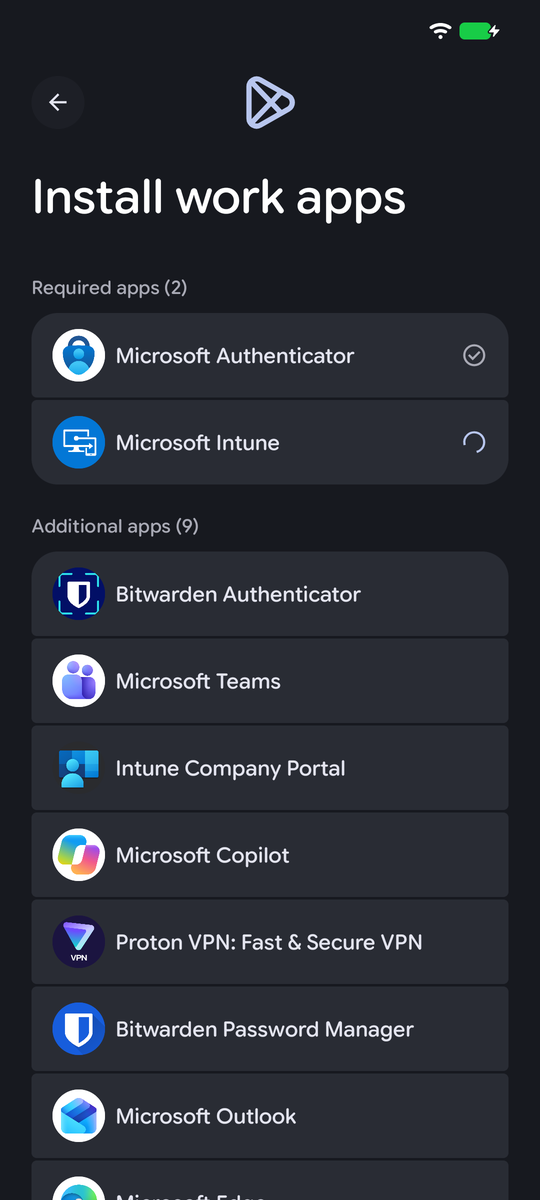
Factory reset. At the welcome screen, tap the same blank spot six times and a QR code reader opens. Scan the code from the Intune enrollment profile on the laptop screen. The phone announces that it belongs to the organization name I set earlier, asks for my work sign-in, and then shows a screen called Install work apps. Two apps sit under Required - Microsoft Intune and Microsoft Authenticator, which Microsoft puts on every fully managed phone. Nine more sit under Additional, and those are the ones I assigned to the landing-spot group. Nine of my own apps showing up during setup is the proof the group trick worked.
Then a PIN. No option for fingerprint or face was ever offered, because the policy was already in effect before I reached the home screen.
QR code scanned at 13:13. Home screen at 13:19.
Checking the work vs. trusting the dashboard
The laptop taught me this one the hard way: a green “Succeeded” in the Intune portal means the setting was sent. It does not mean the device is in that state. So everything got checked on the phone itself. Verification has been a hard lesson learned on my part during these projects - tbh I start getting lazy the longer they go on, but I’ve fortunately made a habit of grinding through verification processes instead of taking consoles at face value. I know for a fact this has saved me a TON of headaches. The extra five minutes of pain now saves me HOURS of worse pain later for sure.
- Fingerprint and face unlock: both greyed out, “Disabled by admin.”
- Hotspot settings: available, not blocked.
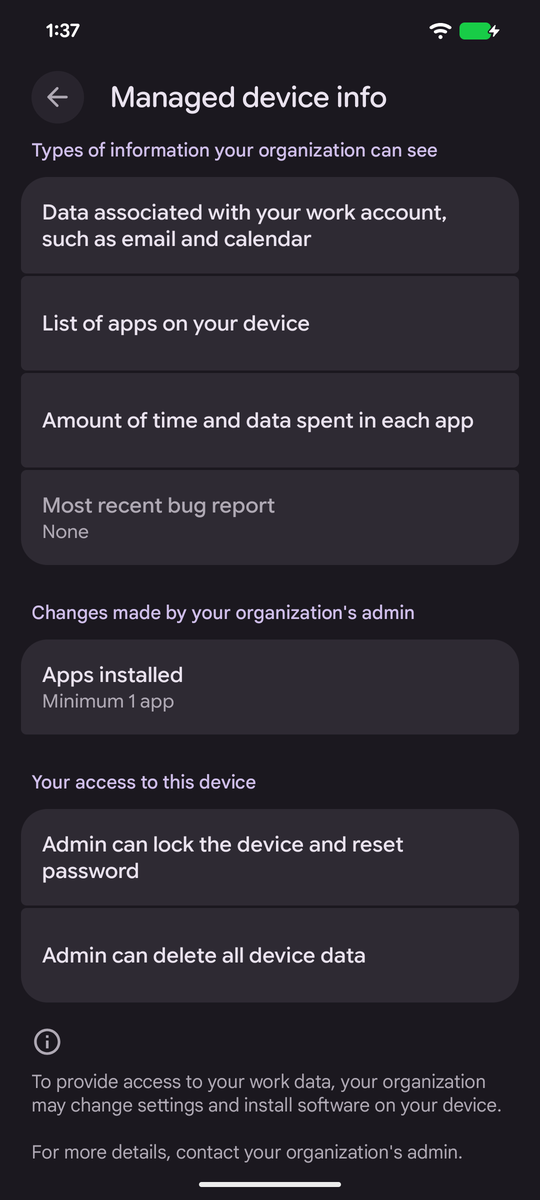
- The phone’s own disclosure page, which spells out exactly what the company can see: work email and calendar data, the list of installed apps, time and data spent in each app - and what it can do: lock the phone, reset the PIN, wipe it. Worth reading if you’ve ever wondered what your employer can actually see on a work phone.
The apps that disappeared
Fully managed setup switches off most of the apps that come preinstalled. Gmail, Photos, YouTube, Maps, Calendar, Clock and Calculator were all gone. They aren’t deleted, just disabled, and Intune can switch individual ones back on if you know the app’s internal package name. As a lifelong Pixel user I wanted Clock, Calculator and Maps back, so they went back on. Gmail, Photos and YouTube can stay gone on a work phone.
Small catch: Microsoft has redesigned that screen in the admin center, and its documentation still describes the old layout. The option lives under a category called Referenced app now.
The other place the documentation was behind
The app list only offered “Microsoft Copilot,” and I was told that was the consumer version, not the work one. That is out of date: Microsoft has merged its Copilot apps, so one app called Microsoft Copilot now signs in with either a personal or a work account, and the two sides stay separate. Signed in with a work account, it is the work app. Two documentation surprises in one build.
New Phone, who this?
The line is US Mobile’s unlimited plan on an eSIM - the kind of SIM that is downloaded instead of inserted. The order mattered: eSIM last. Carrier eSIM codes are usually single-use, and a factory reset can delete a downloaded eSIM. Installing it before the wipe would have meant asking the carrier for a new one. (Once a phone is enrolled, an Intune wipe keeps the eSIM by default.)
Two things went sideways at checkout:
- My card was declined, and the second one asked for a verification code. That’s not a sign of a shady carrier. Banks treat a first purchase of an instantly delivered phone line as high risk, because stolen cards get used for exactly that.
- Verizon’s network said my phone was “incompatible.” Verizon sells this phone, so I blamed the form. Phones with eSIM have two IMEI numbers and I had entered the second one, so I assumed the lookup wanted the first. That turned out to be the wrong guess. A warranty check after the build showed the phone is the Japan-region model (G576D), which I bought online without checking the model number. According to a third-party spec database its band list has no LTE band 13, Verizon’s main coverage band, so the rejection was correct. The line went on the AT&T-based network instead - which also happens to come with an unlimited hotspot - and the plan lets me switch networks later for free.
Calls and texts in both directions, on cellular and on Wi-Fi. The laptop connected to the hotspot. Done.
What a time to be alive, am I right?
What is still open
Honest accounting, because a write-up that only lists wins is a brochure:
- The phone shows as “Compliant,” and that means nothing yet. No compliance rules exist; the tenant’s default is to call devices with no rules compliant. The laptop has the same issue. Fixing both is the next project.
- My daily account is still a Global Administrator. Deliberate for a one-person shop, and labeled as a compromise.
- The phone is a Japan-region unit. That means no US warranty service, one usable US carrier network, and weaker rural and in-building coverage because it lacks AT&T’s band 14. Like the laptop, it works, the business needed to be running, and replacement waits until revenue covers it.
- The phone line is a consumer account in my name, paid by the business. Legitimate for a company of one; a business account makes sense once there are staff.
What I would tell a client
- Leave new company phones in the box until they are enrolled. A phone someone “just set up” has to be wiped.
- Ask whether anyone ever signed up for a Google service with a company email address before you connect Intune to Google.
- Patch before you enroll.
- Put the SIM on last.
- Check the model number and warranty region by IMEI at intake, before enrollment. Buy phones from the carrier, Google, or an authorized reseller.
The full procedure is published as a playbook, written against placeholders.
Next up: one hardening project for both devices - real compliance rules, and then Conditional Access on top of them.
Drafted with Claude (Anthropic) from my build notes; every step was performed and checked on the device by me.