At a glance
| Objective | Move from building a hybrid environment to administering one – the work that generates actual tickets |
| Scope | 1 prerequisite + 7 hands-on tasks across four admin portals not previously touched |
| Duration | Approximately 9 hours of hands-on work across two days |
| Environment | Microsoft 365 Business Premium, hybrid identity via Entra Connect, 2 domain controllers, 2 Windows 11 clients |
| Method | Single operator, live tenant, every failure traced to root cause before moving on |
| Findings | 9 root-cause findings, 7 corrections to prior understanding, 1 revision to the build-order playbook |
| Artifacts | 63-page administration playbook, tagged field-manual integration module |
Why this project exists
The previous project built a hybrid Active Directory and Microsoft 365 environment from bare metal, twice, and produced a build playbook. That work answered how do you stand this up.
It did not answer what do you do on Tuesday.
At a small business, email is the number one ticket category. Shared mailboxes, distribution lists, “where did my message go,” “why is this in quarantine,” “can you give Sarah access to the sales inbox,” “somebody shared a file outside the company.” None of that is build work, and all of it is the job.
I had zero hands-on with any of it, so this project went straight at the gap – email, collaboration, and data governance, in a live tenant, with real failures rather than lab-safe ones.
The output that matters here is not the configuration. It is the set of findings, and particularly the ones where a system reported success while doing nothing useful at all.
Environment
                          Internet
                              │
                   ┌──────────┴──────────┐
                   │  Firewall / Router  │   VLAN 40 · 192.168.40.0/24
                   └──────────┬──────────┘
                              │
          ┌───────────────────┼───────────────────┐
          │                   │                   │
     ┌────┴─────┐      ┌──────┴──────┐     ┌──────┴──────┐
     │ HL-DC01  │      │  HL-DC02    │     │  Clients    │
     │  .10     │◄────►│   .20       │     │  WS-ACCT01  │
     │ bare     │ repl │  Hyper-V VM │     │  WS-SALES01 │
     │ metal    │      │             │     │  Windows 11 │
     ├──────────┤      ├─────────────┤     └──────┬──────┘
     │ AD DS    │      │ AD DS       │            │
     │ DNS      │      │ DNS / GC    │      domain joined
     │ File svc │      └─────────────┘      hybrid joined
     │ Entra    │                                 │
     │ Connect  │                                 │
     └────┬─────┘                                 │
          │  Password Hash Sync · SCP · hybrid join│
          └──────────────────┬────────────────────┘
                             ▼
     ┌───────────────────────────────────────────────────┐
     │  Microsoft Entra ID  ·  Microsoft 365 Business     │
     │  Premium  ·  Exchange Online  ·  SharePoint        │
     │  Intune  ·  Defender  ·  Purview                   │
     └───────────────────────────────────────────────────┘
                             ▲
                             │  MX · SPF · DKIM · DMARC
                   ┌─────────┴─────────┐
                   │  Public DNS zone  │   managed at registrar
                   └───────────────────┘
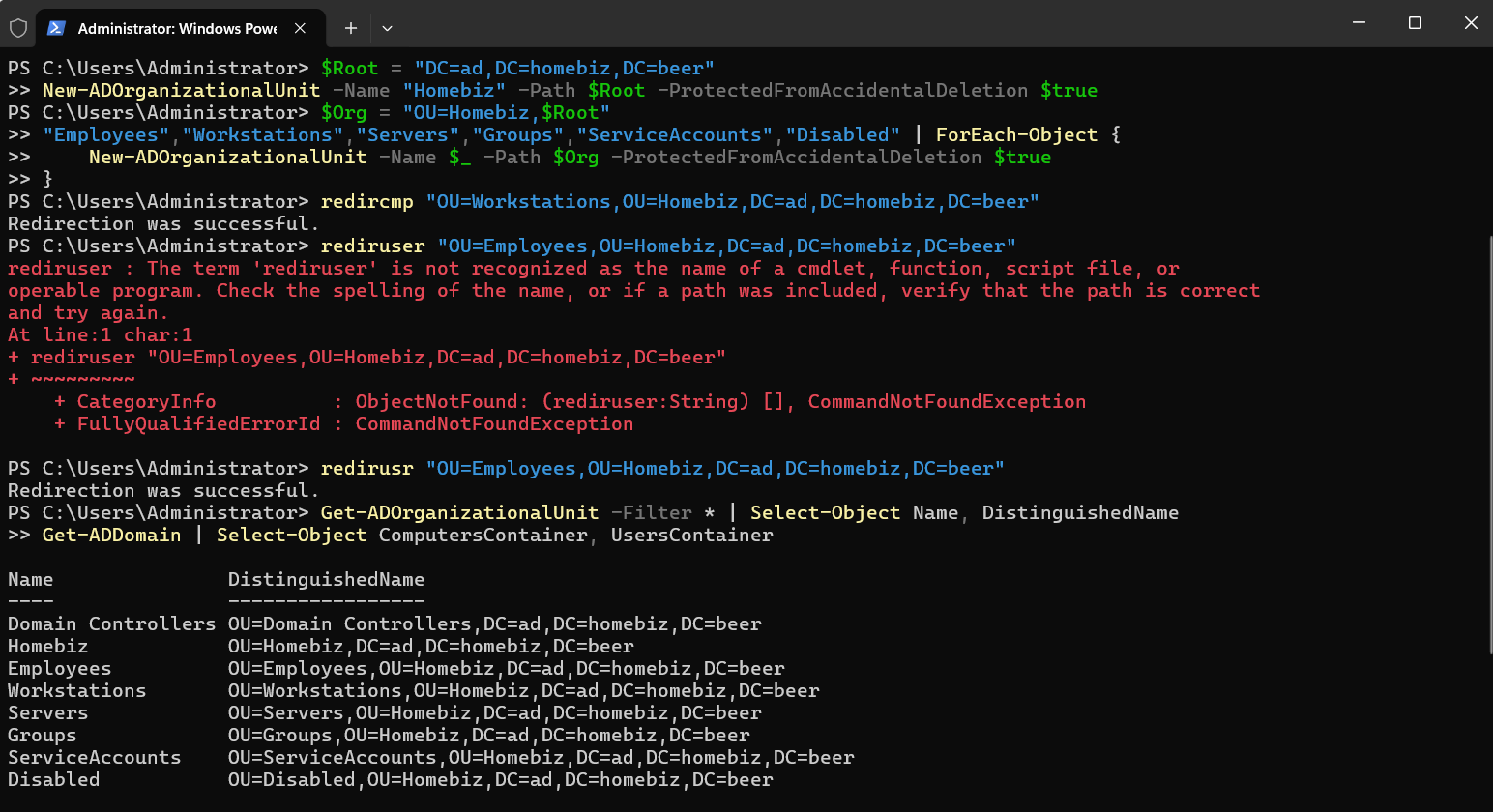
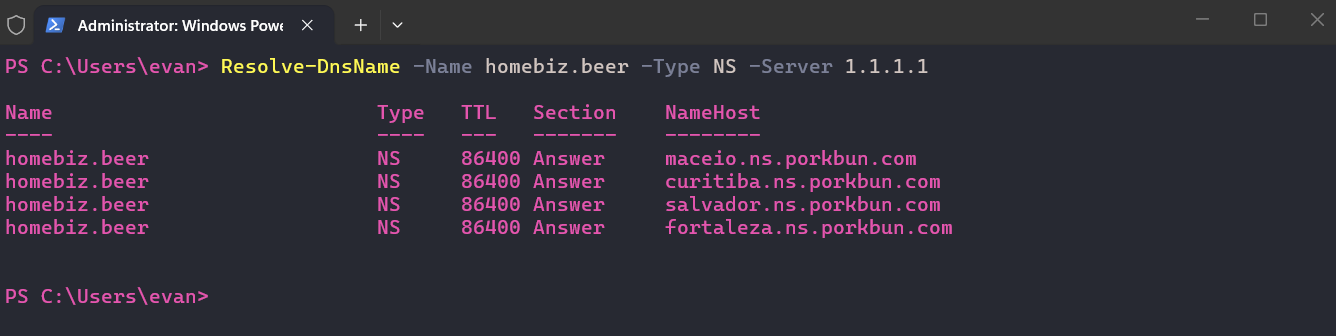
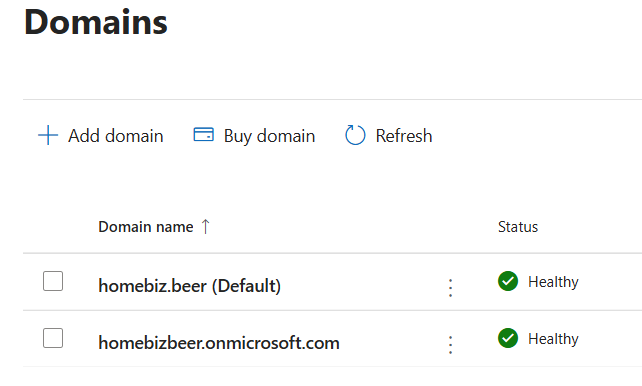
Namespace. Public domain homebiz.beer; internal AD domain is the subdomain ad.homebiz.beer. Public DNS is managed at the registrar rather than delegated to Microsoft – a decision revisited during Task 0 and a deliberate one by the end of it.
Test population. jsmith (Sales) and sjohnson (Accounting), both synced from on-premises AD. A daily-driver admin account, and a separate break-glass Global Administrator on the tenant’s .onmicrosoft.com domain.
Task sequence and results
| # | Task | Result | Root-cause findings |
|---|---|---|---|
| 0 | Configure the domain for Exchange Online – MX, autodiscover, SPF, DKIM, DMARC | Complete. SPF/DKIM/DMARC all pass | 5 |
| 1 | Run and read a message trace | Complete | 1 |
| 2 | Trip the spam filter, release from quarantine | Complete | 1 |
| 3 | Shared mailbox with Full Access, Send As, Send on Behalf | Complete | 2 |
| 4 | Distribution group vs mail-enabled security group | Complete | 1 |
| 5 | Add an alias, change the primary SMTP address | Complete | 1 (+1 open) |
| 6 | Break SharePoint inheritance, share externally, locate the governing policy | Complete | 2 |
| 7 | Sensitivity label and DLP policy in Purview | Complete, 1 item deferred | 2 |
Task 0 – Domain configuration for Exchange Online
Starting symptom, known before the project began: mail sent from the domain worked normally, and mail sent to the domain never arrived at all.
The domain had been verified in Microsoft 365 months earlier – the ownership TXT record was published and the admin center accepted the domain. That was enough to set a UPN suffix and run Entra Connect, so the work stopped there, which is exactly the kind of half-finished job that waits quietly until somebody tries to send you mail.
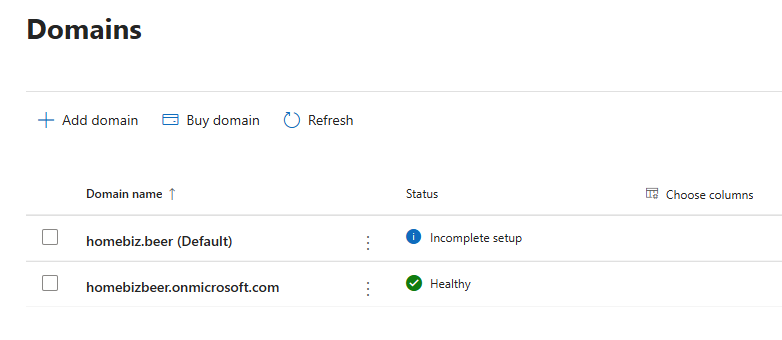 The tenant’s own assessment: “Incomplete setup.” Verification proves ownership and does nothing else. Outbound mail requires none of the public DNS record set. Inbound requires all of it.
Finding 1 – a wildcard CNAME made every diagnostic return a false positive
An inventory script was expected to return DNS name does not exist for each of the five missing records, and instead it returned an apparently valid answer for every one of them.
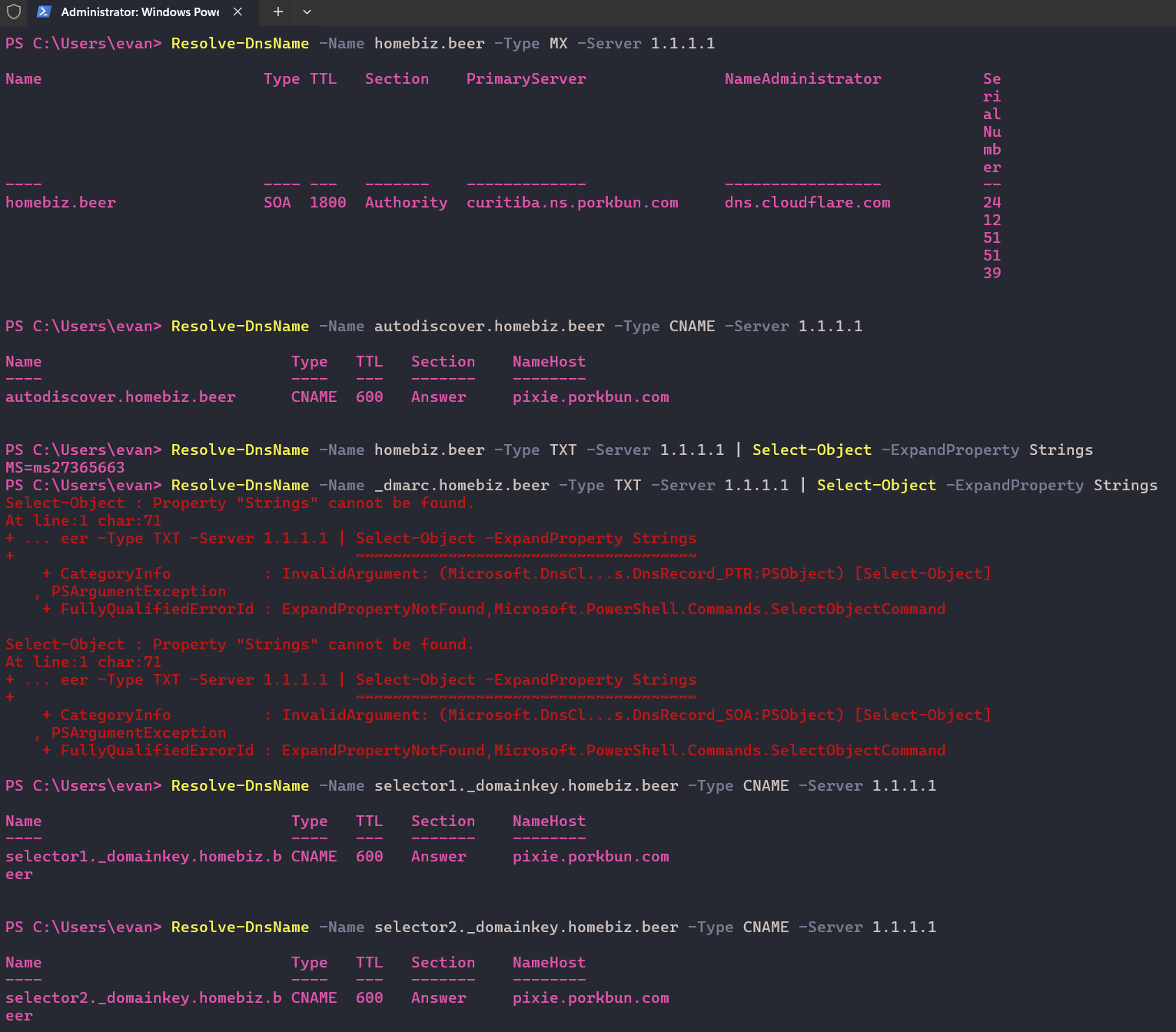
| Query | Answer received | Actual state |
|---|---|---|
autodiscover CNAME |
registrar parking host | Does not exist |
selector1._domainkey CNAME |
registrar parking host | Does not exist |
selector2._domainkey CNAME |
registrar parking host | Does not exist |
_dmarc TXT |
Select-Object : Property "Strings" cannot be found |
Does not exist |
The * wildcard CNAME – the registrar’s default parking record – answered for every subdomain without an explicit record.
The Select-Object error was not a syntax mistake. Resolve-DnsName returns a different .NET type per record type. The wildcard returned a CNAME, which PowerShell models as DnsRecord_PTR – it has a NameHost property, not Strings. The error was the finding.
The MX query behaved differently, and the difference is diagnostic:
NXDOMAIN – the name does not exist. NODATA – the name exists but has no record of that type. Proven by the zone SOA appearing in the Authority section with nothing in Answer.
Wildcards never match the zone apex, so the apex MX query returned honest NODATA while every subdomain lied.
Impact beyond the immediate task: the discovery endpoints for device registration and Intune enrollment were both resolving to a parking page. Nothing was broken, because hybrid join uses the Service Connection Point in AD and Intune enrollment came from Group Policy. It was a latent hazard that nothing in the environment would ever have surfaced on its own.
Finding 2 – the bounce was a textbook implicit-MX failure
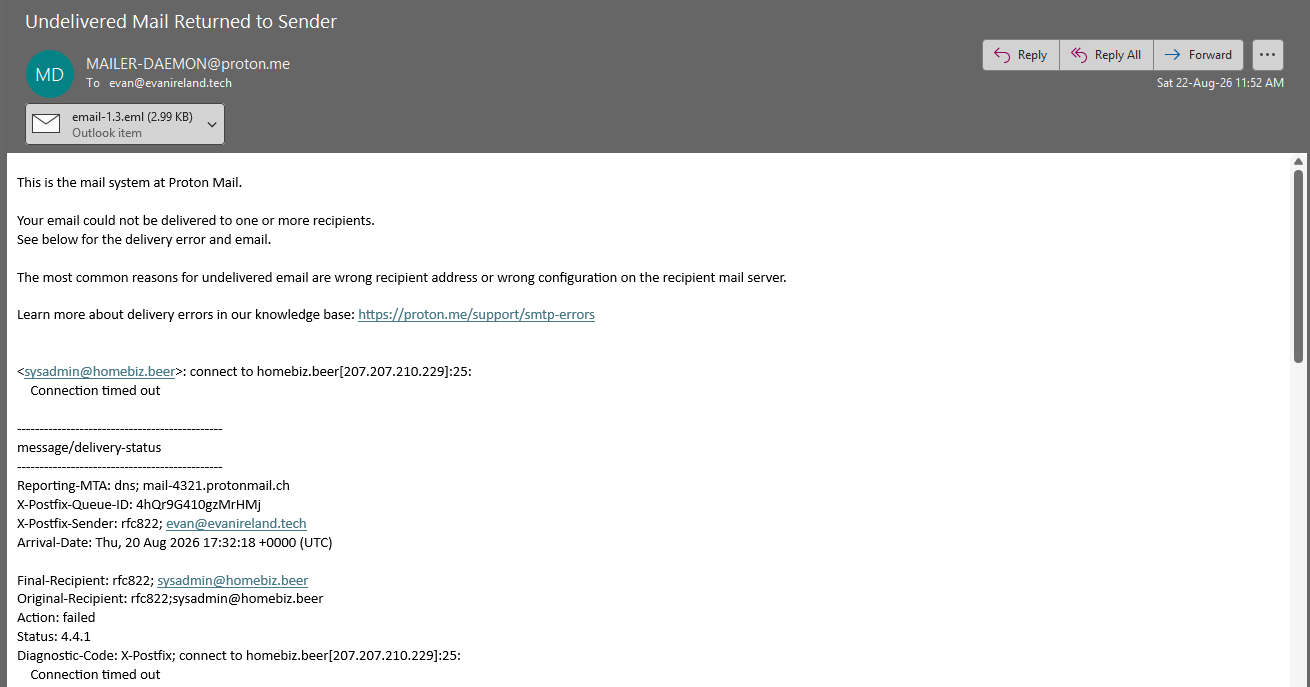
connect to [domain]:25: Connection timed out
Status: 4.4.1
With no MX record, RFC 5321 says the sender falls back to the domain’s address record – the implicit MX rule. The apex ALIAS resolved to the registrar’s parking web server, which is not listening on port 25. The connection hung until timeout.
4.4.1 is a 4.x.x code – transient, not permanent. The original message was accepted by the sending system on 20 August and the NDR was not issued until 22 August, which is roughly 42 hours of retries before the sender finally gave up on it.
A
4.x.xbounce means the mail is still coming if you fix the problem inside the retry window. A5.x.xbounce means it is gone. That distinction changes what you tell a client on the phone.
Finding 3 – NS records in the zone are not a nameserver delegation
The first repair attempt chose Microsoft-managed DNS, which requires delegating the zone. The four Microsoft nameservers were entered into the DNS record editor as NS records. Forty-five minutes of waiting produced nothing at all, for the simple reason that nothing had been delegated.
| Where it lives | How you change it | |
|---|---|---|
| Delegation | The parent zone at the registry | The registrar’s nameserver field, pushed via EPP |
| NS records in the zone | Your own zone | The DNS record editor |
Microsoft’s error message named the servers it was querying – the registrar’s, not its own. NS records in the zone are meant to mirror the delegation. Pointing them at a provider the registry does not know about creates a lame delegation, and some resolvers will cache the child NS records in preference to the parent’s and begin querying servers with no zone data.
Finding 4 – DNSSEC, and reading the screen

“We’ve detected that [the domain] has Delegation of Signing (DS) DNS records… DNSSEC is not supported by Microsoft 365 DNS hosting.”
The banner had been on screen the entire time.
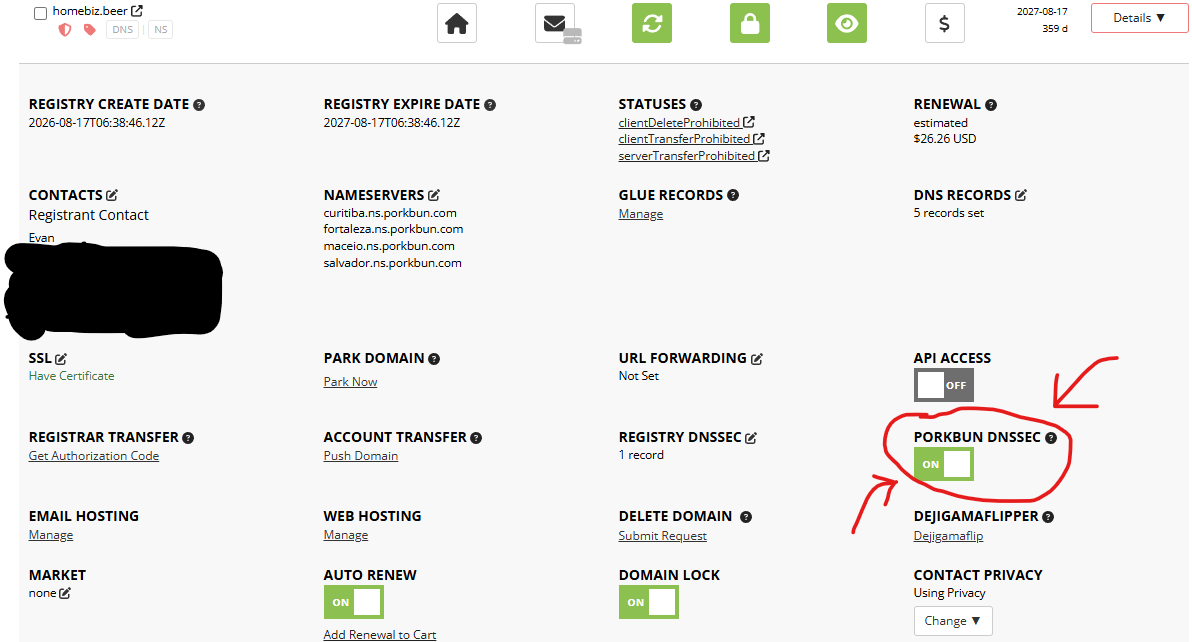
Turning it off produced a second, more interesting failure. DNSSEC removal has a mandatory order: remove the DS record from the parent registry, wait out its TTL, then stop signing. Reversing it means the parent still advertises “this zone is signed – reject unsigned answers,” while the zone no longer signs. Every validating resolver returns SERVFAIL and the domain goes dark for a large share of the internet.
Verification caught exactly this, mid-transition:
| Resolver | Result |
|---|---|
Cloudflare 1.1.1.1 |
SERVFAIL |
Google 8.8.8.8 |
Clean SOA |
| Parent zone DS query | NODATA – the TLD holds no DS record |
SERVFAIL from one public resolver with a clean answer from another is the signature of DNSSEC validation, essentially every time. A genuinely down nameserver fails everywhere. Two resolvers disagreeing means one is validating against something the other is not – usually a stale cached DS.
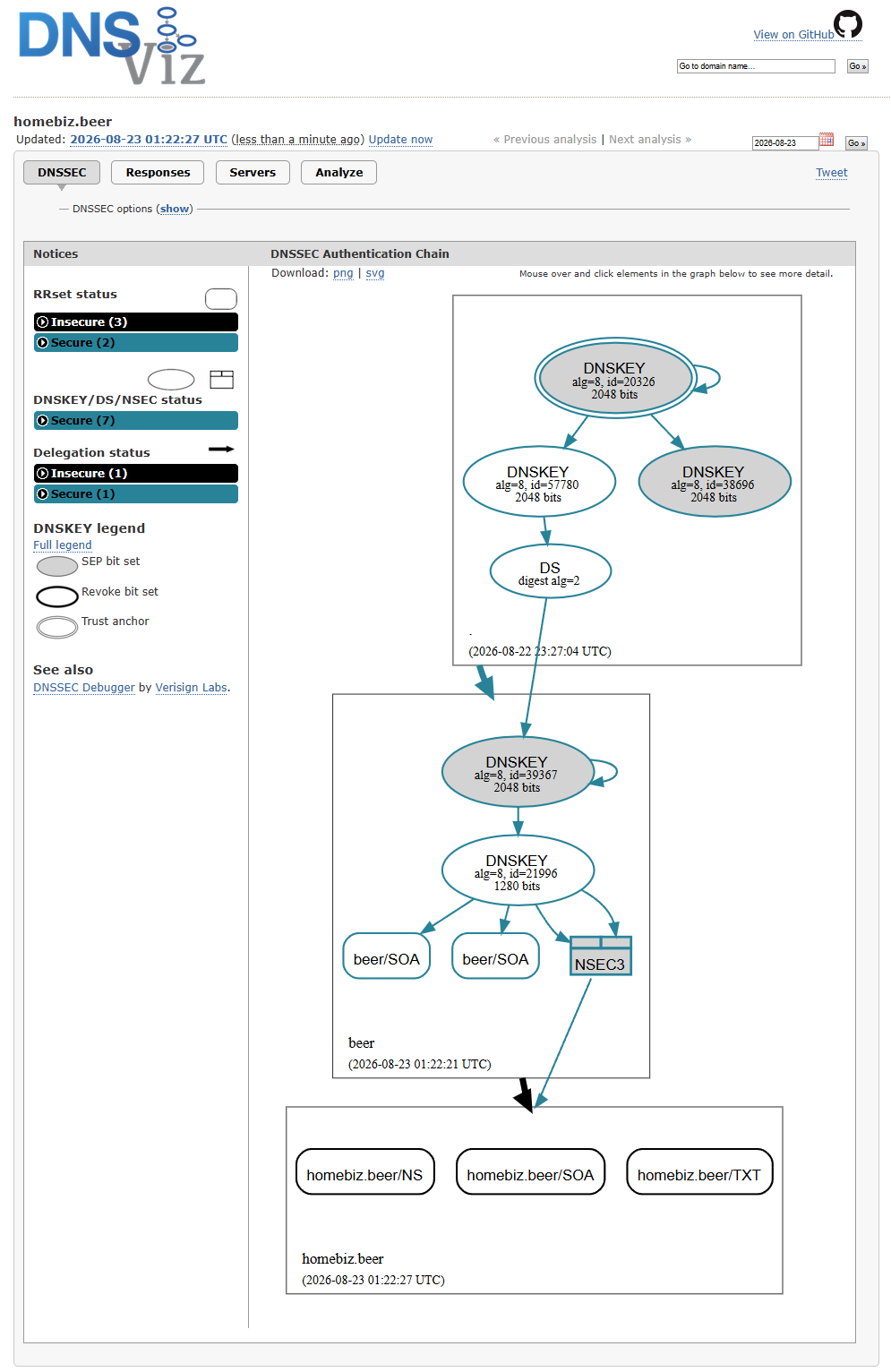 dnsviz.net renders the full delegation chain from root down – the right tool for any real DNSSEC ticket, rather than inferring from resolver behavior.
The strategic decision: abandon Microsoft-managed DNS and keep the zone at the registrar. Four reasons, in order of weight:
- It is the skill the job actually requires. Real clients keep DNS wherever their web developer put it a decade ago, and it stays there. Delegating to Microsoft also means no longer being able to create a record for anything that is not Microsoft.
- DNSSEC stays available. Microsoft-hosted DNS does not support it.
- Speed. Three records at a 600-second TTL versus a registry delegation plus a documented 48-hour DS-removal window.
- It had already been done correctly once, on another domain, in minutes.
Finding 5 – DKIM CNAME values cannot be constructed
The record format changed in May 2025. New domains receive a selector target of the form:
selector1-contoso-com._domainkey.contosocom.p-v1.dkim.mail.microsoft
The character before -v1 is a dynamic partition character assigned by Microsoft. It is not configurable and not predictable, and the old and new formats cannot coexist for the same selector. The values must be read from the portal or from Get-DkimSigningConfig.
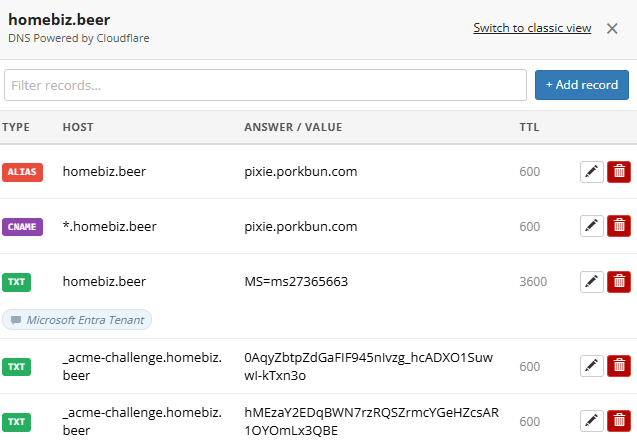
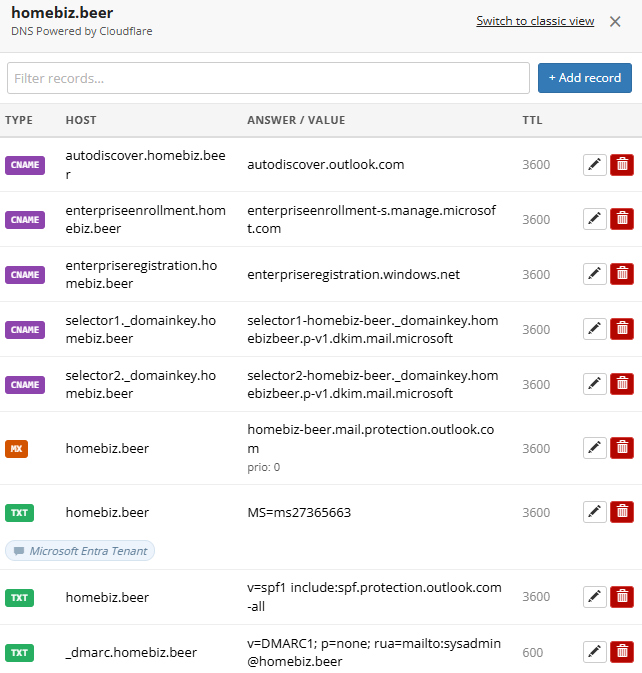 Final zone: MX, autodiscover, SPF, both DKIM selectors, both Intune discovery records, the verification TXT. Wildcard, apex ALIAS, misplaced NS records and stale ACME records all removed.
Result
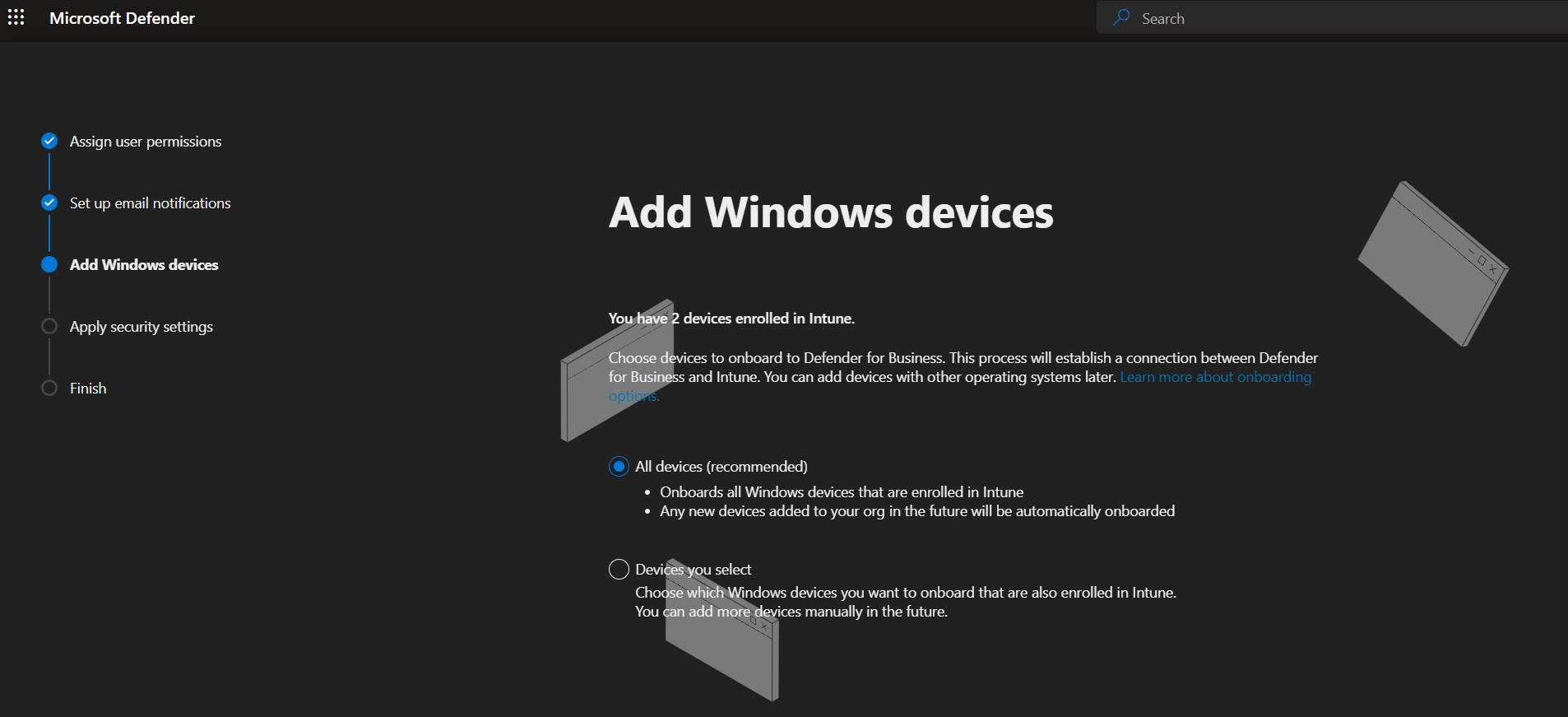
Enabling DKIM was done through the Defender portal rather than the Exchange admin center. That was an unplanned first exposure to that portal, and it is the one Microsoft is consolidating security administration into, so it was time well spent by accident.
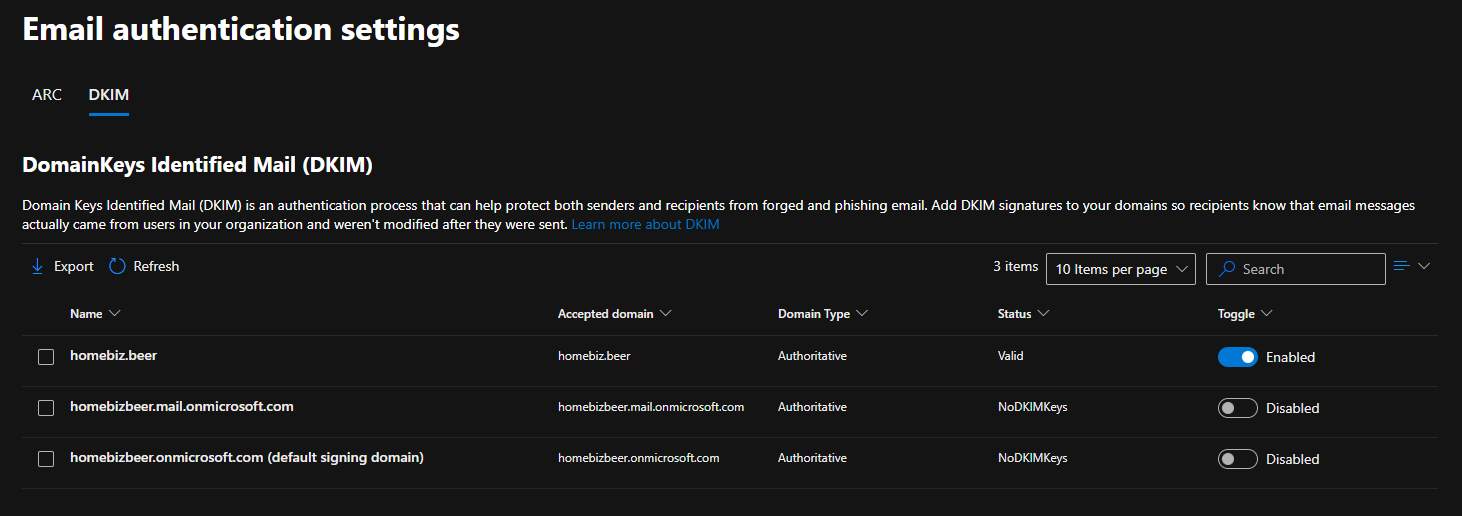 DKIM signing enabled and valid for the custom domain.
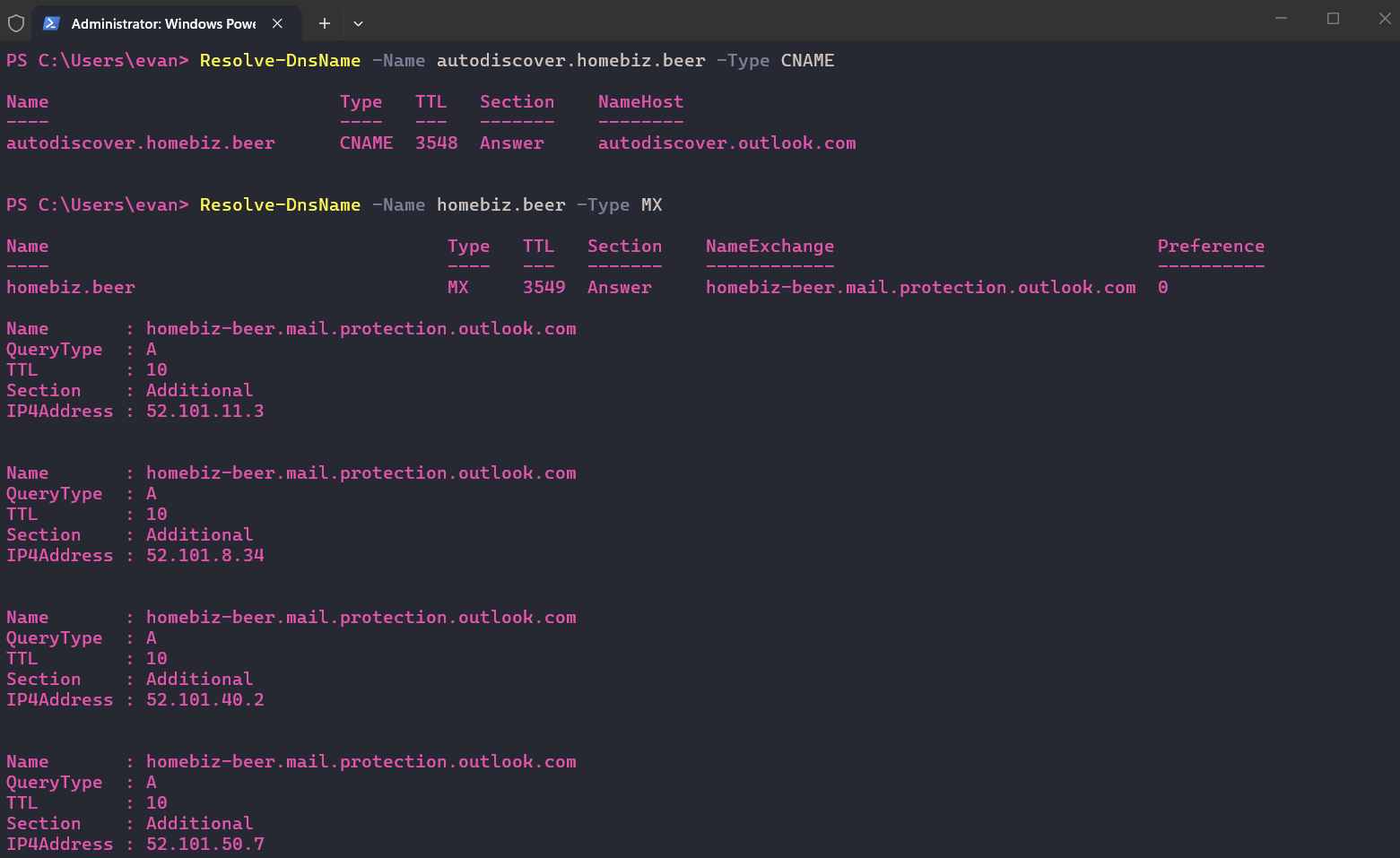 Resolution verified through the real client path – workstation → domain controller → forwarder. Microsoft’s inbound protection endpoints carry a 10-second TTL because they rotate constantly. This is why the MX value is a hostname and never an IP.
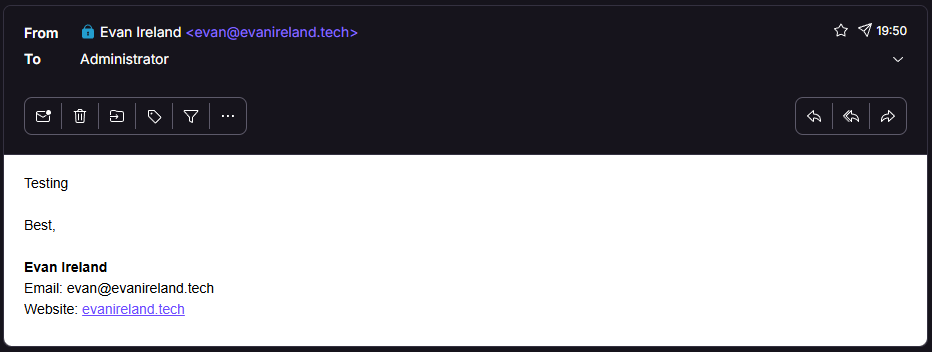
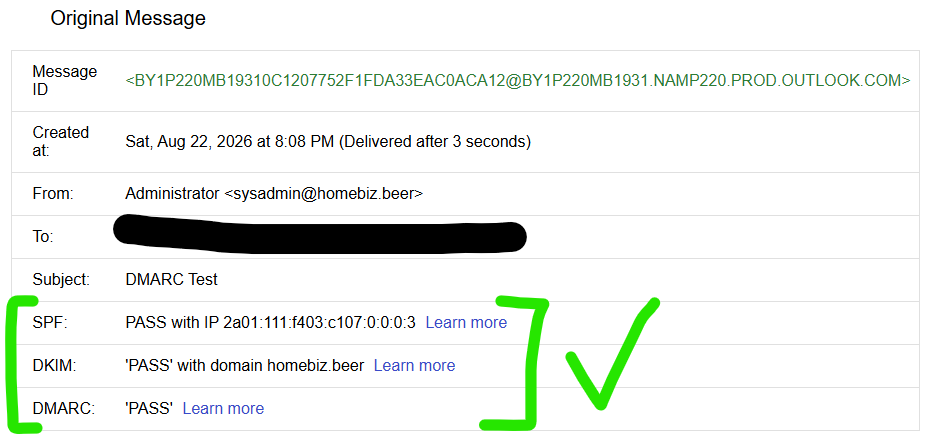 SPF, DKIM and DMARC all pass at an external receiver. Two hours earlier this domain was timing out against a parking page.
One detail worth catching: across two outbound tests sixteen minutes apart, the SPF-authorized source IP changed. Microsoft rotates outbound sending addresses continuously. This is exactly why the SPF record uses include: and never hardcoded ip4: entries. Anyone who pins Microsoft IPs into SPF has signed up for a silent outage on the day those IPs change.
DMARC deployment – the template that came out of this
Host:  _dmarc
Type:  TXT
Value: v=DMARC1; p=none; rua=mailto:dmarc@contoso.com
TTL:   600
p=none is monitoring only. It protects nothing. Its entire value is that aggregate reports tell you who is sending as the domain before you start blocking anything.
| Stage | Record | Duration | Exit criteria |
|---|---|---|---|
| Monitor | p=none; rua=... |
2–4 weeks | Every legitimate sender identified in reports |
| Authorize | unchanged | as needed | Each sender fixed in SPF or DKIM |
| Partial | p=quarantine; pct=10 → 25 → 50 |
1–2 weeks per step | No legitimate mail quarantined |
| Enforce | p=quarantine; pct=100, then p=reject |
– | – |
Skipping straight to p=reject is how you find out on a Monday morning that the client’s invoicing system had been sending as their domain from a server nobody ever documented.
Build-order revision
Domain DNS configuration belongs in Phase 0, not deferred.
Verifying a domain is sufficient to set a UPN suffix and run Entra Connect, so it is tempting to stop there and continue with identity work. That defers work that must be done anyway and does it later under worse conditions – with users already synced and expecting a working mailbox. Complete the full record set at the same sitting as domain verification, and check for DNSSEC before choosing a DNS hosting model, since the incompatibility only surfaces after the migration has started.
Task 1 – Message trace
The tool you will open most often at an MSP, because “where’s my email” is the most common ticket there is.
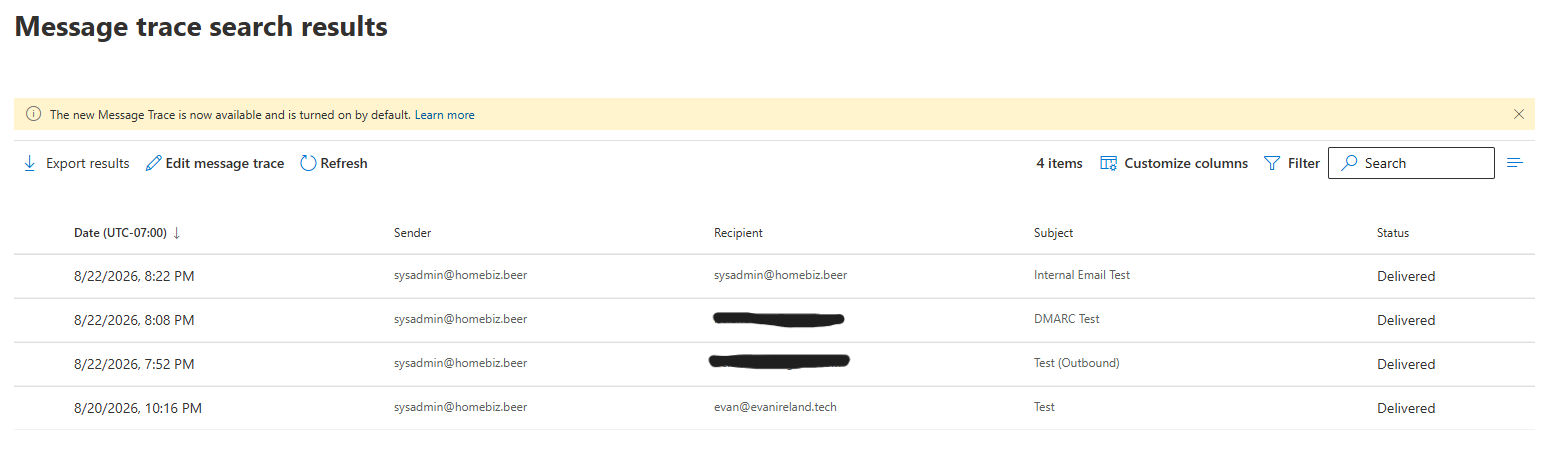
The hard boundary
Message trace shows what Exchange Online Protection and Exchange Online did with a message while it was inside the service. It stops at the mailbox door.
It cannot see inbox rules, Sweep rules, Focused vs Other, a user dragging a message somewhere, or a client-side rule in Outlook desktop. It cannot see what an external server did after accepting the handoff.
The most common misread in the field: the ticket says “it never arrived,” the trace says Delivered. The trace is not lying. The message is in the mailbox and something after delivery moved it – nine times out of ten an inbox rule the user forgot they created. Pivot to the mailbox, not to mail flow.
Reading the events
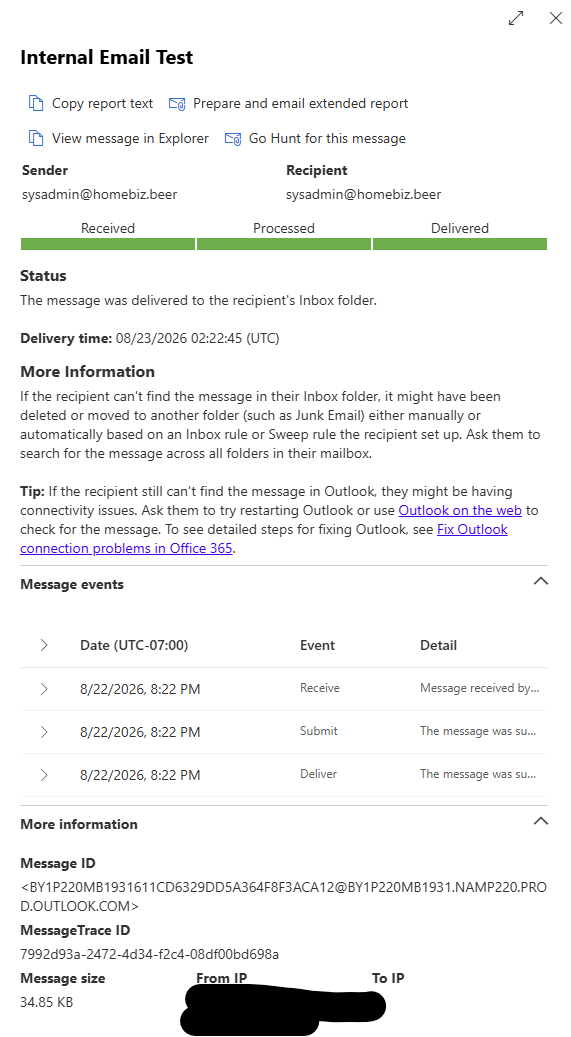 Internal self-send: Receive → Submit → Deliver, with both identifier fields visible at the bottom.
| Trace | Events |
|---|---|
| Internal self-send | Receive → Submit → Deliver |
| Inbound from the internet | Receive → Deliver |
| Outbound to external | Receive → Submit → TRANSFER → Send external |
Finding – the Submit event is an origin test. Submit is where a message is handed into transport by a mailbox inside the organization. An inbound internet message has no local mailbox submitting it.
Submit present = originated inside the tenant. Submit absent = arrived from the internet. A message claiming to be from an internal sender with no Submit event did not originate from an internal mailbox. Directly useful for “is this spoofed, or did it really come from our CEO?”
Deliver vs Send external is the other distinction worth keeping straight. Deliver means the message is sitting in a mailbox you administer, and Send external means you successfully handed it to somebody else’s server and your visibility ended at that moment.
Two IDs, two purposes
| Field | Assigned by | Use |
|---|---|---|
| Message-ID | The originating mail system. Never changes. | The highest-precision search key available. Have the user open the original and copy the header. |
| MessageTrace ID | A GUID internal to Exchange Online’s trace database. | Hand to Microsoft Support when escalating. |
Retention and licensing
| Age | Behavior |
|---|---|
| Under 7 days | Interactive results in the browser |
| 7–90 days | Downloadable CSV only, up to an hour to generate |
| Over 90 days | Gone. Not archived, not recoverable |
Licensing flag: View message in Explorer requires E5-tier Threat Intelligence. Go Hunt requires Defender for Office 365 Plan 2. Business Premium includes Plan 1.
Time zone trap: the event list header labels the zone by its standard offset while rendering times in daylight time. A header reading Date (UTC-07:00) beside a delivery time of 01:50 UTC displays 7:50 PM, not 6:50 PM. Correlate in UTC. Same class of failure as Kerberos rejecting a domain join over clock skew – time handling produces failures that present as something else entirely.
Task 2 – Spam filtering and quarantine
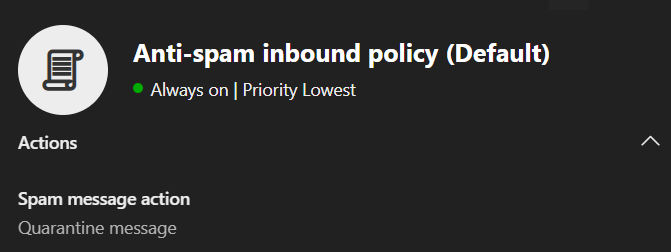
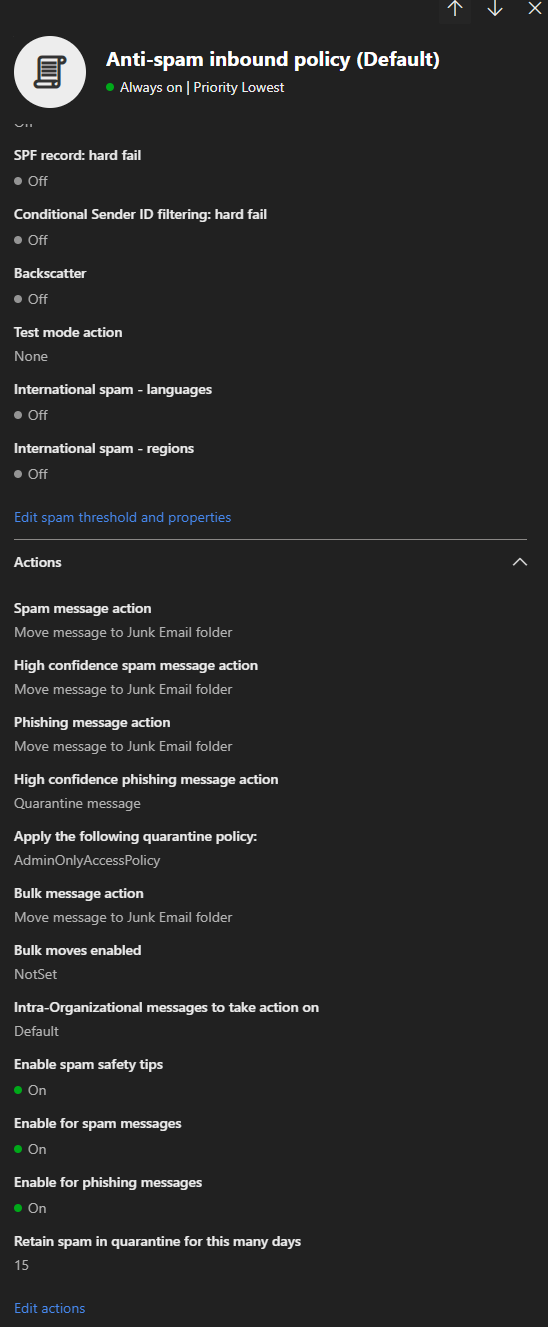 Default policy state recorded before any modification – the baseline required to put it back.
Junk and quarantine are different places
| Location | User can retrieve it? | |
|---|---|---|
| Junk Email | Inside the mailbox | Yes, themselves |
| Quarantine | Held by the service – never reaches the mailbox | Depends on the quarantine policy |
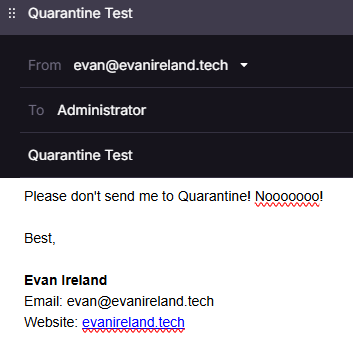
The distinction surfaced as two different message trace statuses on the same sender, seven minutes apart, with one variable changed between them:
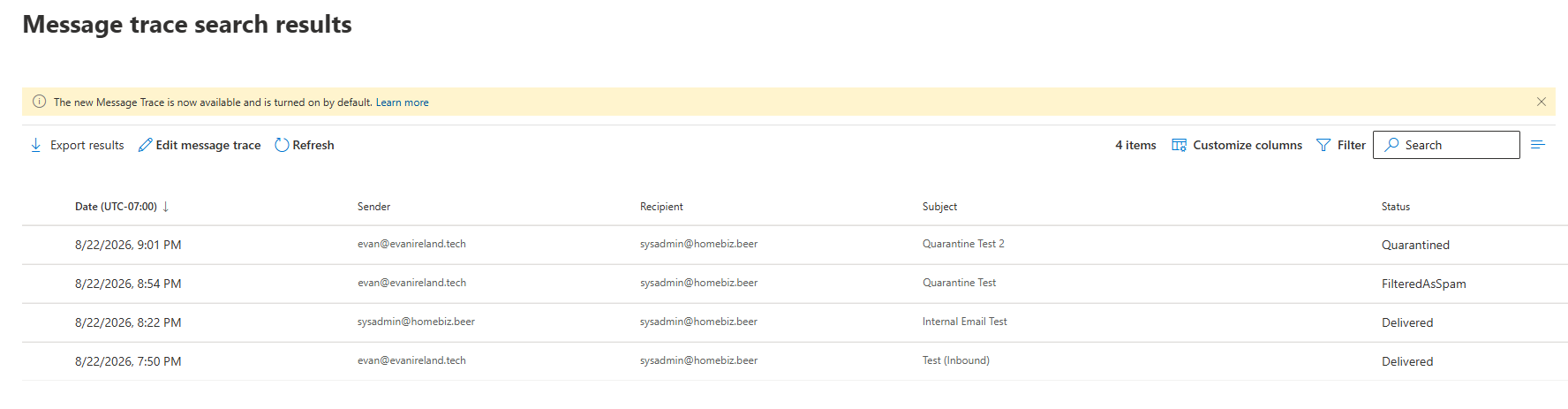
9:01 PM   Quarantine Test 2   Quarantined
8:54 PM   Quarantine Test     FilteredAsSpam
Finding – two policy objects, not one
This is the distinction juniors collapse, and it changes what you tell a user on the phone.
| Object | Answers |
|---|---|
| Anti-spam policy | Should this message be quarantined? |
| Quarantine policy | Once quarantined, what may the end user do about it? |
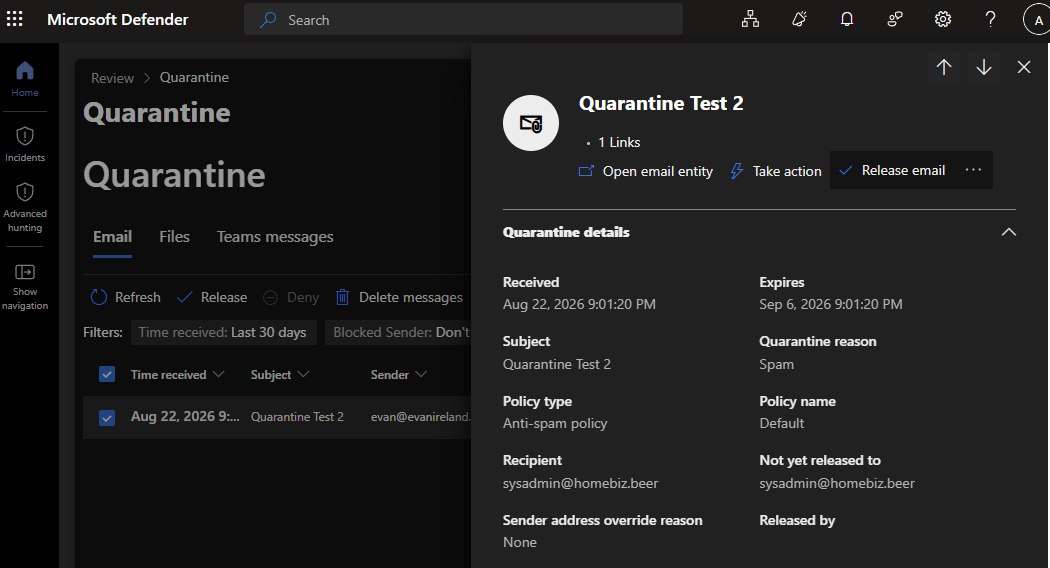
Every quarantining action carries its own quarantine policy assignment:
| Policy | User can |
|---|---|
AdminOnlyAccessPolicy |
Nothing. The message does not appear in their quarantine view at all. |
DefaultFullAccessPolicy |
View and release their own mail |
DefaultFullAccessWithNotificationPolicy |
Same, plus digest notifications |
The default assignment for high-confidence phishing is AdminOnlyAccessPolicy – deliberately, so users cannot self-release the thing that encrypts the file server.
The correct answer to “can I get it back myself?” is “let me check – it depends how it was classified.” Sending a user to a page that will show them nothing is a wasted callback.
Retention was 15 days, matching Retain spam in quarantine for this many days on the policy. Configurable – read it off the policy rather than quoting a number.
Testing note: GTUBE, the widely cited spam-filter test string, is not documented as supported by Exchange Online Protection and did not trip it. A blocked-sender entry or a mail flow rule stamping SCL 9 are the deterministic methods.
Lab vs production: the Default anti-spam policy is always lowest priority and applies to everyone. In production you create a scoped policy at higher priority targeting a test user and delete it when finished – you do not edit Default.
Task 3 – Shared mailbox and delegation
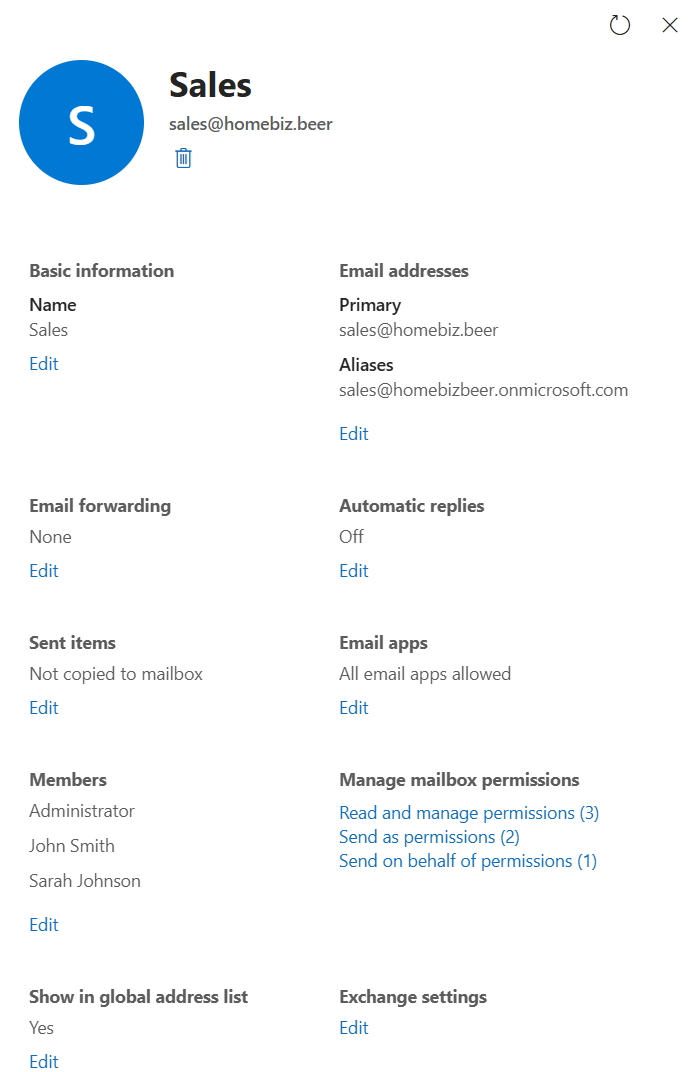
What a shared mailbox is
A real mailbox with a real Entra user object sitting behind it, and that account is blocked from sign-in. It is not a distribution group and it is not an alias, which is the confusion worth clearing up first.
Licensing: no license required under 50 GB. info@, support@, billing@ cost nothing – one of the most useful cost facts in SMB work.
Security note that gets skipped: the hidden account is a standing target and the sign-in block is the only control on it. Attackers specifically hunt for shared mailbox accounts where somebody enabled sign-in “to make it easier.”
Three permissions, three storage locations
| Permission | Effect | Retrieved with |
|---|---|---|
| Full Access | Open, read, organize, delete. No right to send. | Get-MailboxPermission |
| Send As | Mail appears to come from the mailbox, full stop | Get-RecipientPermission |
| Send on Behalf | Adds a Sender: header naming the delegate |
A property on the mailbox object |
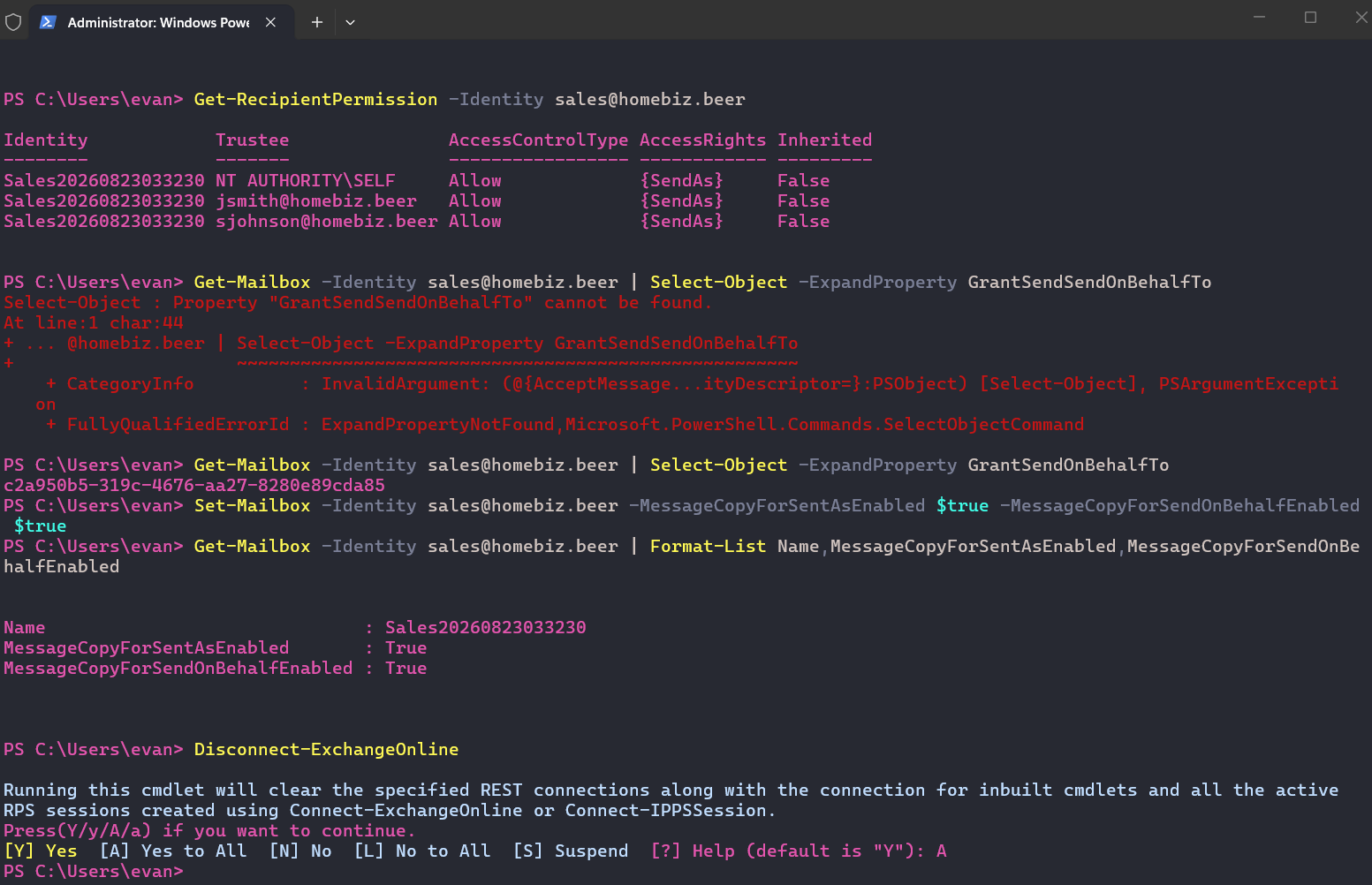
Three permissions, three unrelated storage locations, three different retrieval methods. Send As is a directory-level right on the recipient object rather than an ACL on the mailbox store, which is why it needs a different cmdlet entirely. The GUI presents all three as one tidy list, and that is exactly why somebody auditing an inherited tenant misses one.
If an account holds both Send As and Send on Behalf, Send As wins and Send on Behalf never fires.
Automapping worked as documented – Full Access granted directly to a user caused the mailbox to appear in Outlook desktop without configuration. It does not fire for permissions granted through a group.
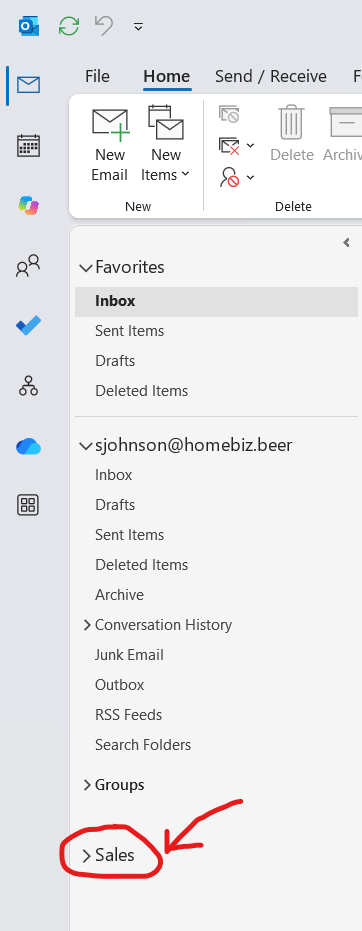
The Sent Items problem
Default behavior sends a delegate’s sent copy to their Sent Items only. Nobody else on the team sees it – the classic “we can’t tell who already replied, so we keep double-answering” ticket.
Set-Mailbox -Identity sales@contoso.com `
  -MessageCopyForSentAsEnabled $true `
  -MessageCopyForSendOnBehalfEnabled $true
Two separate switches. Setting one does nothing for the other. Not retroactive.
Finding – Send As erases the submitter from the audit trail
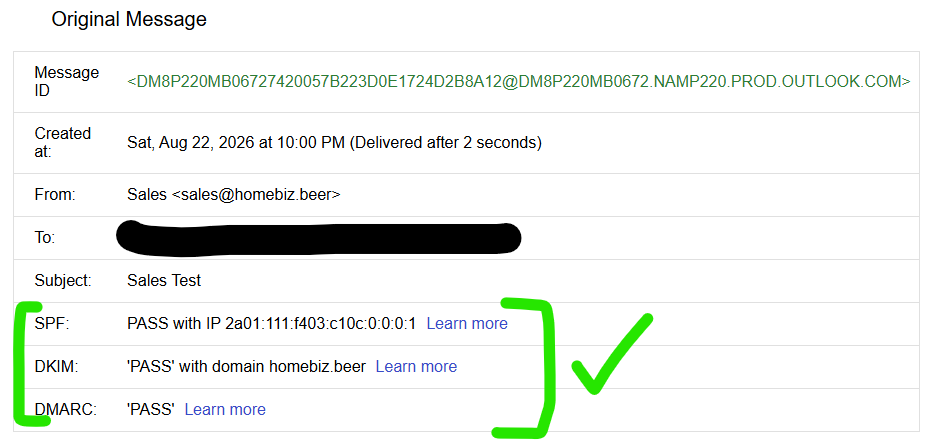
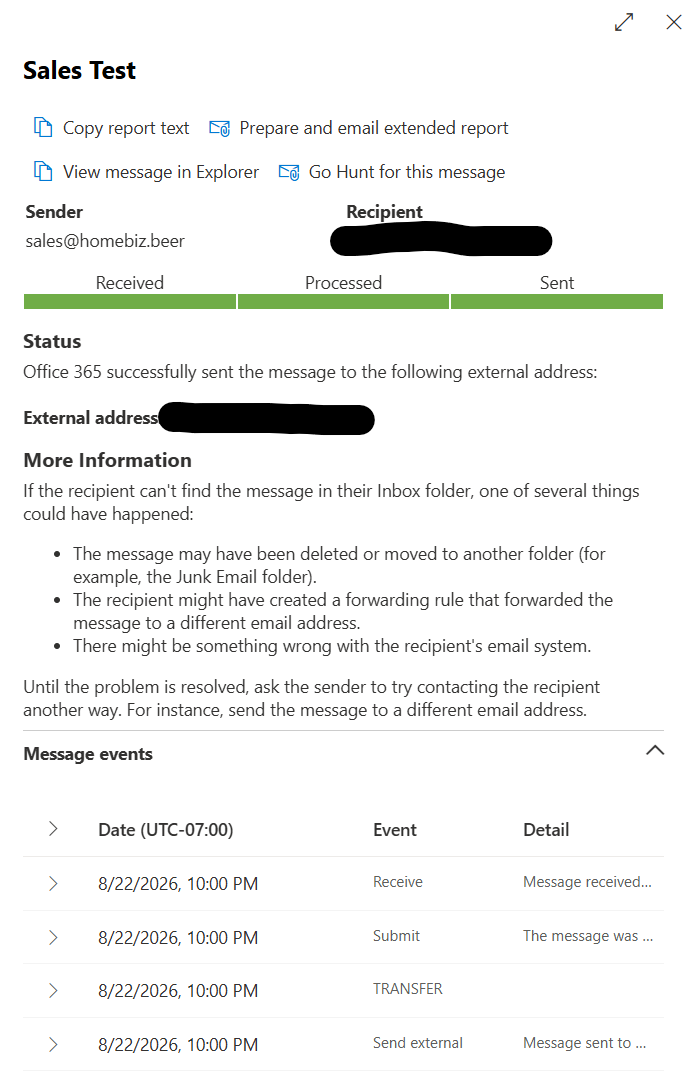
A user sent from the shared mailbox using Send As, and both the recipient’s view and the message trace show nothing but the shared mailbox address. The submitting user’s name appears nowhere in either one.
Send As does not add a sender – it replaces one. If three people hold Send As on
sales@and one emails a client something they shouldn’t have, message trace cannot tell you which human it was.
Recovering that attribution requires mailbox auditing – Exchange logs a SendAs record naming the delegate, searchable in the unified audit log. Message trace and audit logs answer different questions.
The contrast turned up four hours later in the same project, entirely by accident. A Task 7 message sent from the same shared mailbox by an account holding Send on Behalf showed the shared mailbox at the recipient and the submitting account in the trace. Same mailbox, opposite behavior, and the only variable was the delegation type.
Finding – Send on Behalf attribution depends on the recipient’s client
Per RFC 5322, Send on Behalf produces two address headers: From: naming the author (the mailbox) and Sender: naming the submitter (the delegate).
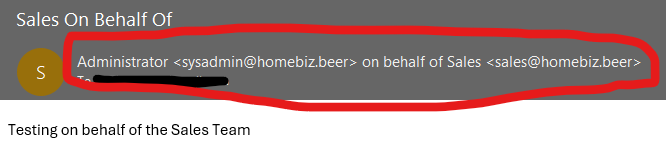 Outlook desktop parses
 Sender: and renders “Administrator on behalf of Sales.”
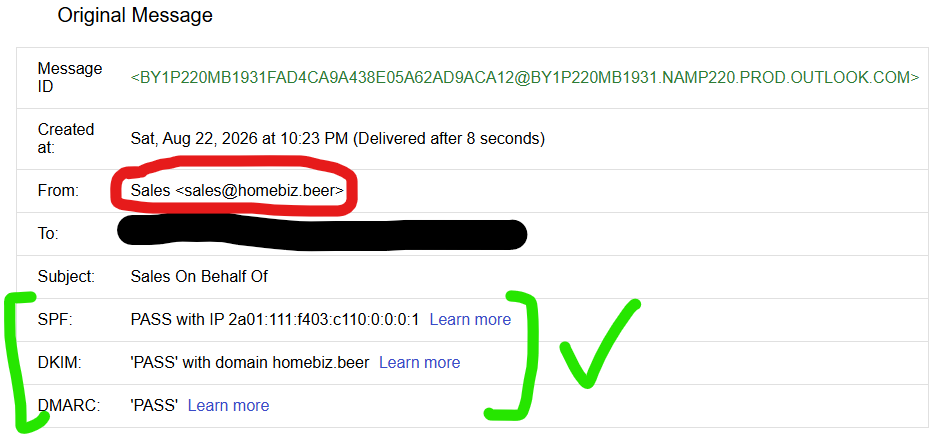 Gmail’s Show original summary table lists Message ID, Created at, From, To, Subject and authentication results.
 Sender: is present only in the raw headers below – not in the summary a user would look at.
Same message. Same headers. Two clients, two different displays.
Send on Behalf preserves attribution in the message. It does not guarantee the recipient will ever see it. Where accountability actually matters – compliance, legal, regulated communications – the enforceable record is the mailbox audit log, not the recipient’s rendering.
That is a materially different conclusion from the one the task was set up to teach. Send on Behalf gets recommended for accountability all the time; this is a demonstration that the guarantee is weaker than advertised.
DMARC is unaffected – it aligns on the From: domain only. Sender: plays no part in it.
Task 4 – Distribution group vs mail-enabled security group
A distribution group is a mailing list. A mail-enabled security group is a mailing list that is also a security principal – an object that can hold permissions, be licensed, and be targeted by Conditional Access.
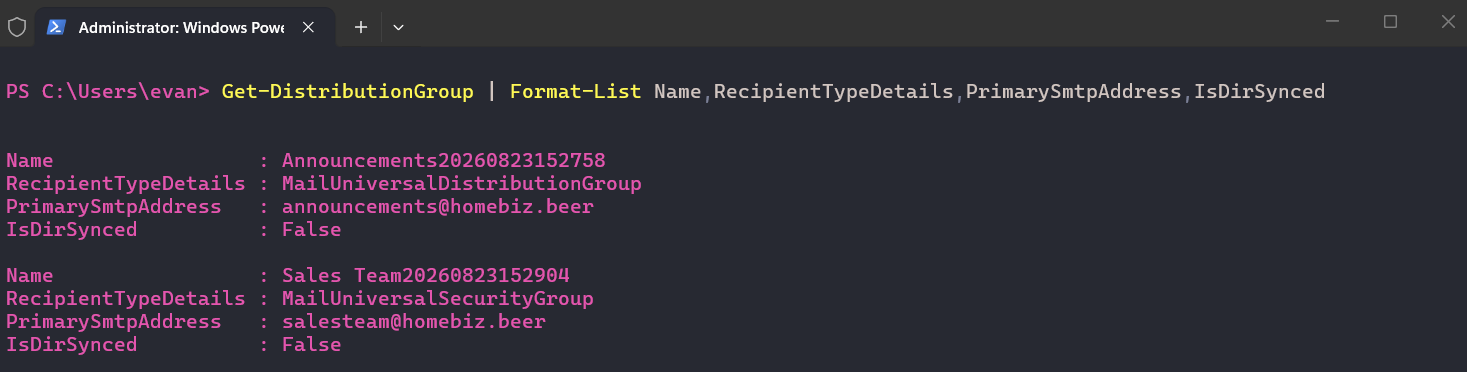
MailUniversalDistributionGroup vs MailUniversalSecurityGroup. Both are returned by Get-DistributionGroup – in Exchange terminology every mail-enabled group is a “distribution group,” security context or not. That inconsistency has existed for twenty years.
The demonstration that settles it
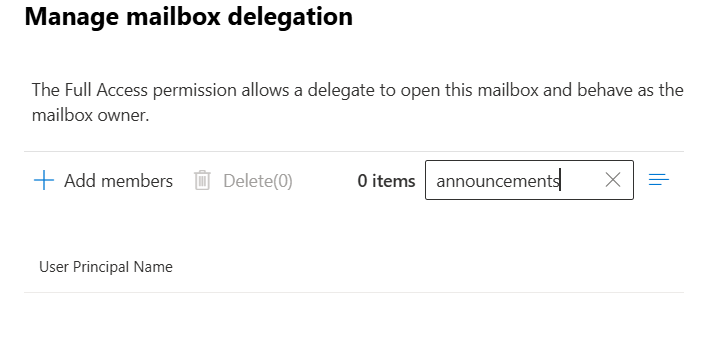
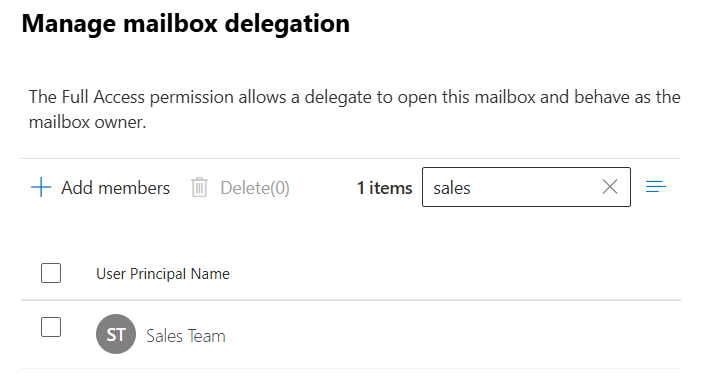
Same search box, same mailbox permission dialog. The distribution group returns zero results because it cannot hold a permission. The mail-enabled security group is selectable.
Group expansion in message trace
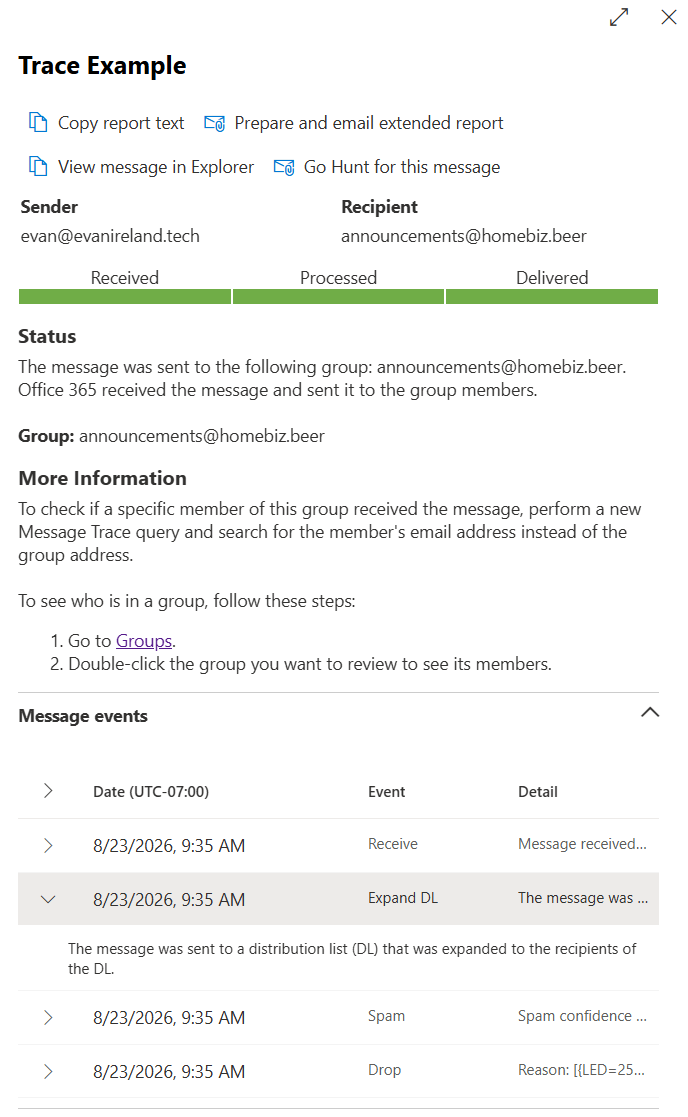
Receive → Expand DL → Drop
Reason: [{LED=250 2.1.5 RESOLVER.GRP.Expanded; distribution list expanded}]
The Drop is benign. 250 is an SMTP success code – the parent group recipient was retired after fan-out, by design. Expanding the row and reading the full reason is the difference between a correct diagnosis and an escalation.
The member’s individual trace showed Deliver with no Receive event – the message was received once, at the group level, and the fan-out copies began their lives already inside transport.
Deliver with no Receive means the message arrived via group expansion, not addressed directly. If a user insists a sender emailed them personally and the trace shows Deliver-only, they were on a list.
A distribution list always requires two searches: the group address to confirm expansion, the member address to see what happened to their copy.
The design question
Default to separate objects. Coupled objects fuse two concerns that change on different schedules, and the failure is the Mover in the Joiner–Mover–Leaver lifecycle:
| Stage | Coupled group behavior |
|---|---|
| Joiner | Fine, arguably convenient |
| Mover | The failure. User transfers departments. Someone adds them to the new list for mail. Nobody removes the old membership, because that would cut off mail during handover. They now hold file access to both departments indefinitely – entitlement creep, which audits find constantly. |
| Leaver | Fine |
Coupled objects do not fail at grant time. They fail at change time, months later, and they do it silently.
Mail-enable when the coupling is the point. Group-based licensing requires a security principal; a distribution group cannot do it. A finding from the previous project – Intune enrollment failing because a department group was not nested into the licensing group – is exactly that case.
Environment constraint worth knowing
Only universal groups can be mail-enabled. A standard AGDLP model is built from global role groups and domain-local resource groups, and neither one can be mail-enabled as it stands. That is not a flaw in AGDLP so much as a constraint on the shortcut – “just mail-enable the department group” is not available to you without changing the group’s scope first.
Two defaults to check on every new group
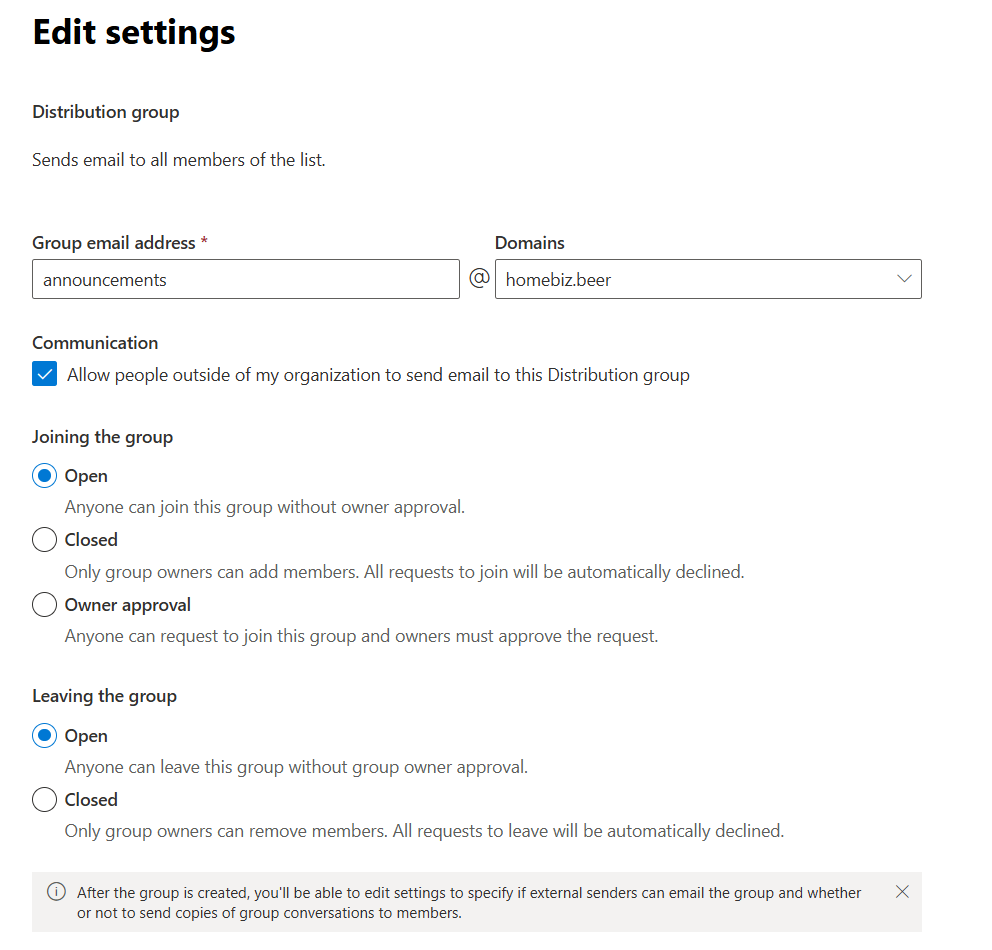
| Setting | Risk if left at default |
|---|---|
| Allow external senders – on | Correct for a public info@. Wrong for an internal all-staff list – it becomes a one-address broadcast channel into the whole company for anyone on the internet. A real phishing vector. |
| Joining the group: Open | Low stakes on a distribution list. On a mail-enabled security group this is self-service privilege escalation. |
Finding – the test was invalidated by a leftover override
The first run of this task produced a Spam verdict and a Drop on the group message, and a quarantined member copy.
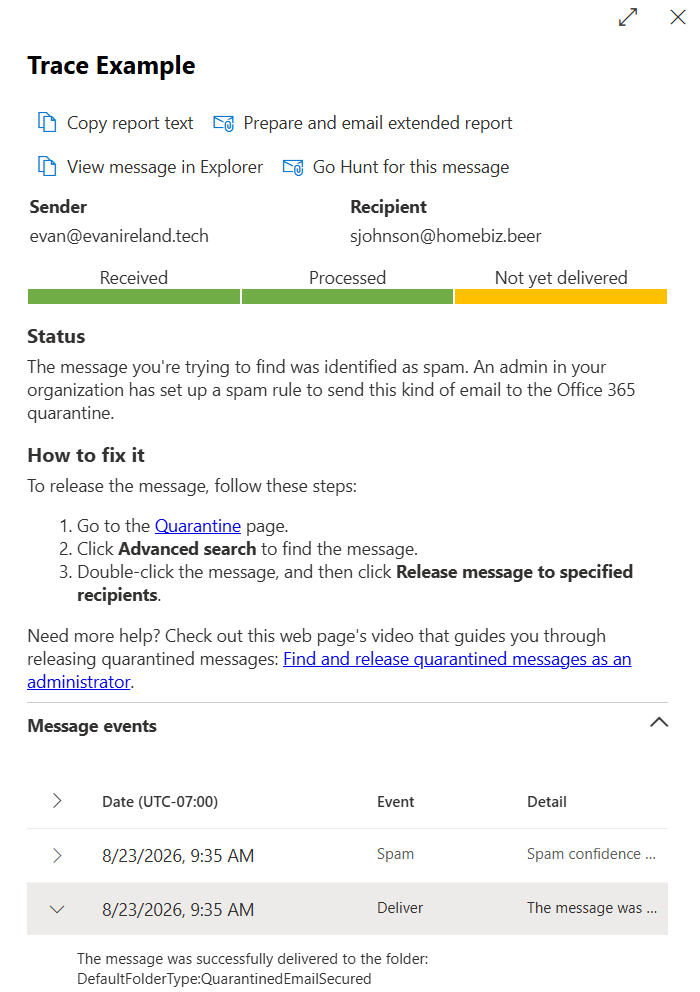
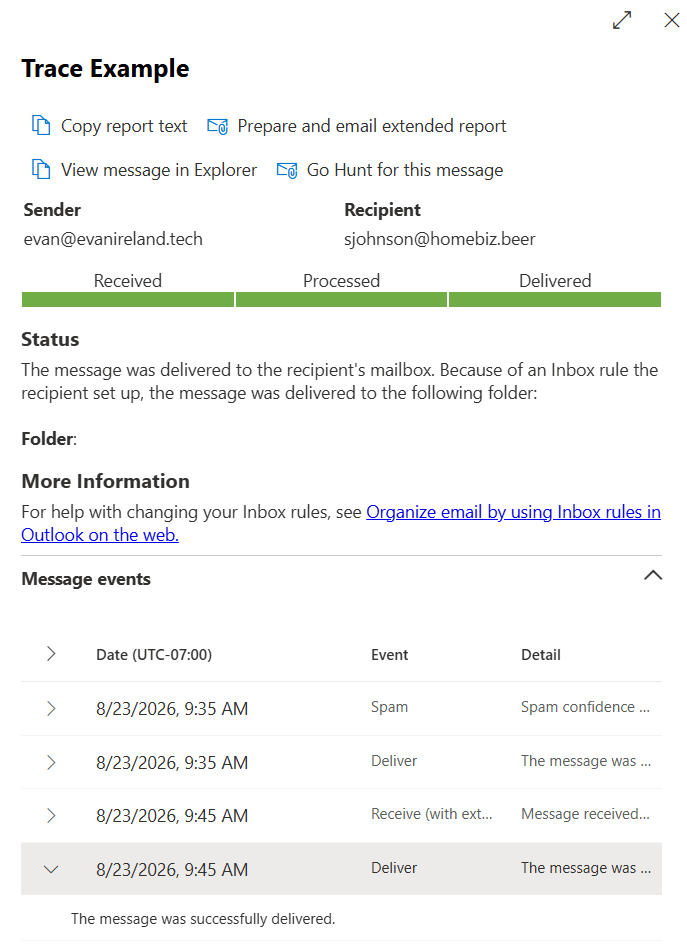
The cause had nothing to do with group behavior. The Task 2 anti-spam changes had never been reverted. What the test actually demonstrated was spam filtering acting on a message that happened to arrive by way of a distribution group.
Compounding it, an allowed-sender entry was then added to stop the interference – which meant the subsequent “is it reverted?” test would deliver successfully whether or not the revert had taken. The verification could no longer distinguish the two states. The allow list was removed before the task was called complete.
Task 5 – Aliases and primary SMTP address
proxyAddresses
Every mail-enabled object carries the multi-valued proxyAddresses attribute. The prefix case is the entire mechanism.
SMTP:jsmith@contoso.com                    ← UPPERCASE = PRIMARY (reply address)
smtp:john.smith@contoso.com                ← lowercase = alias, receives only
smtp:jsmith@contoso.onmicrosoft.com        ← tenant routing address
SIP:jsmith@contoso.com                     ← Teams presence / calling identity
Exactly one SMTP: entry is permitted. “Changing someone’s email address” means promoting one entry and demoting another – the old address stays as an alias so existing mail keeps arriving.
The hybrid boundary
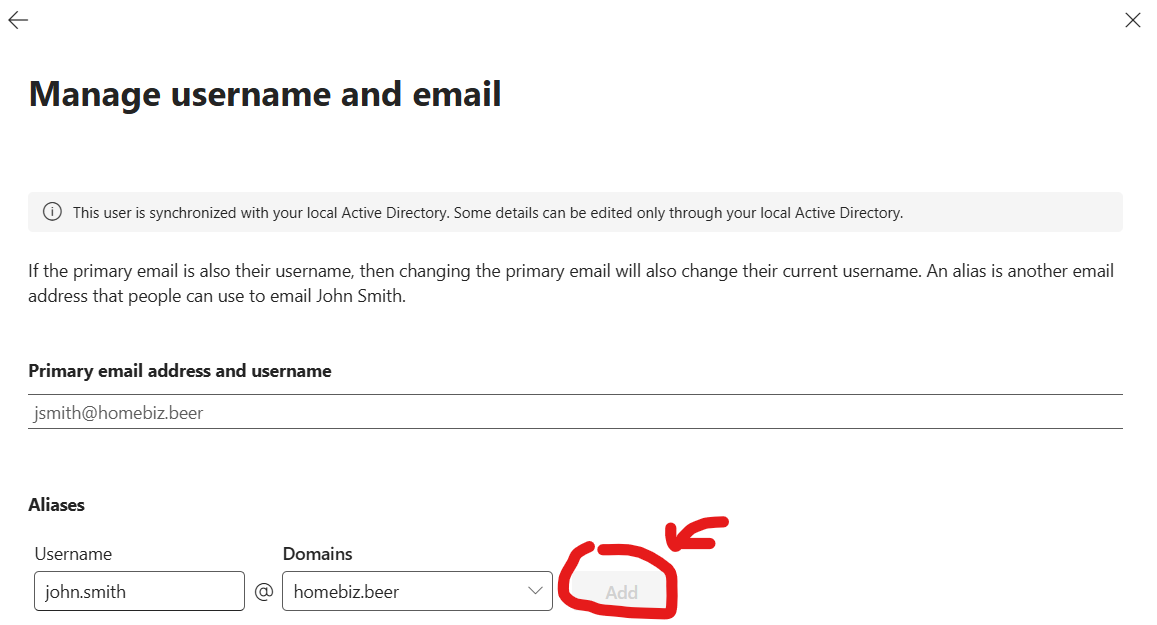
“This user is synchronized with your local Active Directory. Some details can be edited only through your local Active Directory.”
Synced objects are mastered on-premises. The Add button is greyed out.
The dangerous variant of this symptom is not the greyed-out field. It is a change that appears to save and then silently reverts on the next sync cycle. It looks like it worked, and half an hour later it is gone.

IsDirSynced: True. Check this before hunting for a permissions problem.
The correct procedure
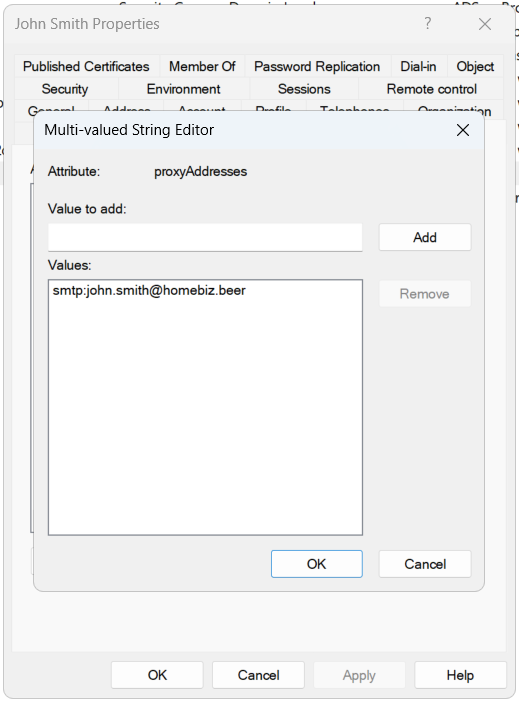
Set-ADUser -Identity jsmith -Add @{proxyAddresses="smtp:john.smith@contoso.com"}
Start-ADSyncSyncCycle -PolicyType Delta
-Add, never -Replace. -Replace overwrites the entire multi-valued array and would remove the onmicrosoft.com routing address and the SIP: entry.
Delta, not Initial. A delta cycle processes only changed objects and is correct for attribute edits. Initial is a full resync, needed when a rule or filter changed.
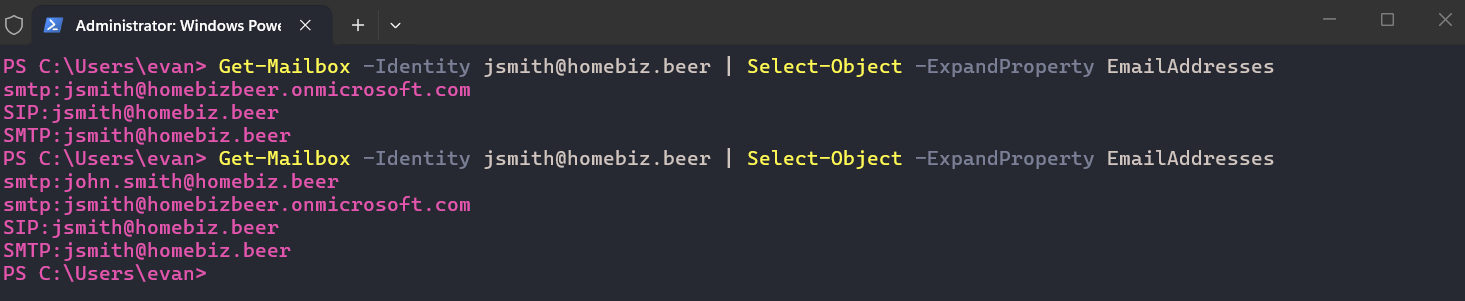
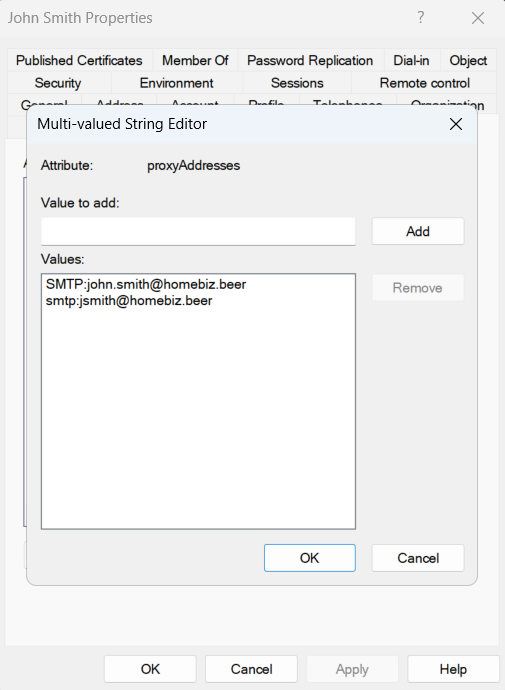 Promotion: the alias goes uppercase, the old primary goes lowercase. The on-premises
 mail attribute was updated to match – a separate single-valued attribute that many line-of-business applications read instead of proxyAddresses. Leaving it stale is the classic cause of “the new address works everywhere except the ticketing system.”
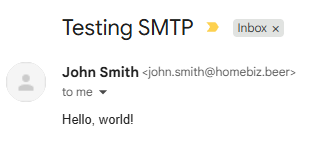
Finding – UPN is not primary SMTP
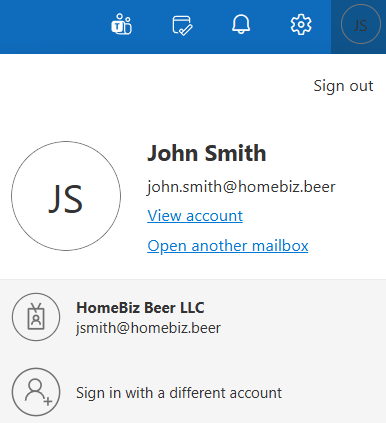 One panel, two different strings. One is the mailbox primary SMTP – the reply address. The other, beneath the organization name, is the UPN – the sign-in identity.
Separate attributes. Entra Connect syncs both. Editing one never touches the other.
The user now emails as one string and signs in as another, which is where the ticket “I changed my email but it says my password is wrong” comes from. They are typing the new address at the sign-in prompt.
In production, change both and communicate that sign-in is changing. In this lab the UPN was deliberately left alone: both workstations are hybrid Entra joined and Intune enrolled against it, and a UPN change forces re-authentication across every cached credential and token on the device.
Open item – carried forward honestly. Field testing appeared to show sign-in succeeding with both the old UPN and the new primary SMTP. That is not the documented default. Microsoft’s Email as an alternate login ID enables sign-in with proxyAddresses, but requires explicit enablement via Home Realm Discovery policy or staged rollout, and it explicitly does not support Entra hybrid joined devices. The likelier explanation is a cached browser session plus OWA displaying the primary SMTP address in the account panel rather than the sign-in identifier. Recorded as unverified pending a cold-session test.
Task 6 – SharePoint external sharing
Three layers, most restrictive wins
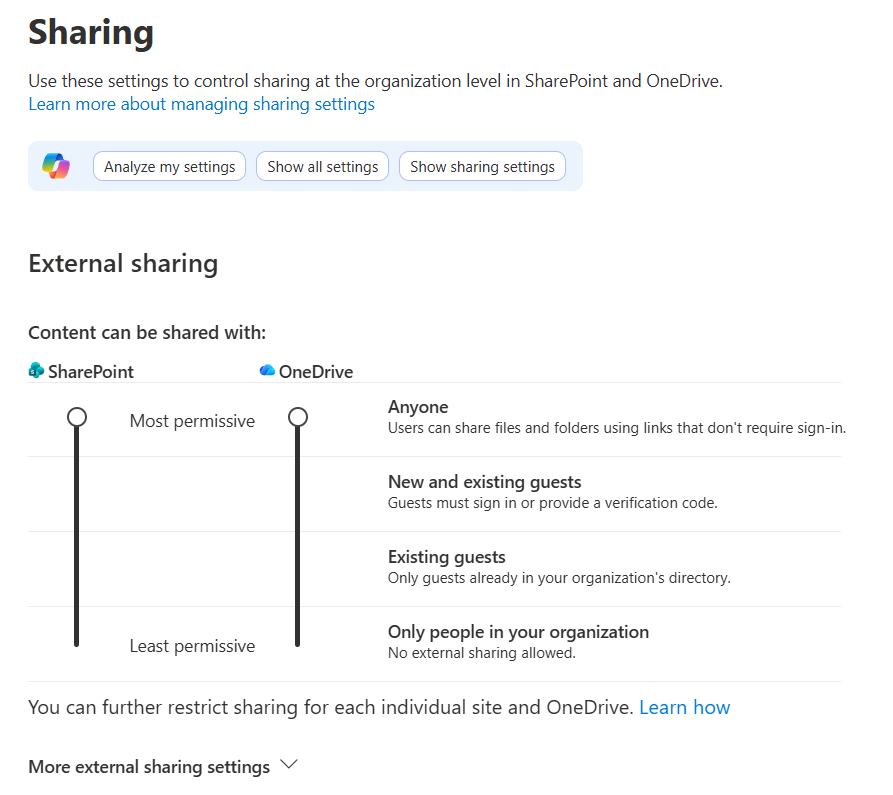 Both sliders at Anyone – the most permissive setting available. Any licensed user could generate an anonymous link to any file they could access: no sign-in, no identity, no audit trail tied to a person, and the link works for whoever it is forwarded to.
| Layer | Where | Scope |
|---|---|---|
| Tenant | SharePoint admin center → Policies → Sharing | Ceiling for everything |
| Site | Active sites → site → External sharing | Cannot exceed tenant |
| Item | The Share dialog | Cannot exceed site |
Diagnose top down. The user sees a greyed-out option at the item level; the cause is usually two layers up.
SharePoint and OneDrive are set independently – OneDrive more permissive than SharePoint is a common misconfiguration, easy to miss because the sliders sit side by side.
Breaking inheritance
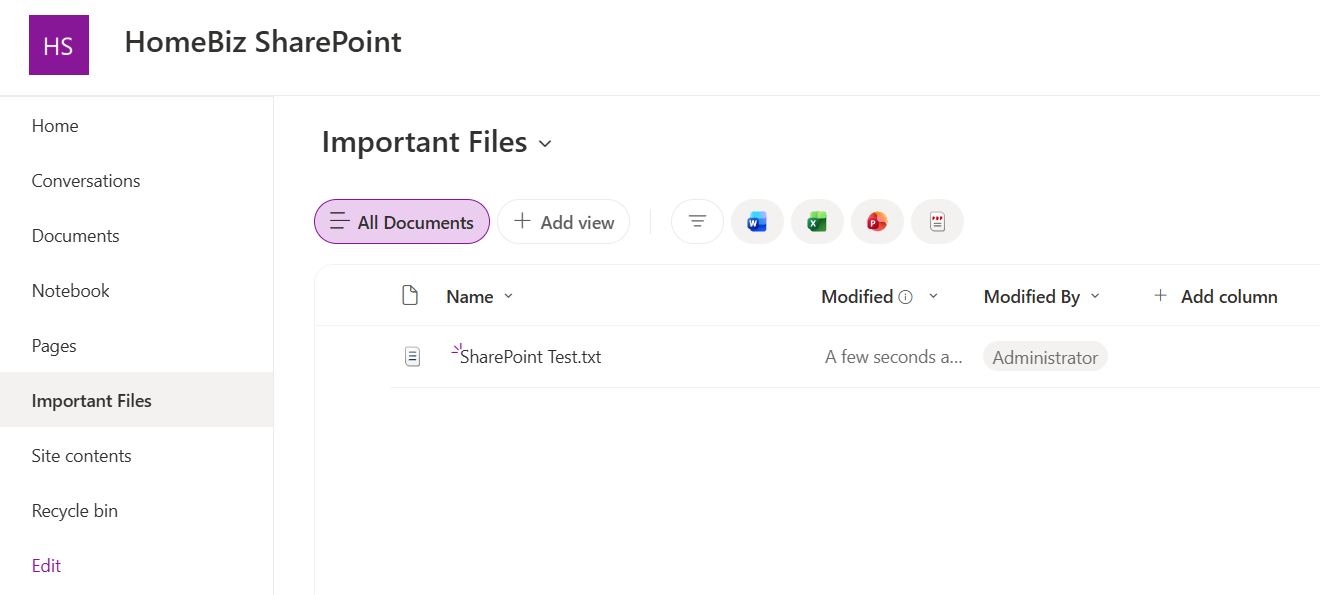
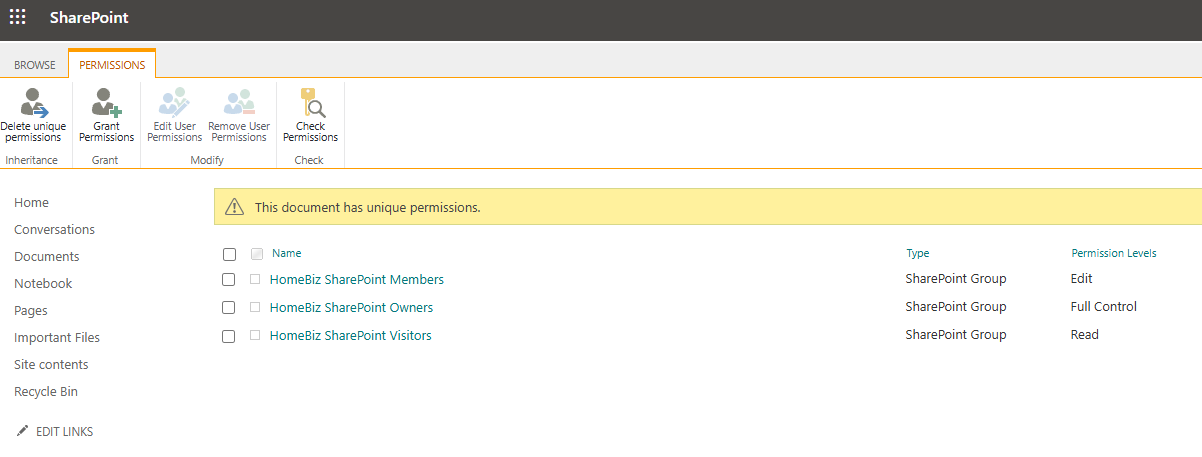 “This document has unique permissions.” The list immediately afterwards is an exact copy of what was inherited – breaking inheritance restricts nothing by itself, which is why people assume it failed.
Every broken-inheritance object is a permission set nobody will ever review again. It does not surface when you audit the site and it silently diverges from the parent forever. In a Copilot tenant this is precisely where surprises live – Copilot surfaces anything a user technically has access to, so permissions people forgot about become search results.
Finding – the people picker trap
The first external share produced no email at all – not in the inbox, not in spam – and no guest object appeared in Entra either.
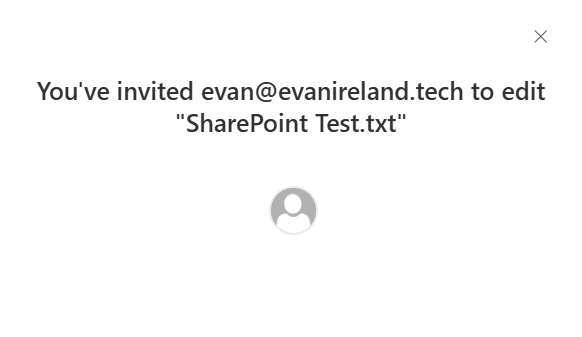
The break-glass Global Administrator account carried a display name identical to the intended external recipient’s. The people picker resolved to it. The file had been shared internally, with an emergency access account, and the dialog had said exactly that at the time.
Every piece of evidence fit:
| Observation | Explanation |
|---|---|
| No email anywhere, not even spam | Nothing was ever sent externally |
| No guest object in Entra | No external user was invited |
| Confirmation named a person | It resolved to a directory object |
| Post-inheritance permissions showed no external principal | Confirms it |
The dialog named the recipient. It was the first screenshot taken, and it was read past.
Two corrective actions:
- Type the full address; do not accept an autocomplete suggestion when sharing externally.
- Rename the break-glass account to something unmistakable –
BREAKGLASS - Emergency Access (DO NOT USE). Display name only; the UPN is the credential used in an actual lockout and must stay exactly as documented. A break-glass account named after a person is both a picker hazard and an audit-legibility problem: its sign-ins should look alarming in a log, not routine.
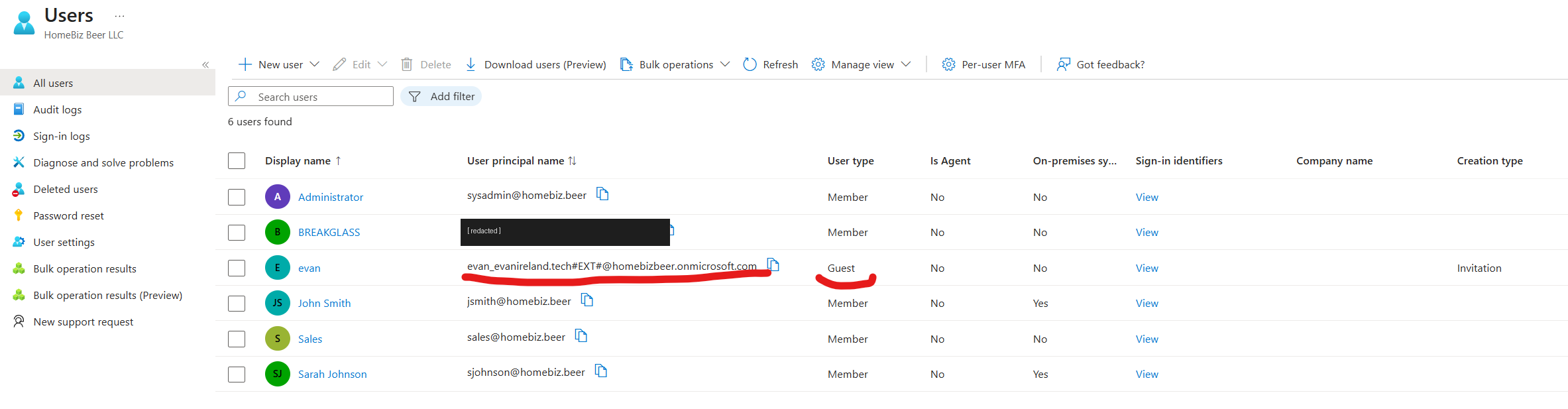 After remediation: the break-glass account renamed, and the successful external share’s guest object present with
 #EXT# in its UPN.
Finding – sharing invitations are not in message trace
Reaching for message trace here wastes your time. SharePoint sharing invitations are sent by SharePoint’s own notification infrastructure from no-reply@sharepointonline.com. They do not originate from a mailbox in the tenant and do not appear as outbound messages in an Exchange Online trace.
Knowing which tool does not apply is worth as much as knowing which one does. Somebody who traces for twenty minutes and turns up nothing walks away concluding the system is broken.
Microsoft documents two causes for a sharing invitation not arriving:
- The sending address is flagged as spam by the recipient’s provider.
- The
Emailproperty on the sender’s Entra user profile is empty. The invitation is sent on behalf of the sharing user and pulls that identity from Entra → Contact Information → Email – a separate field from the mailbox’s primary SMTP address.
(Same class of problem as the on-premises mail attribute in Task 5: the same logical concept lives in several attributes across several systems, and they do not update each other.)
Ceiling vs mechanism
The successful external share created a guest object and required the recipient to enter a verification code.
user_example.com#EXT#@tenant.onmicrosoft.com Guest Invitation
Original address with @ replaced by _, then the #EXT# marker, then the host tenant’s initial domain. Guests live in your namespace, not theirs – which is why they appear in your people pickers and why #EXT# is the string to filter on when auditing external access.
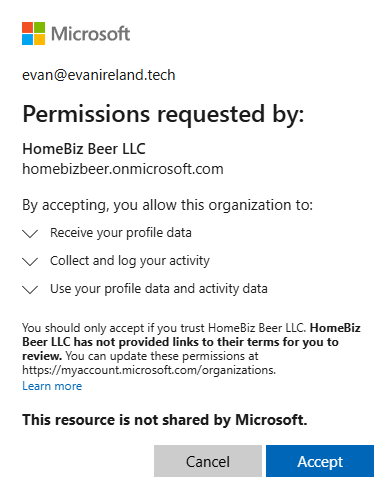
This is not “Anyone” behavior. Anonymous links require no sign-in, create no directory object, and issue no verification code at all, so a named-recipient share is a different mechanism operating at a lower minimum requirement:
| Mechanism | Minimum tenant setting | Creates guest? | Verification |
|---|---|---|---|
| Anonymous “Anyone” link | Anyone | No | None |
| Specific external person | New and existing guests | Yes | Email code or sign-in |
| Existing guest only | Existing guests | No | Sign-in |
The tenant setting was the ceiling. The share only required New and existing guests. Had the tenant been at Existing guests, this exact share would have failed. Client-facing consequence: “can we still share with clients if we turn off Anyone links?” – yes.
Second trap in the same task: with the tenant set to Anyone, the Share dialog still did not offer an Anyone link. Which link types appear is governed by a separate File and folder links section further down the same settings page, and by the site-level setting. Three places to check, not one.
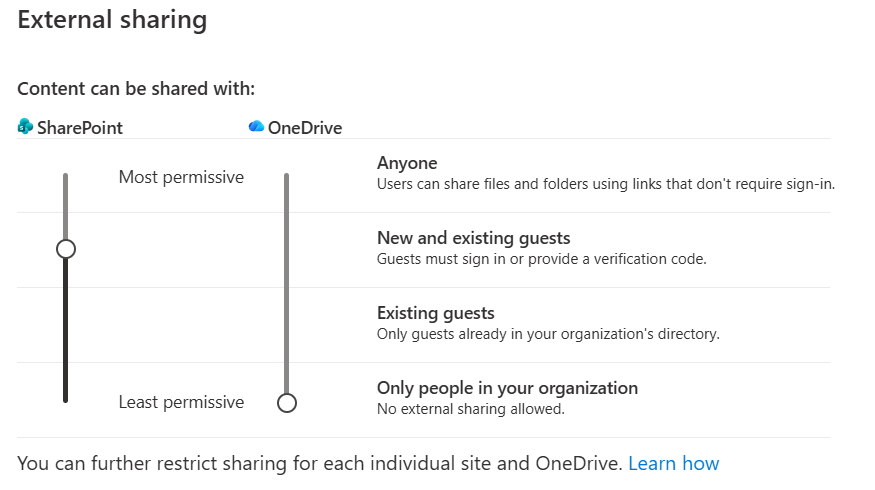 Closing state: SharePoint returned to New and existing guests, OneDrive to organization-only.
Access finding: the Manage access surface required the SharePoint Administrator role, and the correct response to that is granting the one role you diagnosed rather than a stack of them. The production answer to standing admin roles is Privileged Identity Management – eligible rather than active, elevated just-in-time. PIM requires Entra ID P2 and Business Premium includes P1, so it is not available on this SKU.
Task 7 – Sensitivity labels and DLP
The task with the most consequential finding in the project.
Business Premium licensing boundary
| Included | Requires E5 / E5 Compliance |
|---|---|
| Creating and publishing sensitivity labels | Auto-labeling – client-side and service-side |
| Manual labeling in Office apps | Sensitivity labels as a DLP condition |
| Encryption / RMS on labels, headers, footers, watermarks (AIP P1 – E3 not required) | Endpoint DLP |
| Scoping a label to a specific group | Insider Risk Management, Communication Compliance |
| DLP for Exchange Online, SharePoint, OneDrive | Custom trainable classifiers, Exact Data Match |
Design consequence: build labels for manual application and build DLP on sensitive information types, not on labels. A label-conditioned rule on Business Premium saves without complaint and silently never matches – the worst possible failure mode.
Creating a label is not publishing it
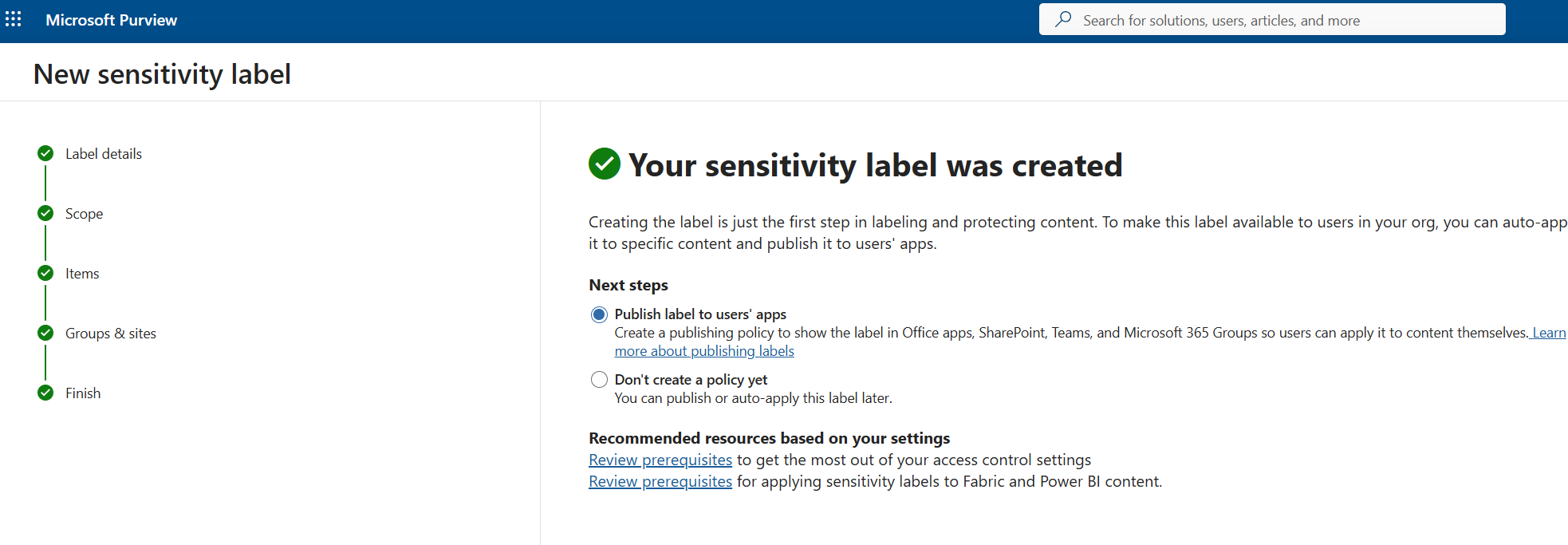
Two separate operations in two separate places. Creation happens under Information Protection → Sensitivity labels and publication happens under Label policies, and a label that exists without being published appears nowhere at all – which is the single most common “I created a label and nobody can see it” ticket.
Deferred, honestly: the label was created and published but had not appeared in client apps at the close of the project. Microsoft documents up to 24 hours for label policy propagation. Verification deferred rather than claimed.
DLP policy
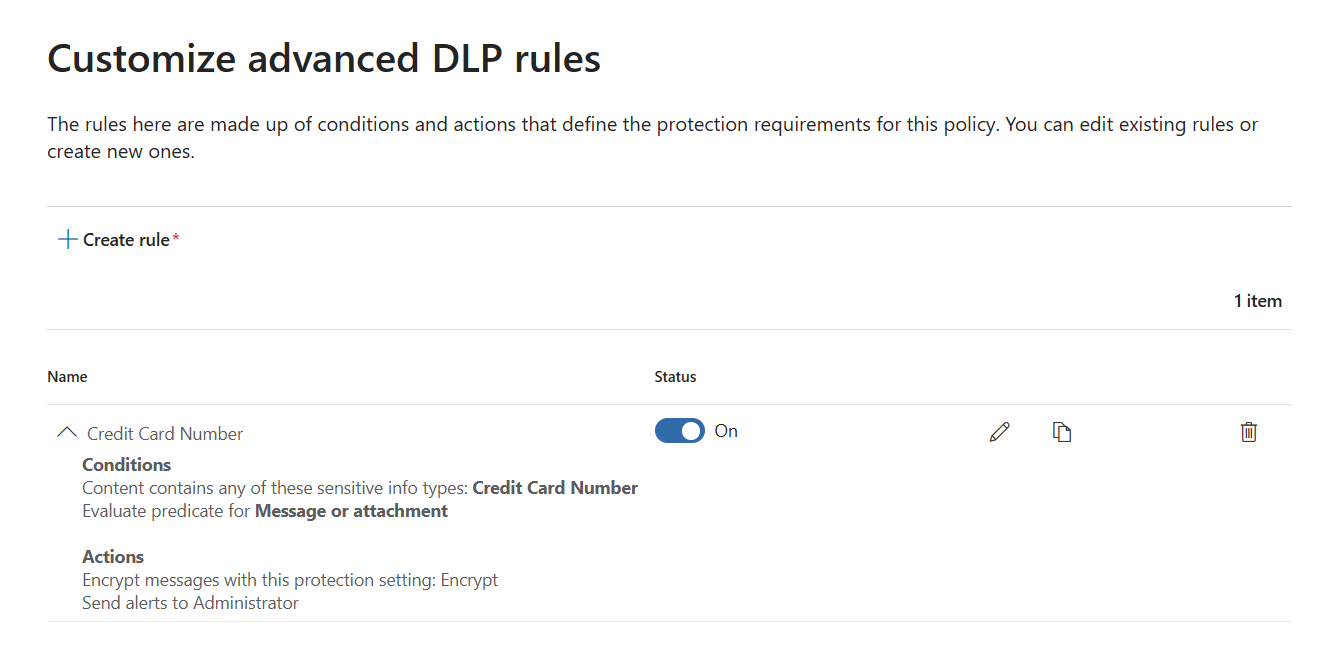
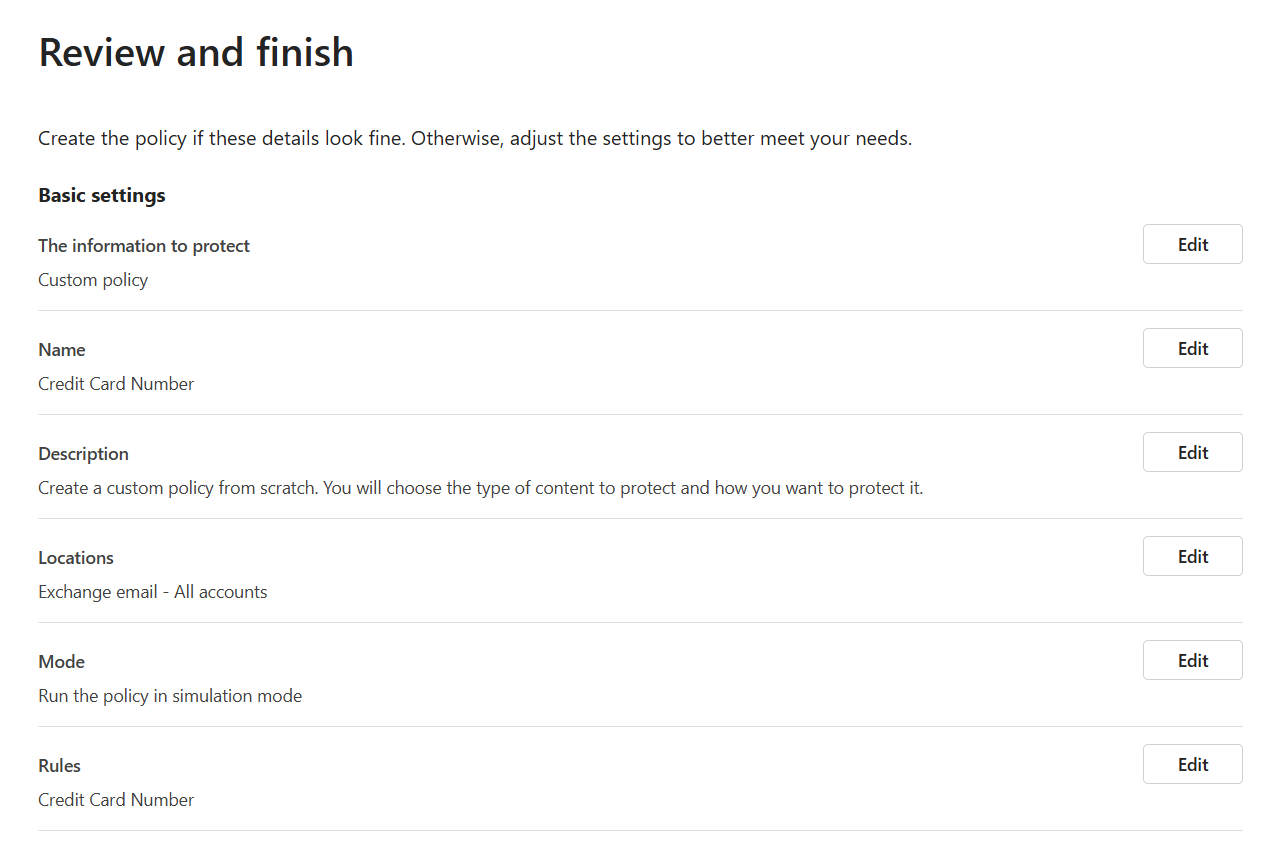
| Field | Value |
|---|---|
| Location | Exchange email |
| Condition | Content contains Credit Card Number, confidence High |
| Action | Encrypt; send alerts to Administrator |
| Mode | Simulation |
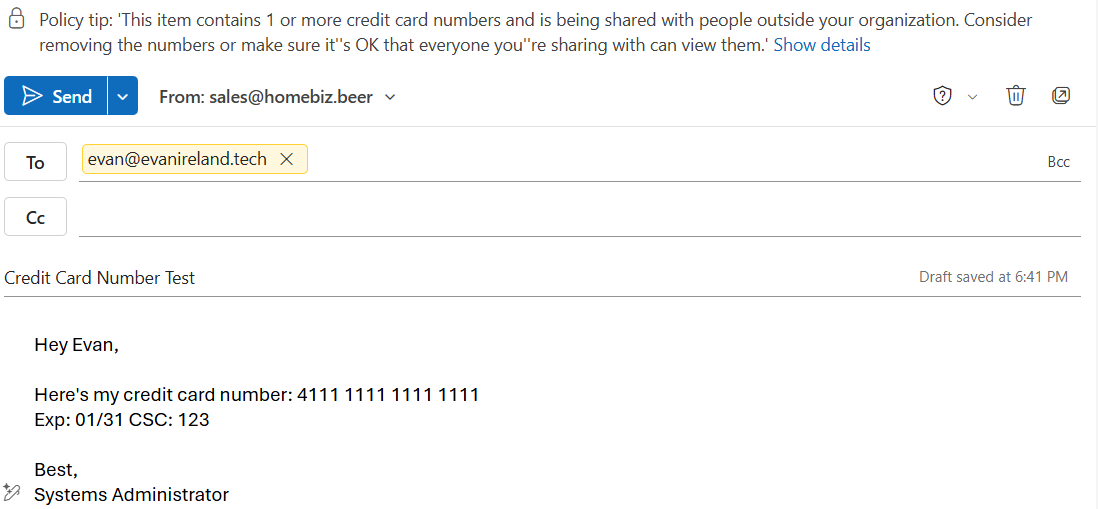 The policy tip fires in the client before send.
Finding – simulation mode produces the full appearance of enforcement
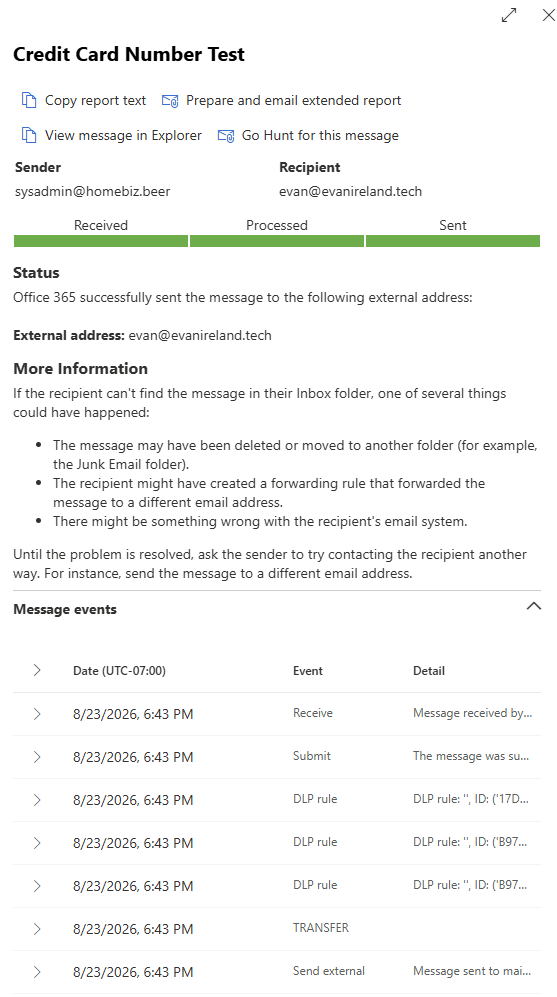
The trace showed three DLP rule evaluations, the client showed a policy tip before send, and the sender received a notification reading “You shared content that contains 1 or more credit card numbers with people outside your organization.”
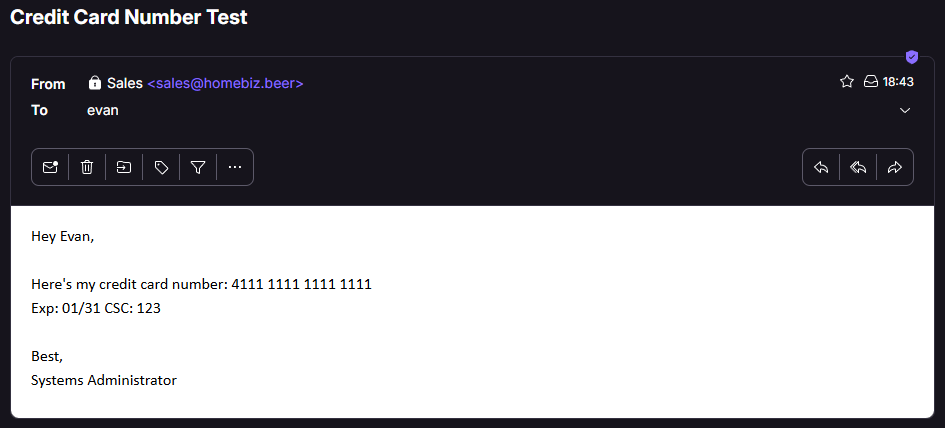
And the card number arrived at the external recipient in plain text.
The policy was then switched to enforcement and the identical test repeated thirty-three minutes later:
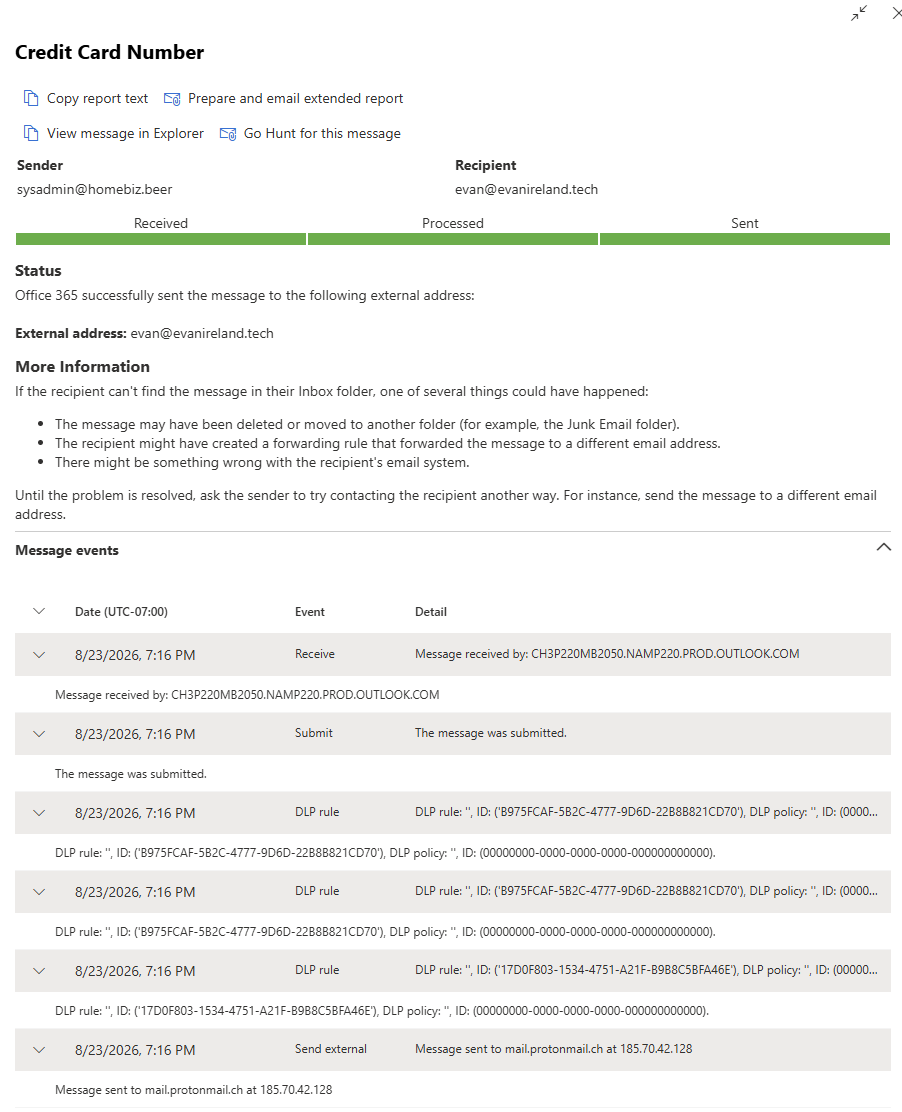
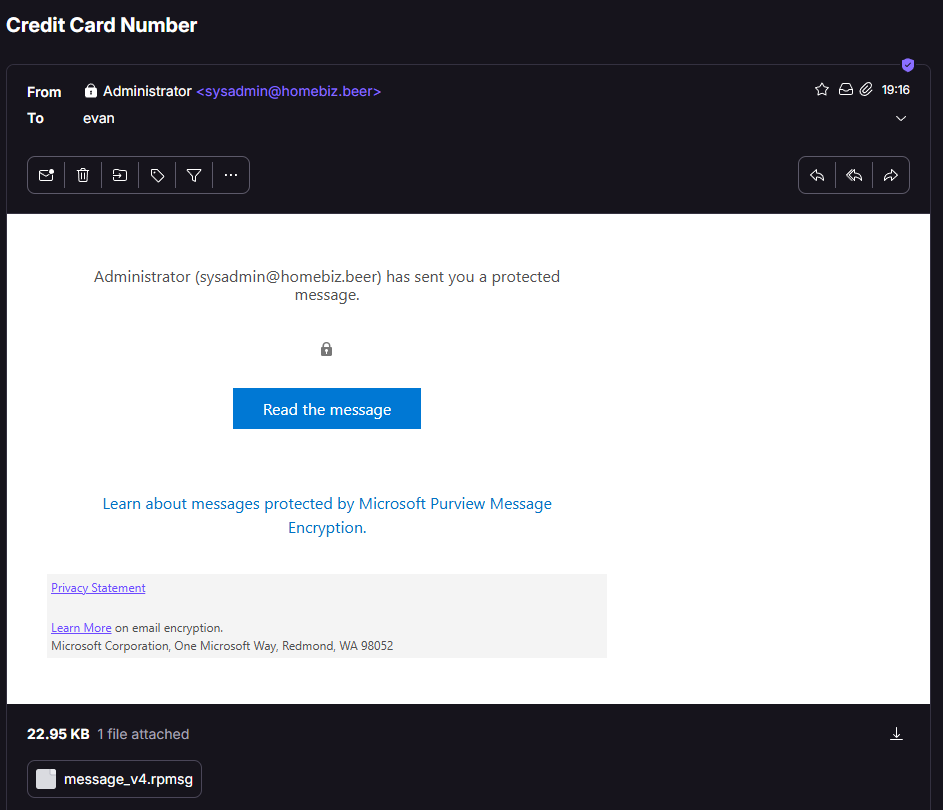
| Simulation, 6:43 PM | Enforcement, 7:16 PM | |
|---|---|---|
| Message trace events | Receive → Submit → DLP rule ×3 → Send external | Receive → Submit → DLP rule ×3 → Send external |
| Policy tip in client | Yes | Yes |
| User notification | Yes | Yes |
| What the recipient received | Plaintext card number | Encrypted .rpmsg wrapper |
The message trace is effectively identical in both modes. Neither the trace nor the policy tip can distinguish a simulated match from an enforced one.
The only reliable verification that DLP is enforcing is confirming the action occurred at the far end – the message was blocked, encrypted, or the recipient received something different from what was sent. Never accept a policy tip as evidence of enforcement.
An administrator who deployed this and walked away would believe the tenant was protected. It was not, and nothing in the console would have said otherwise.
Finding – Encrypt is not Block
Note that the enforcement trace still ends in Send external. Encrypt wraps the message and delivers it, and the recipient authenticates to open it, which means the data still leaves the organization – protected in transit and at rest, but not withheld.
If the requirement is “this must not leave,” the action is Block. Clients conflate the two constantly, and the distinction is the whole conversation once compliance is in the room.
Supporting observations
Confidence level is the noise dial. The Credit Card Number classifier requires a number passing the Luhn checksum plus corroborative evidence – an expiration date, a security code, or a keyword such as “credit card.” Any one suffices, which is why a second test omitting the expiry and CSC still matched at High confidence.
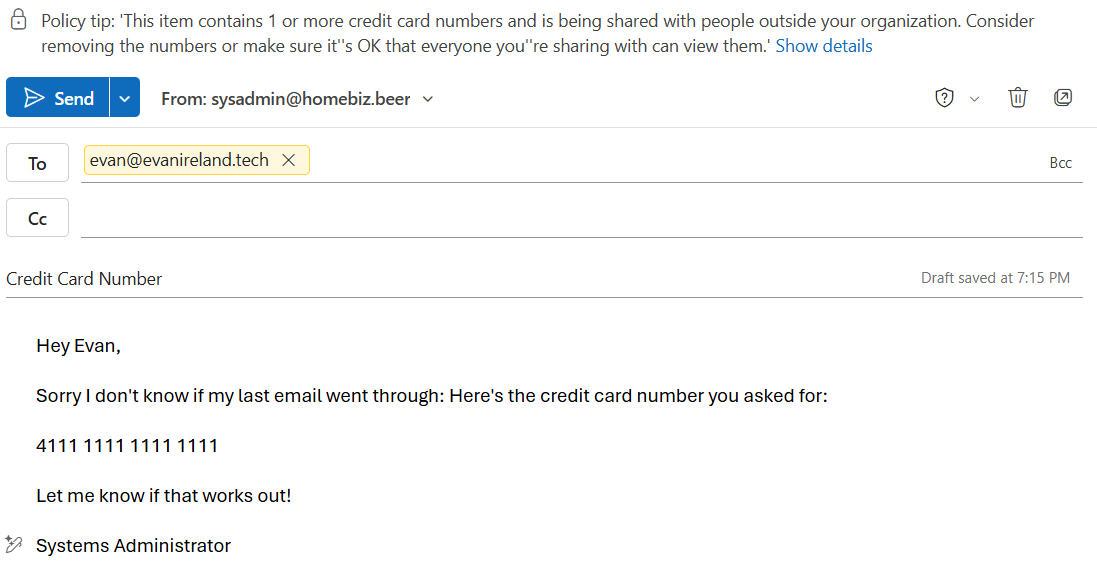
When a client says “DLP isn’t catching things,” confidence threshold is the first setting to check – and it is the same setting when they say “DLP blocks everything.”
Reporting is batched, not real-time. Policy tips and trace events are inline and instant; alerts, reports and Activity Explorer lag by hours. An empty report five minutes after a test proves nothing.
Two notification paths, two audiences. The user notification (“You shared content…”) is an entirely different mechanism from the Send alerts to Administrator rule action, which means receiving one of them is no evidence at all that the other one fired.
Check what is already running. The trace showed more DLP rule evaluations than policies created, with distinct rule IDs – Microsoft-provisioned default policies ship enabled in newer tenants. “What is already running here that I did not put there?” is the first question in any inherited environment.
Cross-cutting findings
The three most valuable findings were not specific to any one product. Each turned up in a different service, and taken together they read as doctrine rather than as trivia.
1. An override makes your diagnostics lie
Encountered three times, in three unrelated products, in a day and a half.
| Override | What it broke |
|---|---|
Wildcard * CNAME in the DNS zone |
Every “does this record exist?” query returned a valid answer. Five missing records all appeared present. |
| Allowed-sender entry in an anti-spam policy | Every “is filtering working again?” test delivered successfully, whether or not the revert had taken. |
| DLP policy in simulation mode | Policy tips fired, message trace logged rule events, the user got a notification – and the data left unprotected. |
A configuration override does not only change behavior. It changes what your tests report, and it does that silently. The test still runs, it still returns a result, and the result still looks like an answer.
Rules:
- Remove overrides before testing, not after. A revert verified while an override is active is not verified.
- Verify at the far end. DNS answering is not mail flowing. A policy tip is not enforcement. Check what the recipient actually received.
- When a result matches your expectation, ask what the test could not have told you. Agreement is not confirmation.
- In an inherited environment, inventory the overrides before trusting any diagnostic. Wildcard DNS records, allow lists, disabled and/or simulation-mode policies are all invisible until somebody goes looking for them specifically.
2. Read the screen before you diagnose
| Incident | What the screen already said |
|---|---|
| DNS delegation failing for 45+ minutes | “DNSSEC is not supported by Microsoft 365 DNS hosting” – a banner in the admin center |
| SharePoint share “never arrived” | The confirmation dialog named the actual recipient – a different, internal account |
Unexplained Drop in a message trace |
The detail read LED=250 2.1.5 RESOLVER.GRP.Expanded – 250 is a success code |
Before forming a theory, re-read every banner, confirmation and error detail already on screen. Expand the truncated ones. Diagnostic effort spent before this step is usually wasted.
3. Change one thing at a time
Two failures in this project could not be attributed cleanly because two variables moved together – a Task 2 revert paired with an allow-list addition, and a missing SharePoint role granted alongside two others that were never tested against a symptom.
When two things change at once, causality is gone, and in a client environment that is the difference between a root cause and a guess that gets repeated later.
Corrections to prior understanding
| Previously believed | Correct |
|---|---|
| GTUBE is a universal spam-filter test string | Not documented as supported by EOP; does not reliably trip it |
| Business Premium sensitivity labels cannot do encryption | They can – Business Premium includes AIP P1, covering RMS encryption and visual markings. E3 is not required |
| Sensitivity labels can be used as DLP conditions on any SKU | Business Premium’s DLP engine does not evaluate labels. Also a condition, not an action |
| A policy tip proves DLP is protecting data | Policy tips and trace DLP events fire identically in simulation mode |
| DKIM selector CNAME targets follow a predictable pattern | Format changed May 2025; includes a dynamically assigned partition character. Must be read from the portal |
| Publishing DKIM CNAMEs and enabling signing are always two distinct manual steps | Depends on the path used to obtain the values. Never assume the toggle state – check it |
| Changing primary SMTP means the old address can no longer be used to sign in | The old address remains the UPN and still works. Whether the new address also works depends on a feature that is off by default – open item |
Deferred and unverified
Recorded here rather than glossed over and/or quietly dropped.
| Item | Status |
|---|---|
| Sensitivity label visibility in client apps | Created and published; had not propagated at close. Microsoft documents up to 24 hours. Verification deferred. |
| Sign-in with a non-UPN proxy address | Observed but not cleanly tested – likely a cached session plus OWA display behavior. Requires a cold-session test. Unverified. |
| Anonymous “Anyone” link end-to-end test | Blocked by the File and folder links setting; not completed before the tenant was returned to New and existing guests. |
| Admin alert delivery from the DLP rule | User notification confirmed; admin alert not separately confirmed against the batched reporting pipeline. |
Closing state
| Item | Final state |
|---|---|
| Public DNS | Full record set published. SPF, DKIM, DMARC all passing at an external receiver |
| DMARC | p=none – monitoring only, not enforcement. Ladder to quarantine and reject documented |
| Anti-spam policy | Reverted to defaults. Allowed-sender entry removed |
| Shared mailbox | sales@ with Full Access, Send As, Send on Behalf; Sent Items copy enabled |
| Groups | One distribution group, one mail-enabled security group, both cloud-managed |
| Mailbox addresses | Alias added and promoted on-premises; mail attribute aligned; UPN deliberately unchanged |
| SharePoint sharing | Returned to New and existing guests. One guest object retained as an artifact |
| Purview | One label created and published; one DLP policy enforcing on Exchange email |
| DNSSEC | Off. To be re-enabled as a separate, deliberate change with independent verification |
Skills demonstrated
Public DNS and email authentication – MX, autodiscover and service discovery CNAMEs, SPF include: mechanics, DKIM selector publication and validation, DMARC policy laddering from p=none to enforcement, NXDOMAIN vs NODATA, wildcard record hazards, DNSSEC DS-removal ordering, delegation vs in-zone NS records, Resolve-DnsName inventory scripting
Exchange Online – message trace and event-chain interpretation, Message-ID vs MessageTrace ID, mail flow origin analysis, shared mailboxes, Full Access / Send As / Send on Behalf and their three separate storage locations, automapping, sent-items behavior for delegates, distribution groups vs mail-enabled security groups, group expansion tracing, proxyAddresses and primary SMTP promotion, Exchange Online PowerShell
Microsoft Defender for Office 365 – anti-spam policy configuration and priority, quarantine vs junk, quarantine policies and end-user release rights, quarantine release, blocked and allowed sender management, DKIM administration
SharePoint Online – site and library creation, permission inheritance and unique permissions, the tenant / site / item sharing hierarchy, external sharing mechanisms, B2B guest objects and #EXT# naming, SharePoint Administrator role scope
Microsoft Purview – sensitivity label creation, publication and policy scoping, DLP policy design on sensitive information types, simulation vs enforcement, Encrypt vs Block, confidence levels and corroborative evidence, Business Premium vs E5 feature boundaries
Hybrid identity operations – source-of-authority boundaries, IsDirSynced verification, on-premises attribute edits with delta sync, -Add vs -Replace on multi-valued attributes, UPN vs primary SMTP as separate identifiers
Practice – baseline capture before change, root-cause analysis over workaround, verification at the far end rather than at the console, override inventory, one-variable-at-a-time testing, honest recording of deferred and unverified items
Next iteration
Carried forward, in priority order:
- Cold-session test of sign-in with a non-UPN proxy address – close the open item rather than leaving it recorded
- Confirm sensitivity label propagation to client apps and complete the manual-labeling test
- Mailbox auditing and unified audit log search, driven by the Send As attribution gap this project exposed
- Mail flow rules – the deterministic SCL-stamping method for filter testing, and the transport-rule surface generally
- DMARC monitoring in practice: collect
ruaaggregate reports and walk the ladder top=quarantine - Smaller project scopes. Both projects so far have run long enough that verification discipline degraded toward the end, and that is a process problem rather than a knowledge problem
Screenshots
The full capture set, ordered by task. Any image opens full size when clicked.
This project was carried out on personally owned hardware and a personally owned Microsoft 365 tenant. No client or employer data was involved at any stage. All accounts, domains and data are fictional; the credit card number used in the DLP test is a standard test value.